


A join add columns. A Union adds rows.
Joins let us combine data sources and add additional information. Data can be stored in different places and so it's useful to be able to join them back together. One requirement for a join is that there must be shared field between them - something both sides have in common to match rows on. In Alteryx, the join tool gives us three outputs: left, inner and right.
Unions allow us to stack tables on top of eachother. The most common use is with combining monthly reports into a single table.
This blog will show a worked example of how the join tool works in Alteryx, what the different outputs are and how using it alongside a union tool opens up further join types.
The Data
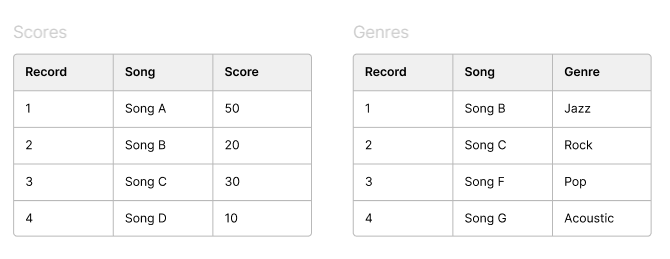
Here we have two tables containing information about songs. One contains information about the scores and one has genre information.
The Join tool
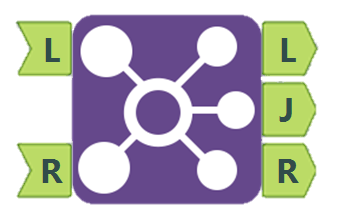
- The join tool takes two inputs, L and R, and gives 3 outputs.
- Every row from your two input anchors are in the output anchors - nothing gets removed, just placed into different places depending on the join conditions.
Join Configuration
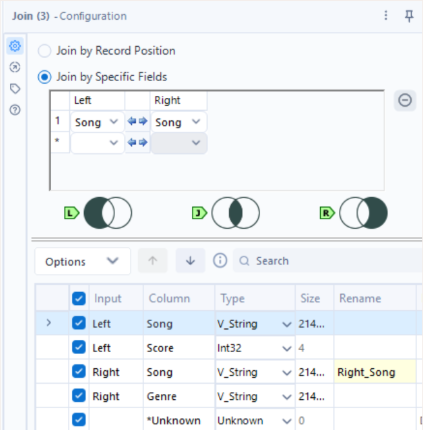
- With the join configuration, join by specific fields is what you'll want to use unless you want to match row 1 to row 1, row 2 to row 2, ignoring values entirely. This allows you to select the fields that you are joining on (what is the same in both inputs). In this dataset only the song column is the same so that is our join key.
- Below that, it previews what columns you are going to get as well as their data type. Here is a good chance to deselect any unnecessary columns or change column names.
Join Outputs
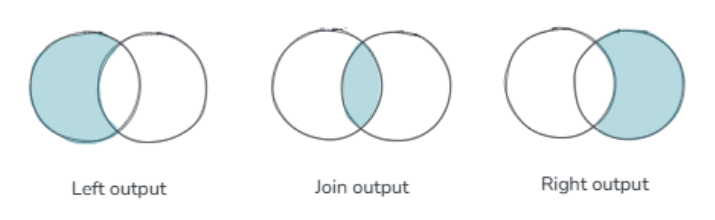
The Venn diagram show in the configuration displays what outputs can be found in each anchor.
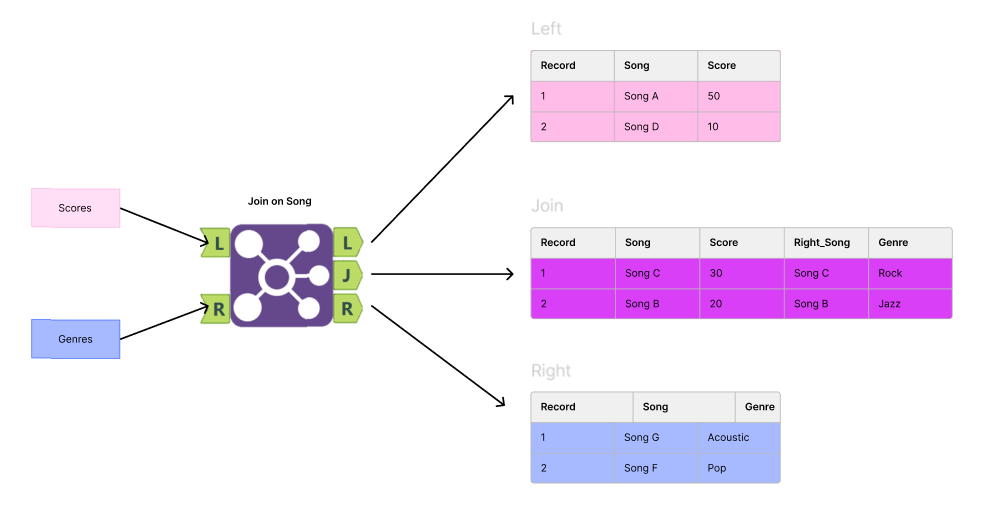
J - rows where the songs matched with columns from both inputs.
L - rows from left input that did not match anything from the right.
R - rows from right input that did not match anything from the left.
Left Outer? Right Outer? Full Outer Joins?
Now that we've been able to output our left, inner and right anchors individually, there are often other joins that might be useful. For example a left outer or full outer join. For a left outer join, this is simply the combination of a left join and inner join. Therefore, we just need a tool that stacks the two together.
Union Tool
- A union tool stacks tables on top of eachother, adding rows.
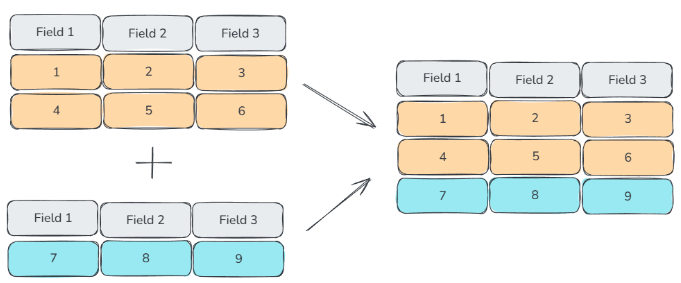
There are 3 options in the configuration screen
- Auto Config by Name
- Matches columns with the same exact name, even if in a different order
- Auto Config by Position
- Matches columns based on their order (e.g., first column with first column)
- Manually Configure Fields
- Gives you full control to match or exclude fields between inputs
All joins
Using the union tool, you can output the following joins:
- Left outer — L + J
- Right outer — J + R
- Full outer — L + J + R
Left Output Example
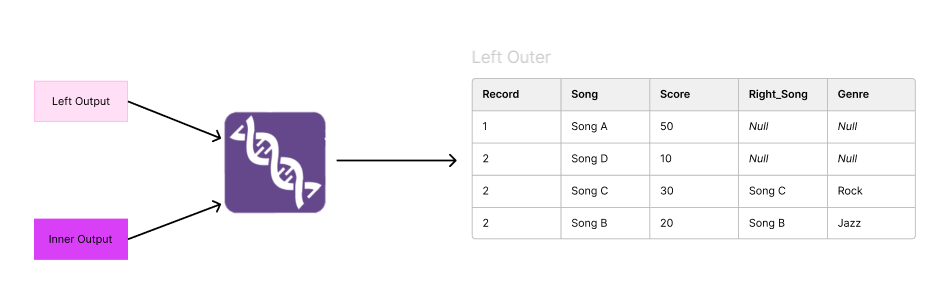
- The nulls are there because there is no genre information for Songs A and D.
- Use Case: This output can then be used with a summarise tool to work out how many songs don't have a genre.
Common issues
- Row counts going up after joins
- If a key appears twice on the left and three times on the right, you get six rows. Check for duplicate keys with a Summarize before you join.
- The join keys must match exactly
- "Song B" and "Song B " are different values, and a V_String won't join to an Int32. Trim and standardise with a Data Cleansing or Select tool beforehand. If you output an unexpected empty J anchor, this might be the cause.
- "Song B" and "Song B " are different values, and a V_String won't join to an Int32. Trim and standardise with a Data Cleansing or Select tool beforehand. If you output an unexpected empty J anchor, this might be the cause.