


What are table calculations?
Table calculations are like having a super power when it comes to understanding your data better. Crucially, they are applied to the data already sitting in your view (as opposed to LODs, for example, that ignore the granularity in your current view).
Rather than having purely SUM or AVERAGE, table calcs allow you to take things one step further; they can take those already aggregated numbers and then aggregate them again! So you could also have a Running Total, Rank, or Moving Averages, all performed using the data in your view.
Think of them like the dreams inside dreams in the movie Inception...table calcs are aggregations within aggregations.

How Does a Table Calculation Work?
Table calculations are particularly useful when we want to compare values, identify trends, or understand how individual dimensions/measures relate to one another through Addressing and Partitioning.
Addressing defines the direction in which the calculation moves (for example, down, across, across then down, or down then across) and Partitioning is how the view is grouped/broken down by the marks for the calculation to take place.
Examples
(1) Running Total
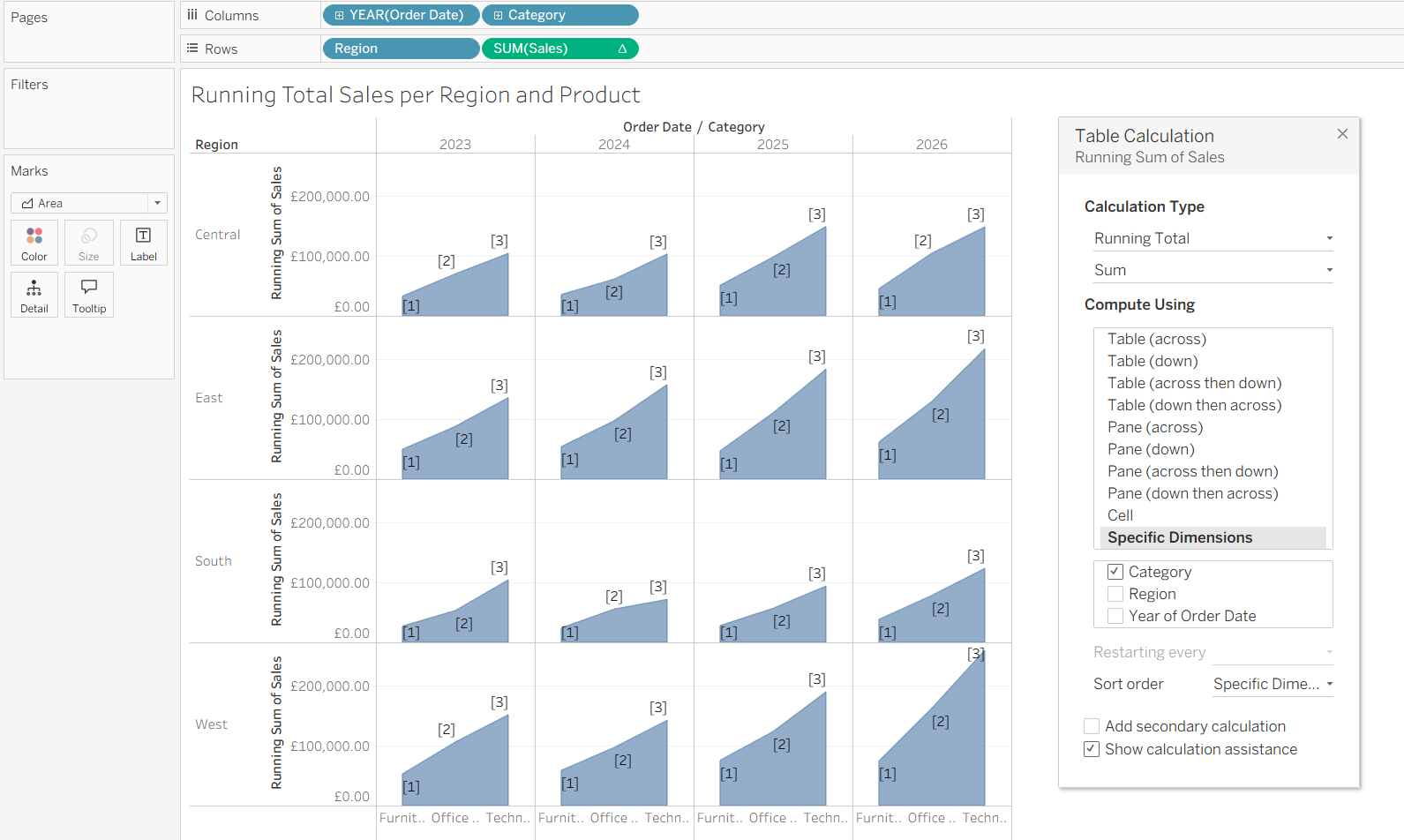
In this first example, we are looking at the Running Total for Sales across each Region and Year.
The calculation type is therefore Running Total, and we need to SUM each value in consecutive order from the start before returning the total for each partition (i.e. 1 to 2, 1 to 3, 1 to 4 etc).
In order to instruct Tableau to calculate based on what we want to sum (product by region per year), we need to tick the right box(es) for the Specific Dimensions.
It might be helpful to remember the following sentence: (the order that Tableau will calculate will be bottom to top from the options underneath Specific Dimensions)
- For every UNTICKED dimension (the partition), calculate the measure for every TICKED dimension (the addressing)
(Note: you can change the order of the fields by drag and drop, and the charts will change their order too)
Therefore, Year(Order Date) and Region are being Partitioned (unticked), while Category is Addressed (ticked).
The result: the Running Total completely resets each time it hits a new year OR a new region, and then each unique block of Year and Region sums the Category through Furniture, Office Supplies and Technology. See below:
(2) Rank
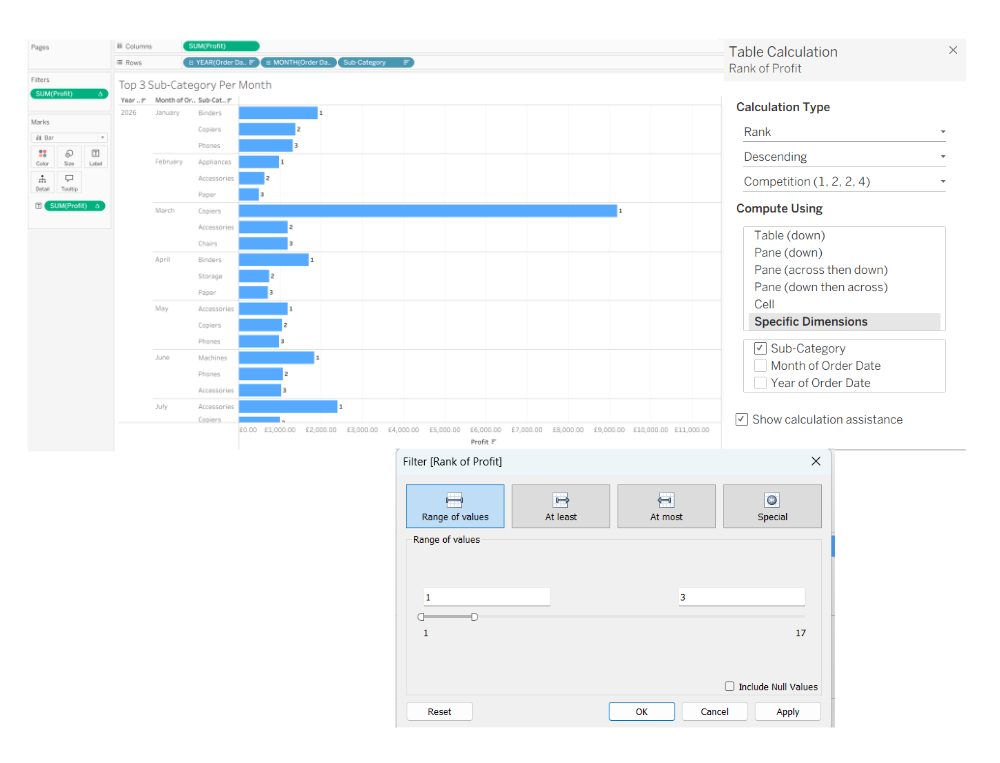
This example uses a Rank table calculation to filter the view down to show only the top 3 sub-categories by profit for each separate month.
- Rank Type: Descending for Profit (this could also be Unique rather than Competition style Rank)
- Partitioning: Year and Month of Order Date
- Addressing: Sub-Category
- The additional magic of table calcs is that you can use them as filters. Take the SUM(Profit) pill that has the table calculation applied to it (look for the little triangle/delta symbol on your Rows/Columns or Marks card) and drag it onto the Filters shelf whilst holding ctrl (or Command on a Mac) to duplicate it. This opens the filter window shown below, allowing you to easily restrict the view to ranks 1 to 3. You can also show the filter on your dashboard to let users interactively view any number of ranks up to 17.
Summary
Table calculations in Tableau can really take your charts to some interesting places. Just remember, Table Calculation filters are uniquely affected by what is sitting in your visual view because they execute late in Tableau's Order of Operations. Keep in mind that the unticked boxes will be partitioned (the walls) and the ticked boxes will be addressed (the path the aggregation follows).
PS. I've also written a step through blog on how to build a bump chart using table calculations: https://www.thedataschool.co.uk/michael-lamprell/howtobuildabumpchart/