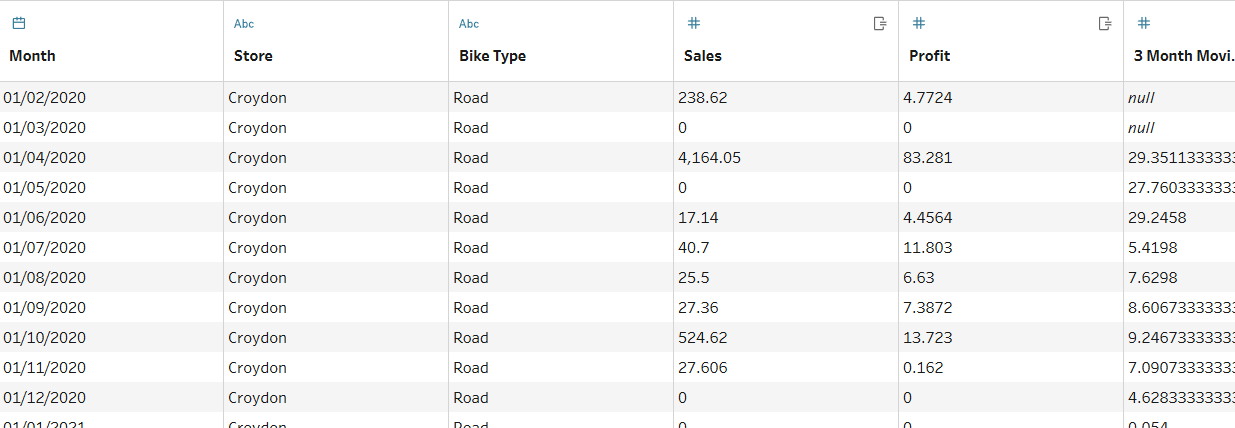
Scaffolding allows you to create date columns that fill in the gaps of your existing date data. Originally the scaffolding would be done in a more long-winded way but in the latest version of Tableau Prep you can do this by adding New Rows.
For example, you have an orders table from a small business which also includes the dates where the orders were placed. Some days would have no orders hypothetically, so these would not exist in the dataset. We can treat this by creating a date scaffold that resembles a continuous timeline so you can visualize trends accurately, even on quiet days.
Below I've added my walkthrough of a Preppin Challenge # Week 29 2023 (https://preppindata.blogspot.com/2023/07/2023-week-29-moving-averages.html) which might give you a better idea of how scaffolding works.

Before we begin with the scaffolding steps, this exercise requires the dates to be filtered up to June and then be converted to the 1st of each month.
DATETRUNC('month',[Date])
Then we need to calculate the total sales and total profit for each store and type of bike per month.
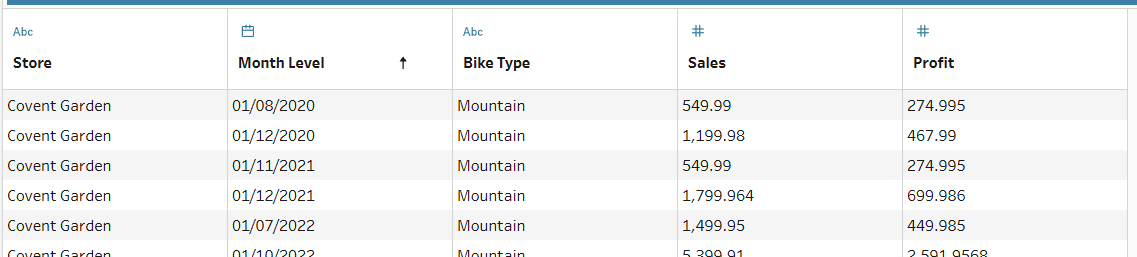
It's clear from the resulting table that there are gaps in the Month field. The first step we need to take is create a field that uses a LOOKUP to look for the next existing order date in the Month field. Name this Next Sales Date.
Next Sales Date =
{PARTITION [Store],[Bike Type] : {ORDERBY [Month Level] asc : LOOKUP([Month Level],1)}}
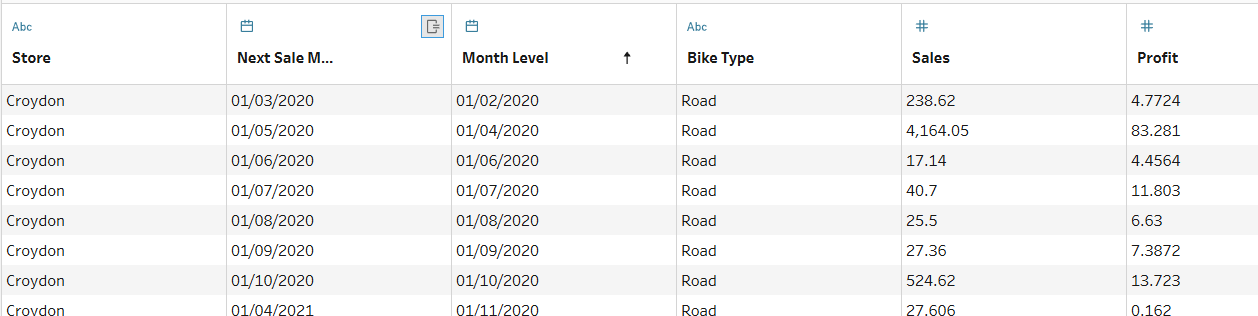
You'll notice that the last value in this new field is null, this is expected because there is no available date after the last date in the Month field. To fix this we need to find the latest sales date by creating a calculated field and merge it with our Next Sales Date field.
Max Sales Date =
{ FIXED : MAX([Month Level])}
The next step is to reduce that field by 1 month so that we can have a closer resemblance of the generated Next Sales Date, which would somewhat fill the gap between the existing dates. Tip: Create a calculated field named after the field that we created in the step before, this will override the existing field.
Date(DATEADD('month',-1,[Next Sale Month]))
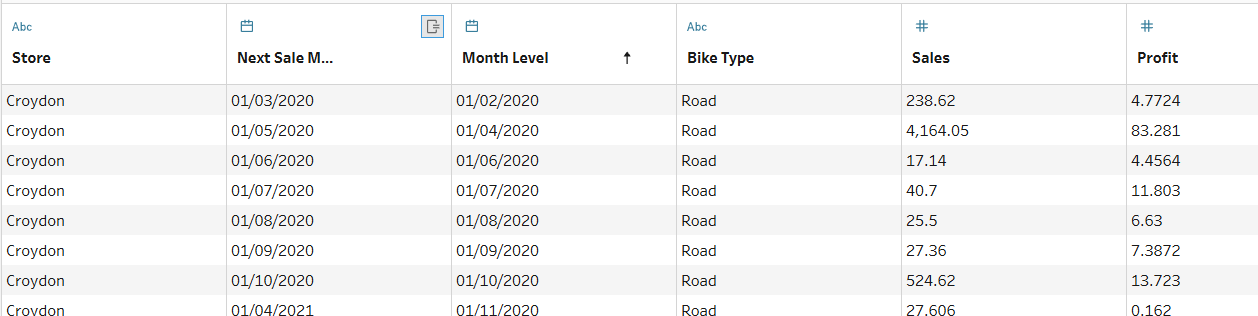
The field we just created looks like it's filled in the gaps for us, but if we look closely there are duplicates of the dates that we already had at the start of this exercise. This is where the Scaffolding begins.
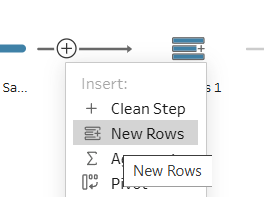
Step 1: Add a scaffolding step by adding "New Rows" to your clean step.
Step 2: In the configuration window, you need to add value ranges from the two date fields in the table. Note that the min date field must be less or equal to the max date field; So it makes sense to use the Month field on the left of the equation. Then you need to specify the value increment that you want the dates to populate by; In this case, you want to set that to 1 (to create consecutive months). The new rows in this case will also need to have the value of the previous row, so make sure to select that option from the dropdown!
Step 3: The exercise wants us to calculate the 3 month average, but currently we've got months were the profit and sales values are repeated even for dates that we just created which is not accurate. These new dates should have 0 profit and sales. Therefore, we will need the following calculations to fix that:
Profit =
IF [Month Level] = [Month] THEN [Profit]
ELSE 0
END
Sales =
IF [Month Level]=[Month]
THEN [Sales]
ELSE 0
END
Step 4: Remove any unnecessary fields and create a moving calculation by clicking the 3 dots on the upper right corner of the Profit field.
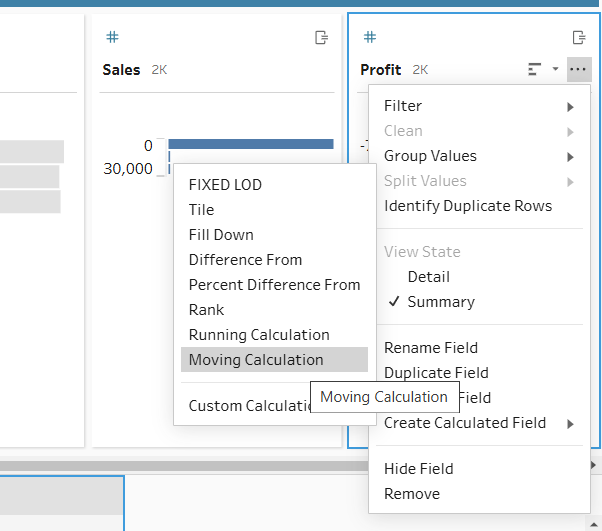
Step 5: Use the below configuration for the moving average calculation, as you need to group by store, bike type and order by month ascending. You need to set the results to Average and select based on the previous 2 values, remember to leave the exclude current value unticked.
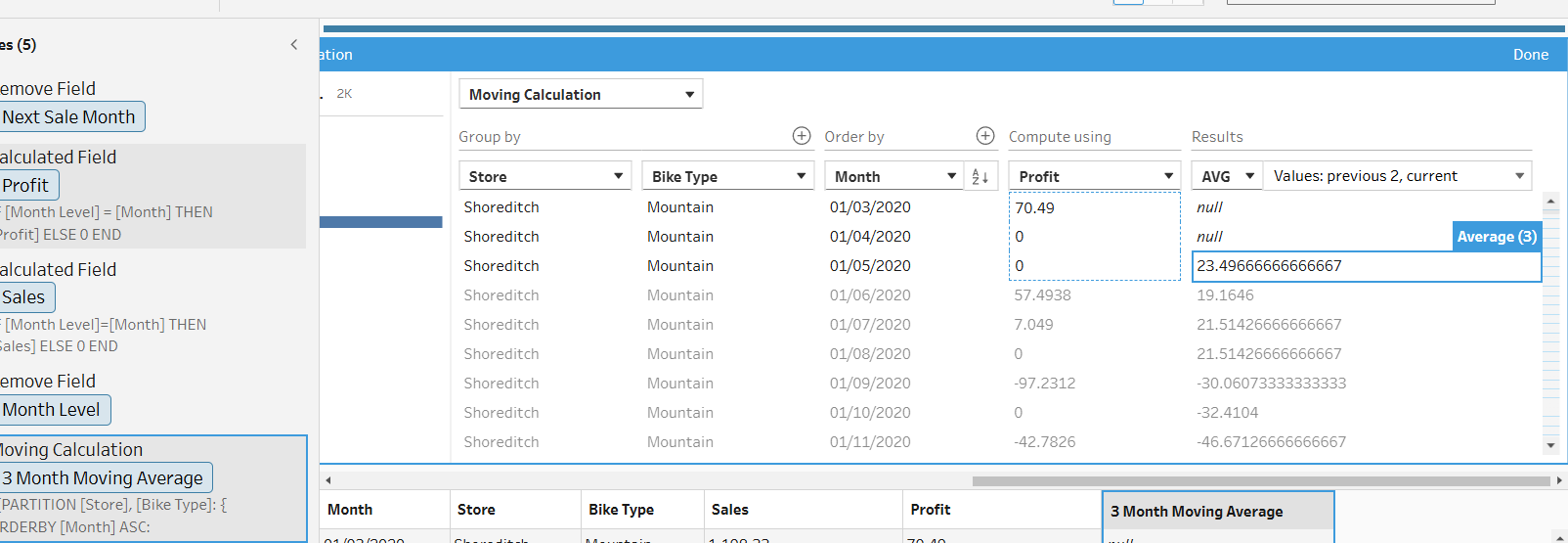
There we have it! If you look at the table now, you'll see that we successfully filled in the date gaps and calculated the 3 month moving average 😃