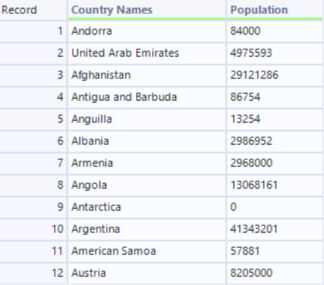
In this blog, I will walk you through a web scraping example using Alteryx.
What is web scraping? Web scraping is the process of extracting data from a website. For instance, let’s say there’s a website with a list of books and authors you want to use for a project. It would be tedious to copy and paste every title and author manually. With the use of web scraping, you can gather all that information automatically.
Note: Just because you can scrape a website does not mean you are allowed to. Please be sure that the website you are scraping permits such actions.
If you would like to follow along, I’ll use the following website.
https://www.scrapethissite.com/pages/simple/
For this tutorial, I am interested in extracting each country's name and population.
Start of the Tutorial:
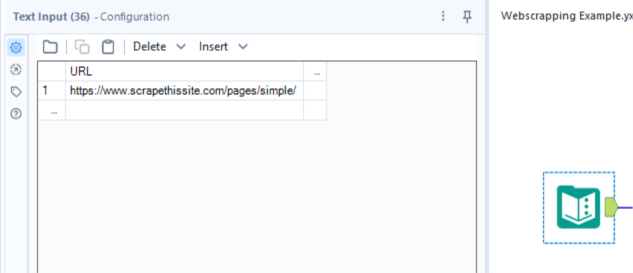
- Start by adding the Text Input tool to the Workflow Canvas. Format it so that the column header is labeled URL, then paste the link of the website you want to web scrape in the row below it.
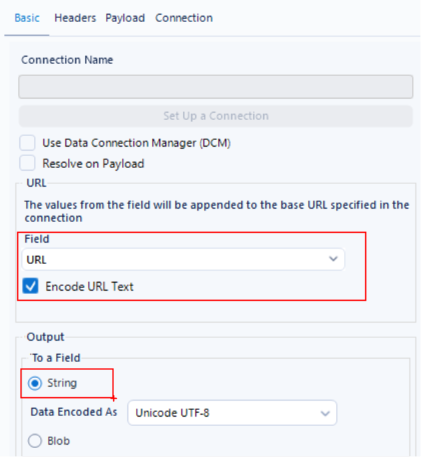
- Next, drag the Download Tool onto the Workflow Canvas. Under the Basic section find the URL option and set Field as the column header of your Text Input tool. In this case, since my column was named URL, Field is set to URL. Once that is done, set your Output as a string.
- Use a Select tool to clean up your fields. In this example, we’re only interested in the DownloadData field. This field is where all the html information for the website is located!

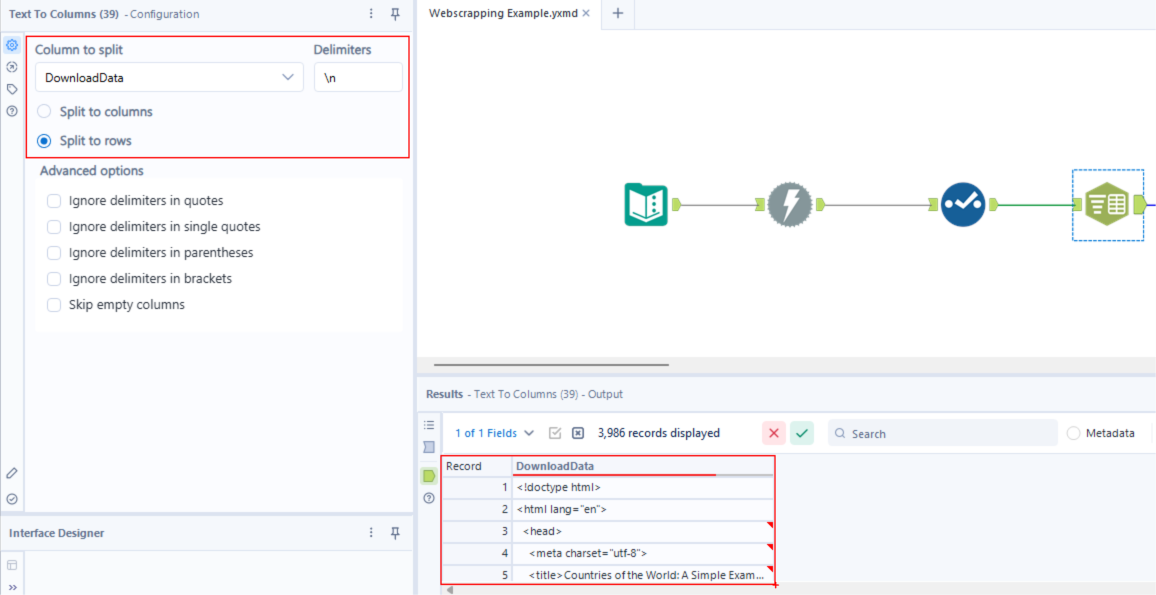
- The DownloadData field has all the information we need, but we must first unravel it. To achieve this, use the Text to Columns tool to split the field into rows, using each new line as a delimiter (\n). The output of this query, will result in the following:
- Next we will work on cleaning this column. Use the Data Cleanse Pro and Filter tool to remove any leading/trailing spaces and separate rows that are empty.
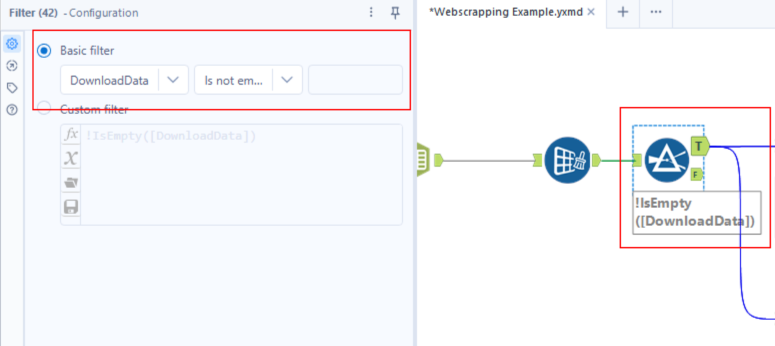
As mentioned earlier, I will be extracting each country’s name and population in this workflow. To accomplish this, we will separate the workflow into two starting from this point.
Workflow for Country Name:
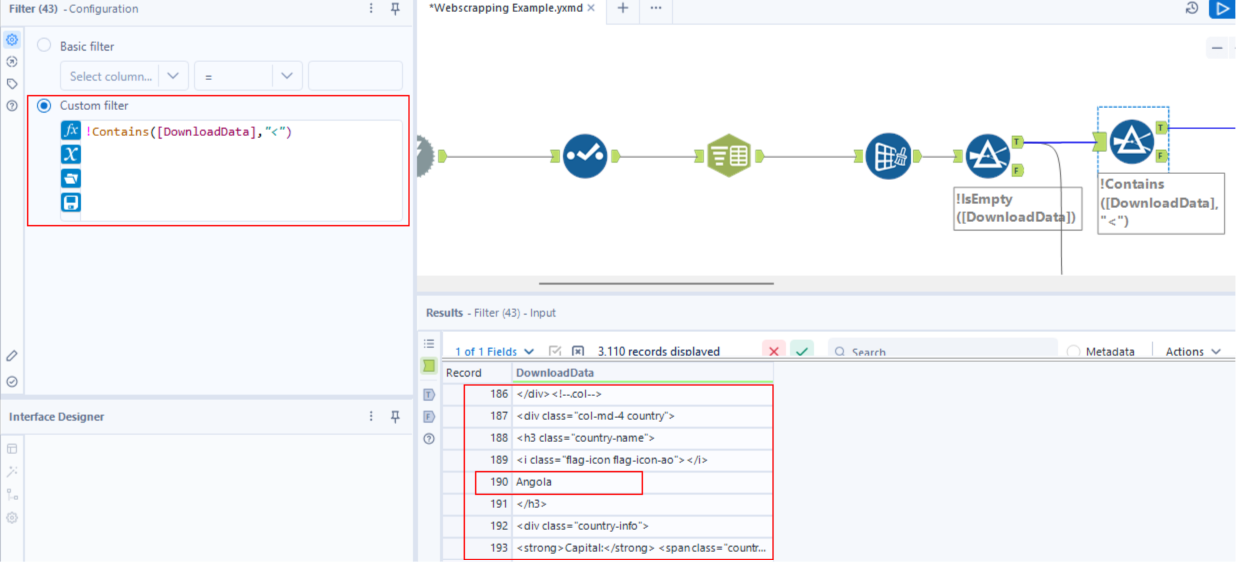
- Starting from the True anchor of the Filter tool used in Step 5, we will be cleaning our data to extract the country name. Looking at the data, I noticed that most rows started with < character, while the rows containing country names did not. Using the Filter tool, I separated the rows that did not contain the < character.
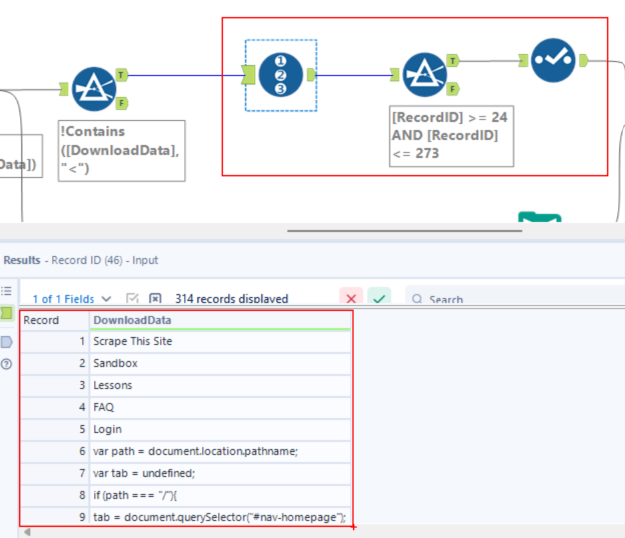
- Once those values were filtered, the data was still not as clean as expected. Additional words, besides the country names, were still present at the beginning and end of the field. To remove these values, I used the Record ID tool to label my rows. Then, using the Filter tool, I filtered the rows I needed and used the Select tool to remove the record number field after.
Note: This method of cleaning may not be effective for larger datasets.
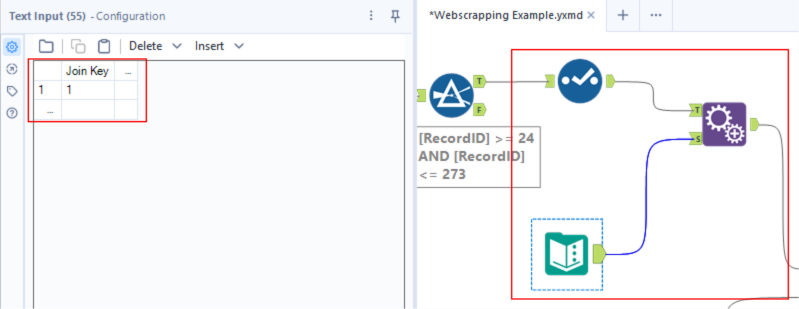
- Next, I created a join key using the Text Input tool. This value was then appended to the column containing the list of country names. This step preps us for the join we will be performing later on.
Workflow for Country Population:
- To extract the country's population, similar steps were taken. After reviewing the data, I noticed that the rows containing population information had the following characters: <strong>Population:</strong> <span class="country-population">. By attaching a Filter tool to the True anchor used in Step 5, I isolated those rows.
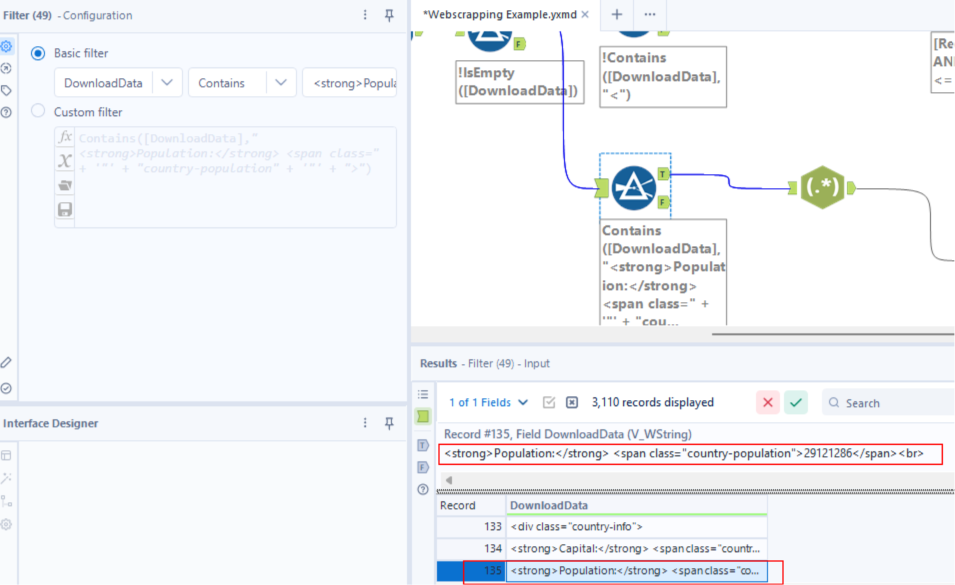
- As shown in the image above, the population is embedded in a sentence containing various words and characters. To extract just the population number, we will use the RegEx tool to parse.
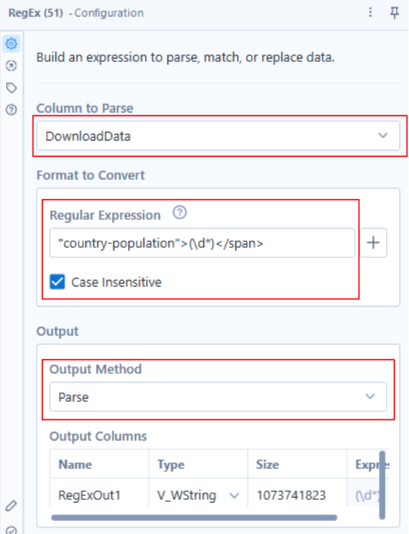
What the following Regular Expression is designed to do is:
Start at the following characters: "country-population">
End at: </span>
Keep what is between them: (\d*) (in this case, the digits representing population).
- Use a Select tool after to keep the columns with just the population numbers.
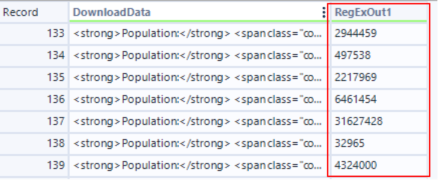
- Similar to Step 8, we will create a separate join key using the Text Input Tool and append it to the column with the cleaned population numbers.
- Now, we will join our appended datasets (one containing the country name, the other with population) by Record Position. Meaning row 1 from the country name table will match with row 1 of the population table, and so forth.
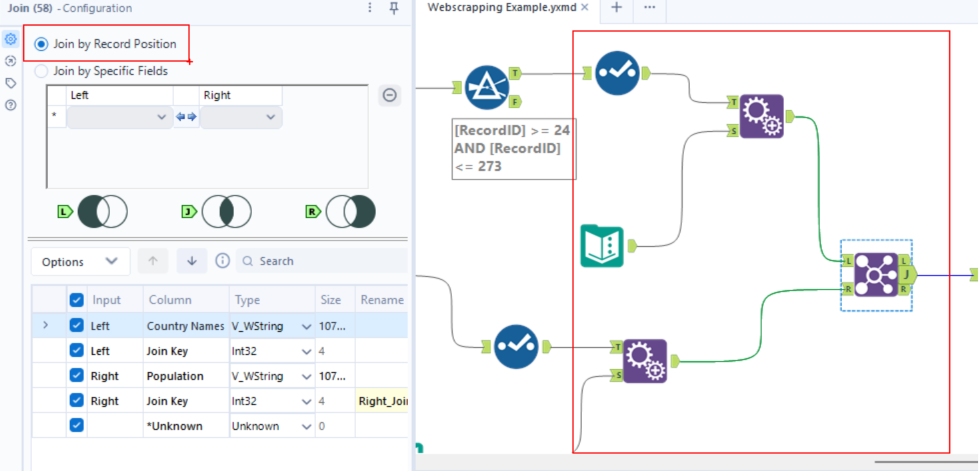
- Once that has been computed, use a Select tool to remove the join keys and output your data. Congrats, you’ve successfully webs scraped! The final table should appear as follows: