


This blog explains what joins are in data preparation, and how to use them in Tableau Prep Builder. To explain how to use joins, I have completed the 2024 Preppin' Data Challenge from Week 27 (link to the challenge: https://preppindata.blogspot.com/2024/07/2024-week-27-tour-de-france-special.html).
Introduction to Joins:
There are often lots of datasets and tables from different sources that must be combined in order to perform data analysis. Using Tableau Prep Builder, you can combine data using three main methods:
- Joins (the focus of this blog)
- Unions
- Aggregations
A join combines tables by matching values in common fields. This results in a table that is extended horizontally by adding fields of data.
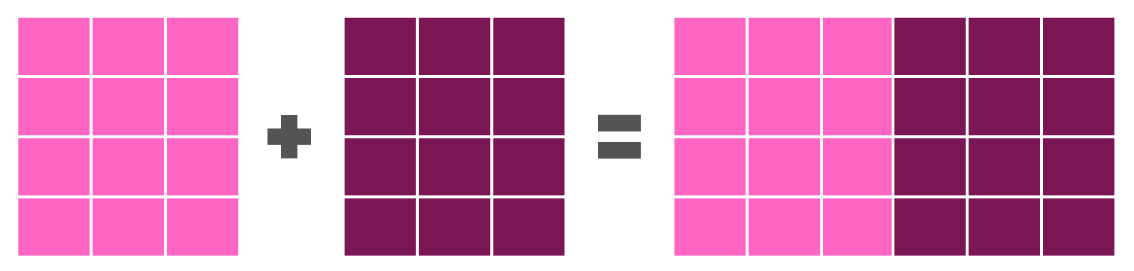
Joining appends columns (fields), meaning that it adds new pieces of information beside your existing data, rather than adding new rows underneath it (this would be a union).
Types of joins:
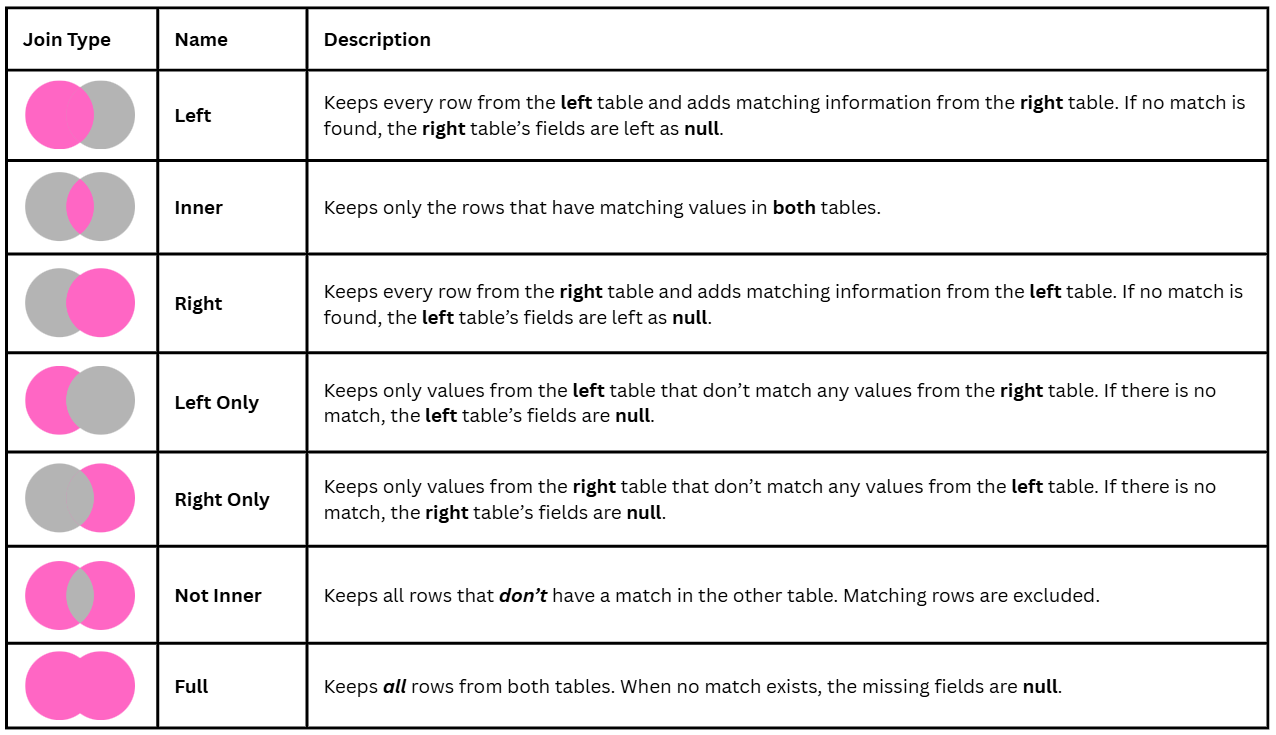
In Tableau Prep Builder, the types of joins you will find are detailed in the table below.
Preppin' Data 2024 Week 27 Challenge
This Preppin' Data Challenge aims to create a single, clean dataset with 9 data fields and 294 rows (records). To do this, you must combine multiple data sources about Mark Cavendish's Tour de France career.
Datasets provided:
- Stages - All the stages in the years that Cavendish raced the Tour
- Stage Type - The type of stages raced
- Wins - All of Cavendish's career wins
- Grand Tour Starts - All the Grand Tours Cavendish has made and his corresponding finishing positions
These four datasets must be combined in Tableau Prep Builder using joins to create one dataset that is ready for analysis!
How I tackled this challenge (part 1 - steps 1 to 6):
- Understanding the data
- I familiarized myself with the data and the granularity of each dataset. I also looked at the number of fields and records and what they represented.
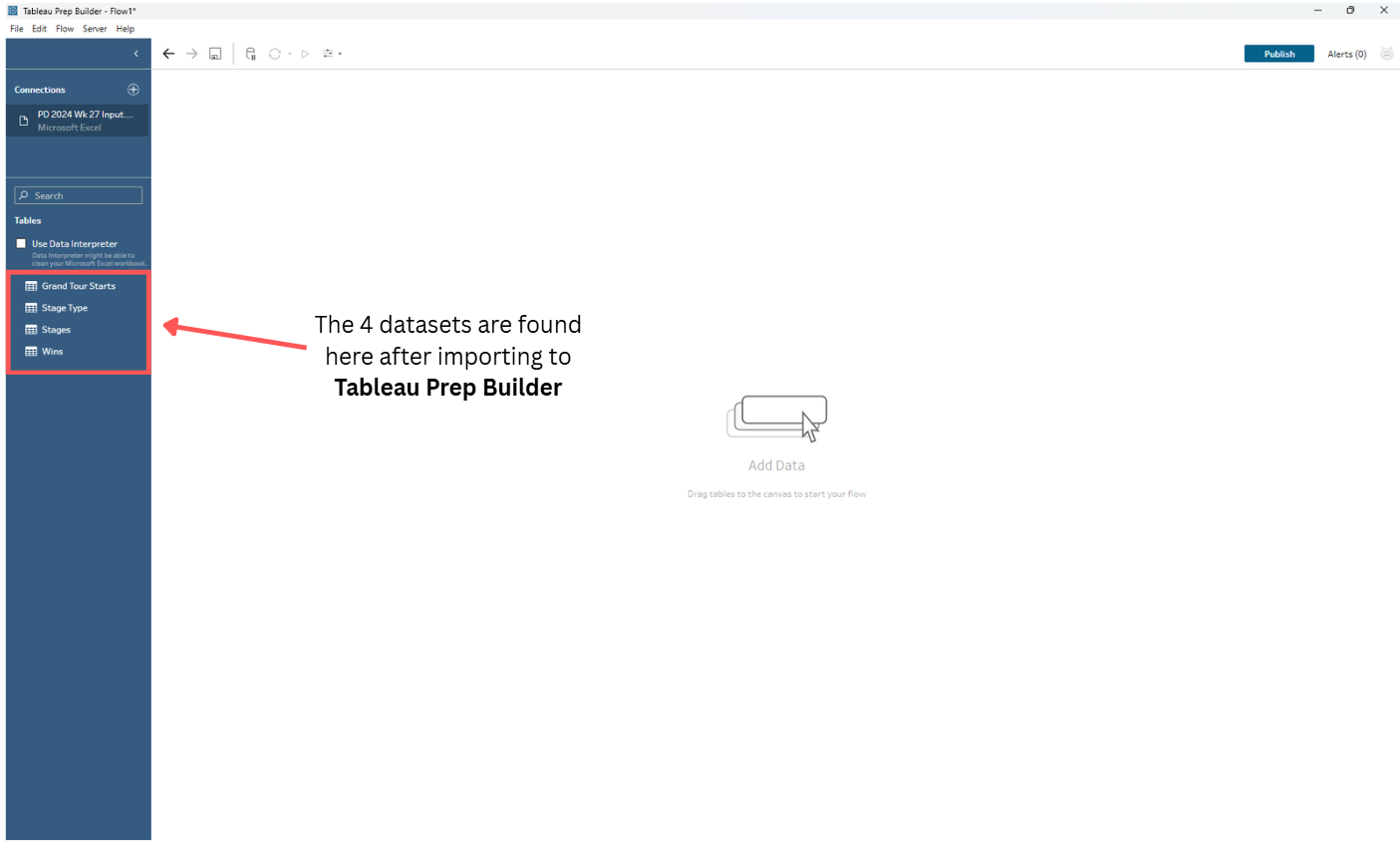
- Inputting the data into Tableau Prep Builder
- I downloaded the file as an Excel file (.xlsx) and imported to Tableau Prep
- Joining together the Stages and Stage Type tables
- Join using an inner join (Stage Type = Stage Type ID), where the matching fields are Stage Type and Stage Type ID
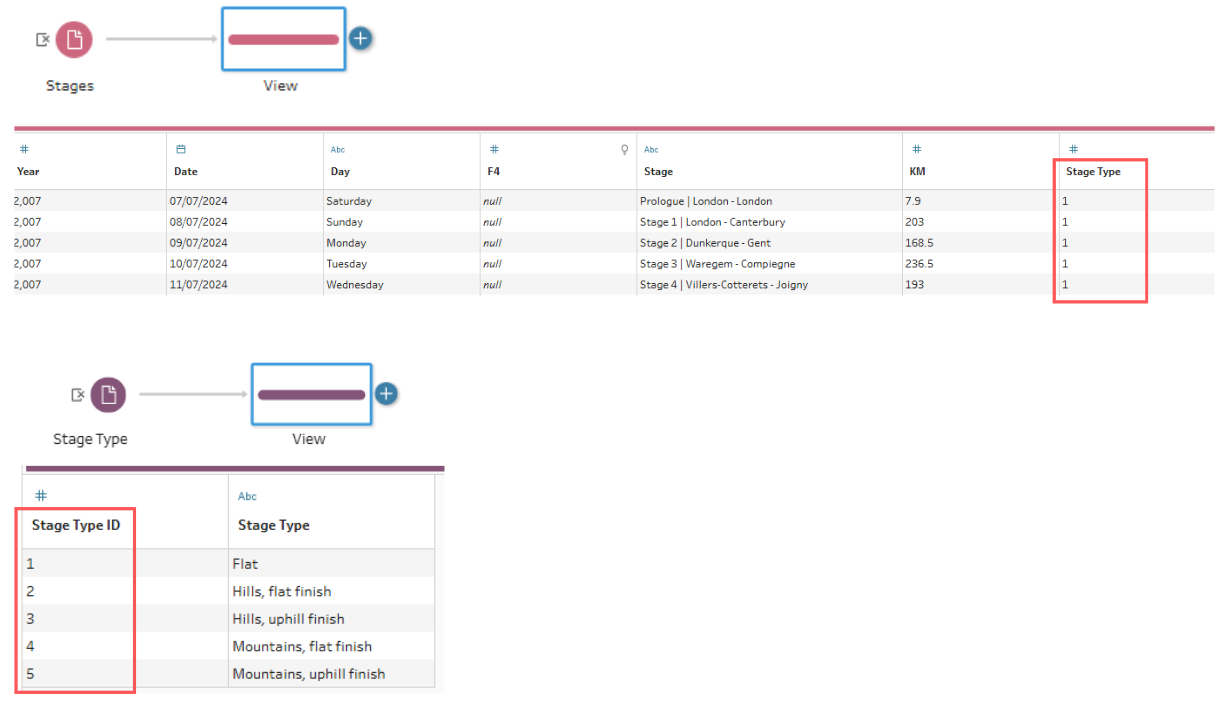
The configuration of the join:
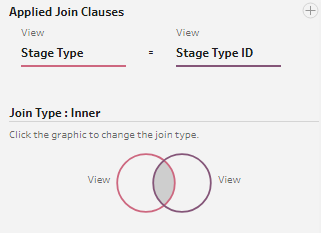
The result of this inner join:

The table now has 9 fields (7 from the Stages table and 2 from the Stage Type table). We chose an inner join here, so that Tableau Prep Builder only keeps the stages that appear in both tables, ensuring that every stage in your output has a valid stage type.
- Removing unnecessary fields
- The following fields can be removed: F4, Date, Day, Stage Type, and Stage Type ID
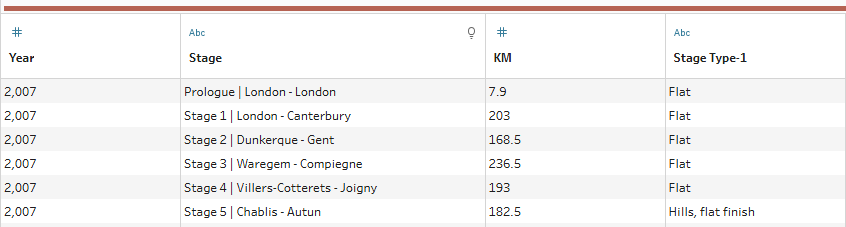
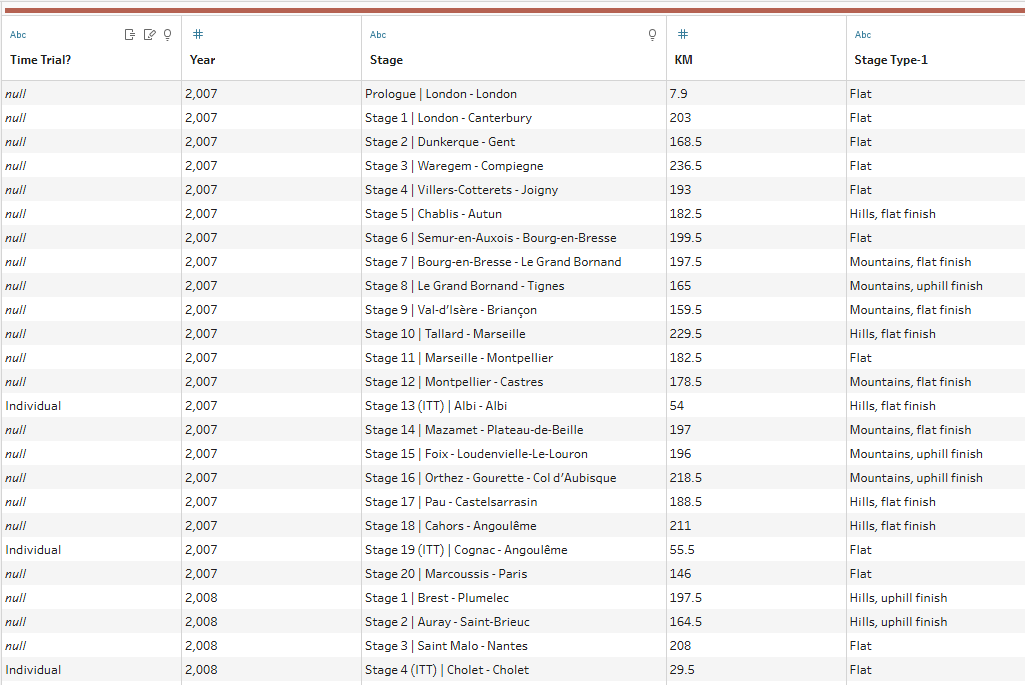
- Creating a calculated field called Time Trial?
- The calculated field looks like this:
IF Contains([Stage],'(ITT)') THEN 'Individual'
ELSEIF Contains([Stage],'(TTT)') THEN 'Team'
END
This calculated field searches through the Stage field, looks for 'ITT' and 'TTT' and returns null if neither are found.
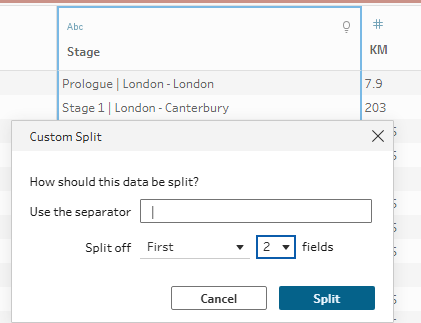
- Creating an Origin - Destination field and a Stage Number field
- Use a custom split in Tableau Prep Builder
- Use a calculated field to change 'Prologue' to 0
- IF Contains([Stage Number],'Prologue') THEN '0'
ELSE [Stage Number]
END
- IF Contains([Stage Number],'Prologue') THEN '0'
- Rename fields to Origin - Destination and Stage Number.
- Clean Stage Number field to remove letters, spaces and punctuation - only leaving the number of the stage.
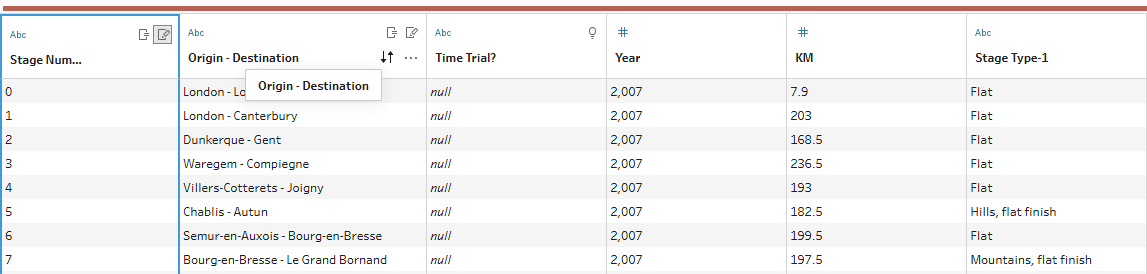
Now that we have got the data to this format, the next steps in the challenge are:
- Joining the Wins data
- Removing the duplicate fields created from joining
- Inputting the Grand Tour Starts (and only keeping the Tour de France starts)
- Renaming fields
- Joining the races started to the overall data set
- Create a Stages Won? field
- Outputting the data
These steps will be outlined in the next blog post titled Preppin' Data 2024 Week 27 Part 2: More Joins in Tableau Prep Builder