


In my previous blog, we explored how I built a smoothie ordering application using Snowflake, Python, Snowpark and Streamlit.
The application allowed customers to enter their name, select their ingredients and submit an order, which was then saved in Snowflake.
However, there was another feature in the completed application that we haven't explored yet.
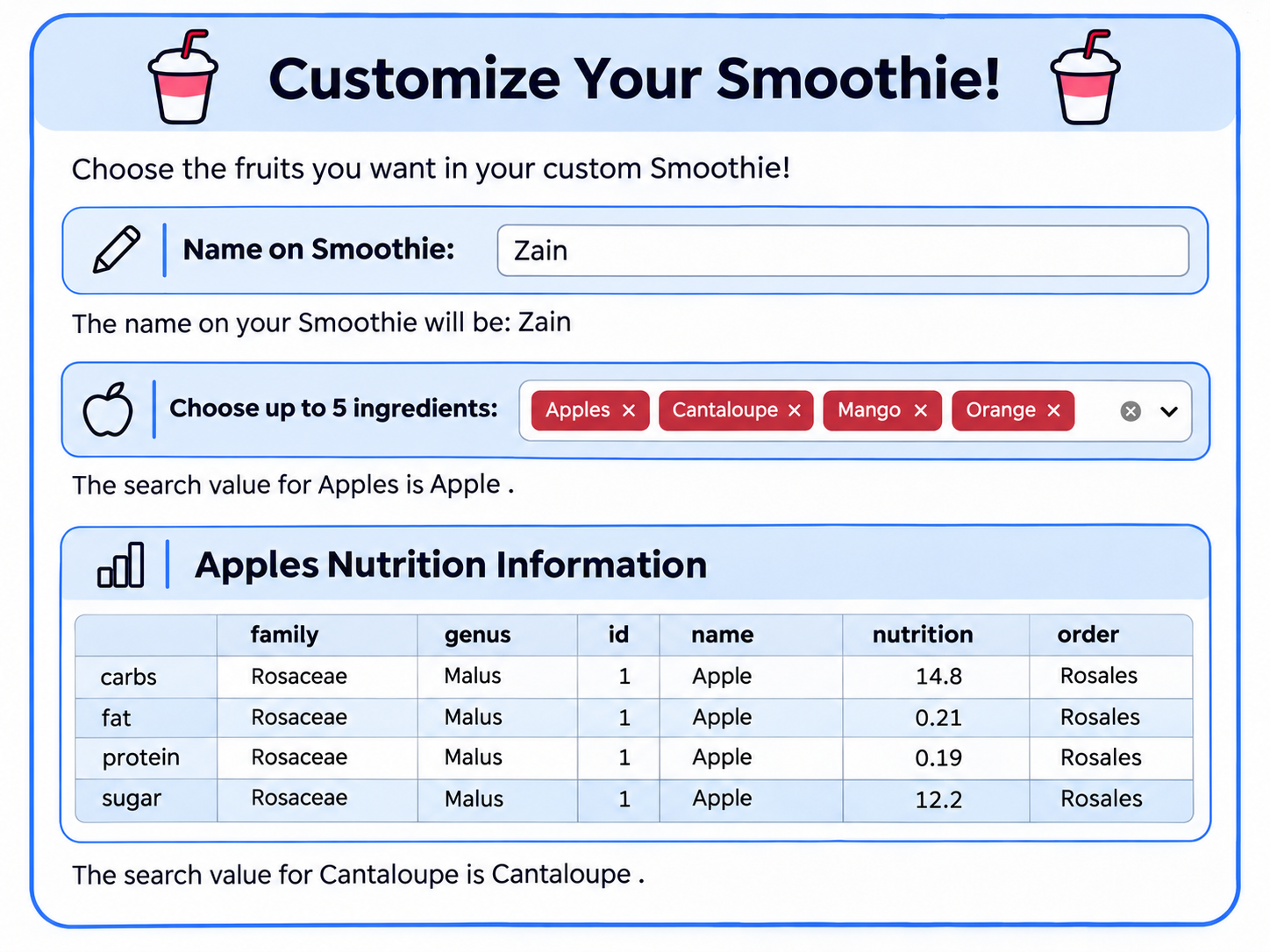
Every time a customer selected a fruit, nutritional information about that fruit appeared on the screen.
What I found interesting was that none of this nutritional information was stored in our Snowflake tables.
Instead, we were retrieving it from an external source using something called an API.
In this blog, I want to explore how we made this possible, starting with a simple request and gradually building towards retrieving information for every fruit selected by the customer.
1. What actually is an API?
API stands for Application Programming Interface.
Before looking at any code, I think it is worth understanding what this actually means.
Imagine a school library.
You want to find out whether a particular book is available, so you provide the librarian with the title of the book.
The librarian searches the library catalogue and returns the relevant information, such as the author's name and whether the book is available.
You don't need to know how the library catalogue is organised or how the information is stored.
You simply need to know what to ask for.
An API works in a similar way.
| School library example | Our application |
|---|---|
| Person requesting information | Python application |
| Title of the book | Fruit name |
| Librarian | API interface |
| Library catalogue | External data source |
| Book information returned | API response |
In our application, rather than requesting information about a book, we are requesting information about a fruit.
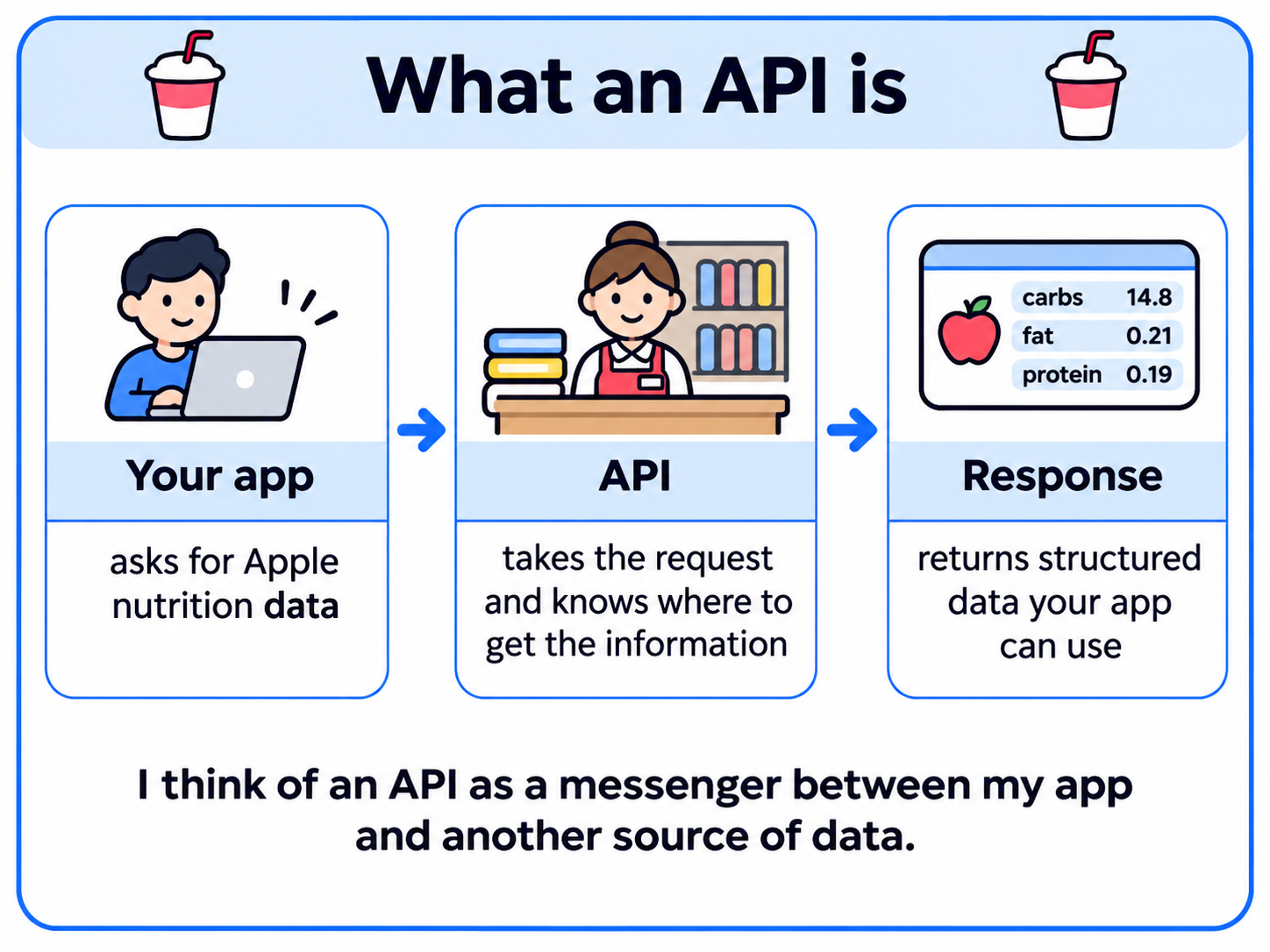
An API essentially provides a way for different software systems to communicate without needing to understand everything about how each system works internally.
2. Where is our data coming from?
In the previous blog, our application relied on Snowflake for its data.
We are now introducing a second source of information.
Snowflake:
- Provides the list of available fruits.
- Stores the customer's smoothie order.
Smoothiefroot API:
- Provides nutritional information about each fruit.
Python communicates with both systems, while Streamlit displays the information to the customer.
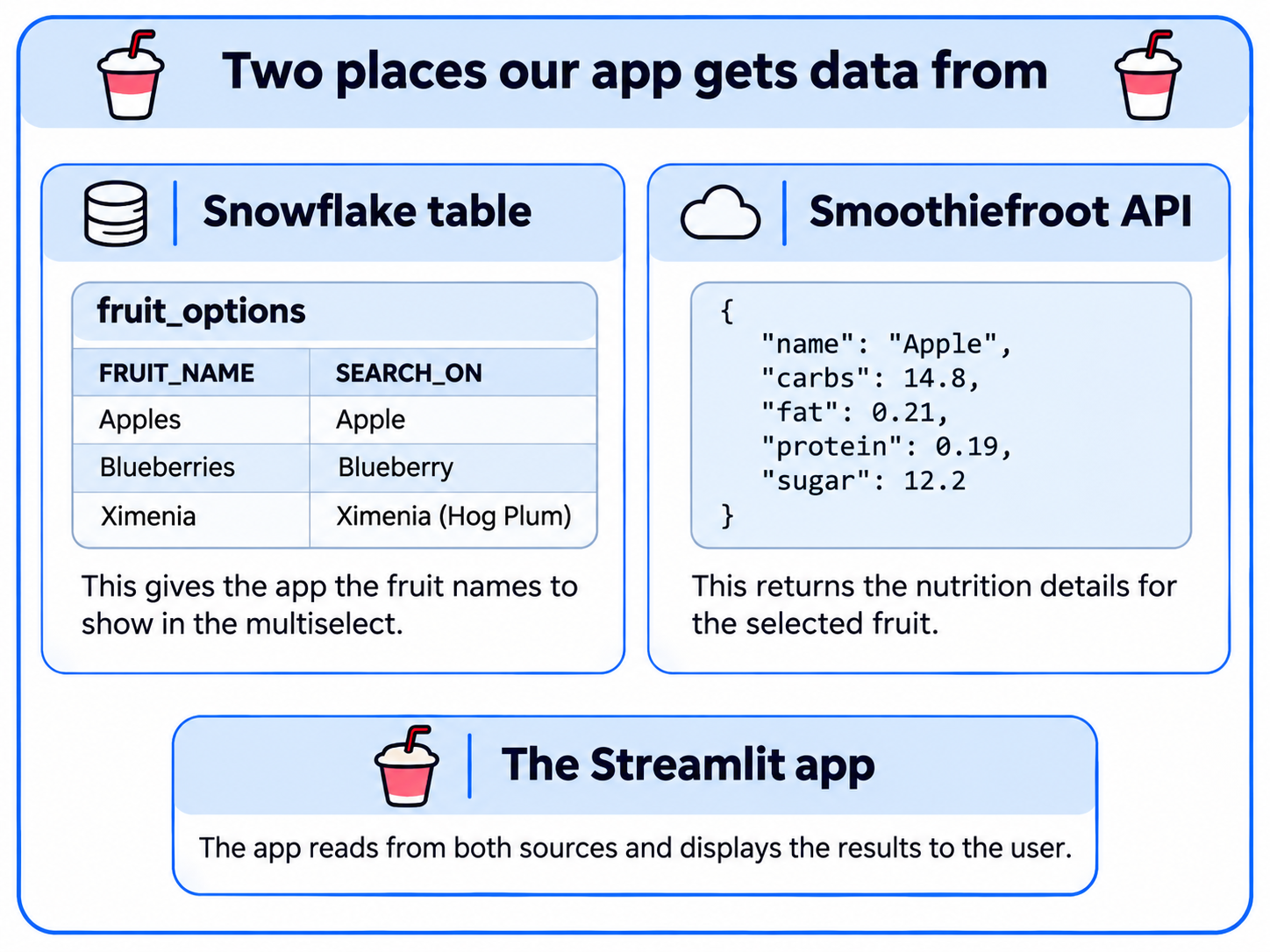
We are bringing information from two different places into one application.
3. Making our first API request
To begin communicating with the API, we imported another Python library.
import requestsThink back to the libraries we used in the previous blog.
| Library | What we use it for |
|---|---|
| Streamlit | Building our user interface |
| Snowpark | Working with Snowflake |
| Requests | Making requests to external services |
Rather than immediately trying to retrieve information for every selected fruit, we started with one fruit: watermelon.
smoothiefroot_response = requests.get(
    "https://my.smoothiefroot.com/api/fruit/watermelon"
)
Although this looks like a complicated line of code, we are essentially doing two things.
On the right-hand side, we are asking the API for information about watermelon.
On the left-hand side, we are storing the response in a variable called smoothiefroot_response.
The .get() method is used to request information.
We can also look at the URL itself.
https://my.smoothiefroot.com/api/fruit/watermelonThe final part of the URL tells the API which fruit we are interested in.
At this stage, we have made our first API request, but we haven't yet displayed the nutritional information.
4. What has the API returned?
To see what the API returned, we used:
st.text(smoothiefroot_response)The result looked like this:
<Response [200]>When I first saw this, it wasn't immediately obvious what it meant.
Where was the actual information about the fruit?
The number 200 is something called an HTTP status code. It tells us that our request was successful.
There are other status codes we might encounter.
| Status code | What it means |
|---|---|
| 200 | Successful request |
| 404 | Requested resource not found |
| 500 | Something went wrong on the server |
Think of the status code as an indication of whether our request worked.
However, knowing that the request was successful is not the same as seeing the information that was returned.
To access that information, we need one more step.
5. Accessing the information using JSON
We then introduced another method.
st.text(smoothiefroot_response.json())The .json() method converts the JSON response into Python data that we can work with.
This is where I started making connections with some of the concepts from my second blog.
Previously, we explored JSON inside Snowflake, looking at how information could be stored within nested structures.
We are now encountering JSON again, but this time the information is coming from an external API.
Here is a shortened example of the information returned for an apple.
{
    "name": "Apple",
    "family": "Rosaceae",
    "nutrition": {
        "carbs": 14.8,
        "fat": 0.21,
        "protein": 0.19,
        "sugar": 12.2
    }
}
Notice how the nutritional values sit inside another section called nutrition.
This is similar to the nested JSON structures we explored previously.
We can now see the difference between the response and the actual information contained within it.
| Code | What we see |
|---|---|
| smoothiefroot_response | The response object, such as Response [200] |
| smoothiefroot_response.json() | The actual fruit information as Python data |
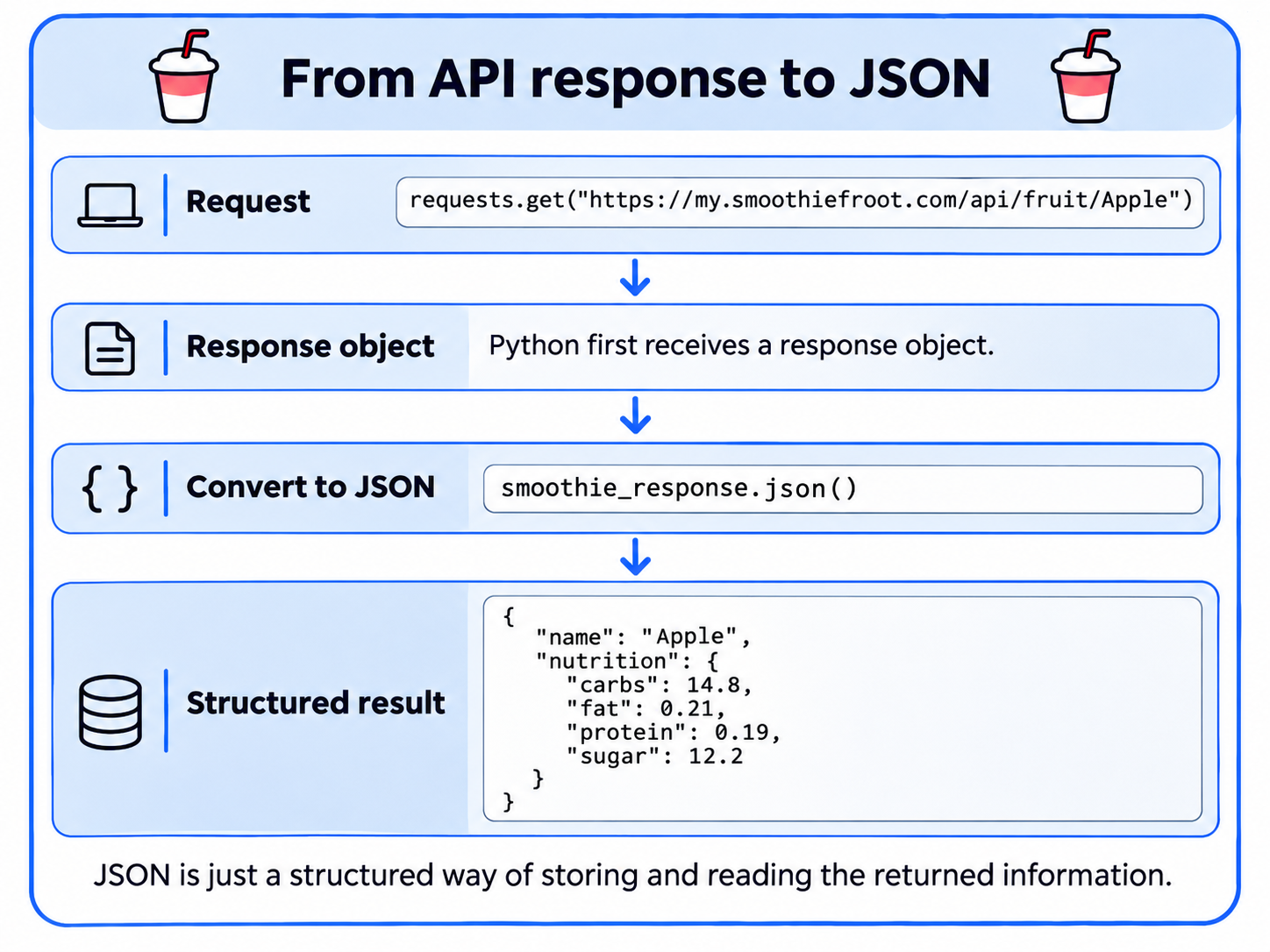
One tells us about the response, while the other allows us to work with the information returned.
6. Displaying the information in Streamlit
Although we can now see the nutritional information, displaying it as raw text isn't particularly useful for a customer.
Ideally, we want the information displayed in a more familiar format.
We can achieve this using Streamlit.
st.dataframe(
    data=smoothiefroot_response.json(),
    use_container_width=True
)
We are taking the information returned by the API and asking Streamlit to display it as a table.
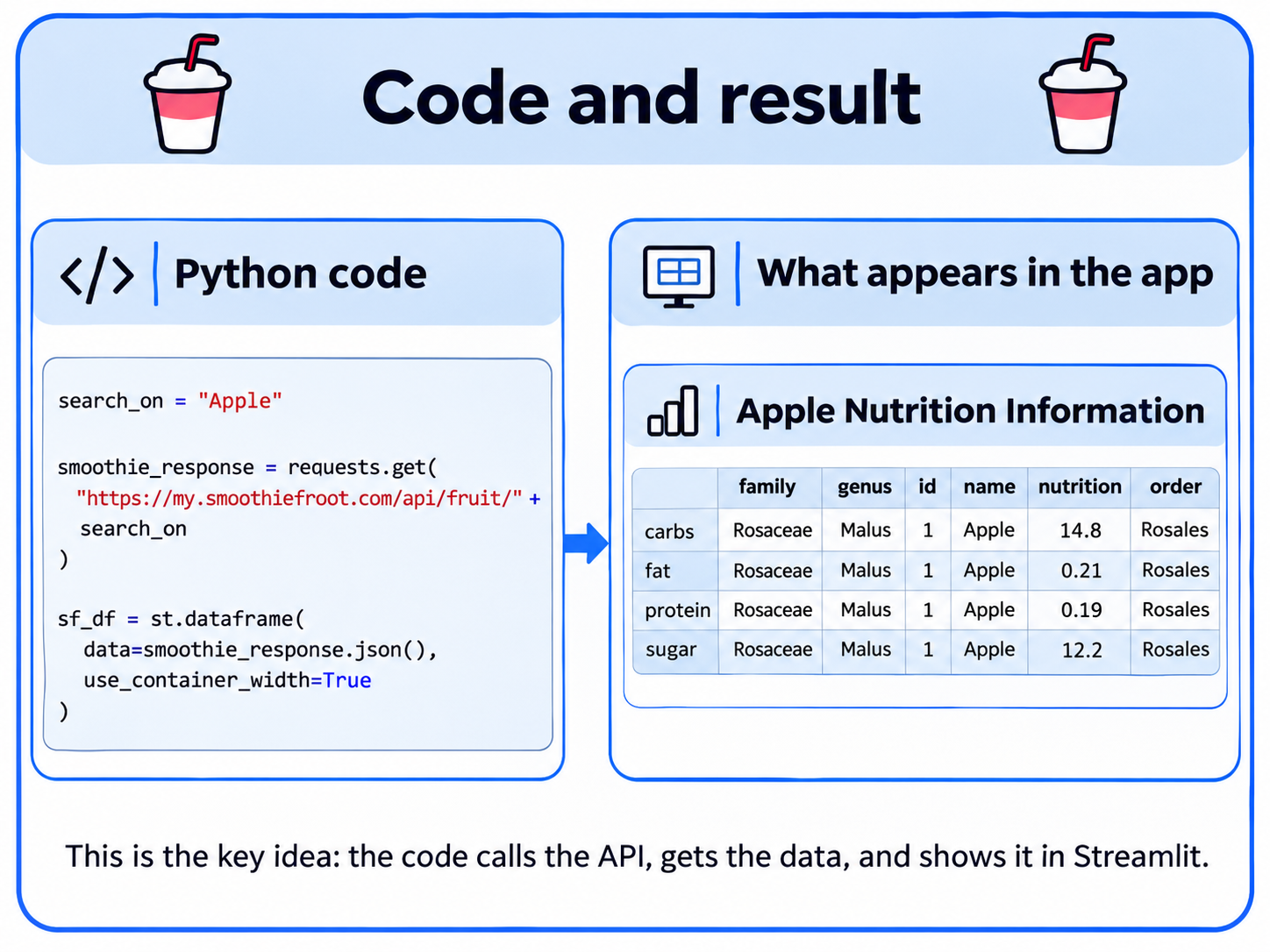
The use_container_width=True argument helps the table make use of the available space on the screen.
At this point, we have achieved something quite useful.
We have retrieved information from an external system and displayed it within our own application.
However, there is still a problem.
Our application is only requesting information about watermelon.
7. Making our API request dynamic
Look again at our original request.
requests.get(
    "https://my.smoothiefroot.com/api/fruit/watermelon"
)
Regardless of which fruit the customer selects, this request will always retrieve information about watermelon.
What we need is a way to change the fruit name depending on the customer's selection.
Imagine we have a Python variable:
fruit_chosen = "mango"Instead of writing the fruit name directly into the URL, we can use the variable.
smoothiefroot_response = requests.get(
    "https://my.smoothiefroot.com/api/fruit/"
    + fruit_chosen
)
Python joins the two pieces of text together to produce:
https://my.smoothiefroot.com/api/fruit/mangoIf the value of fruit_chosen changes, the URL changes too.
| fruit_chosen | URL ending |
|---|---|
| mango | /fruit/mango |
| apple | /fruit/apple |
| watermelon | /fruit/watermelon |
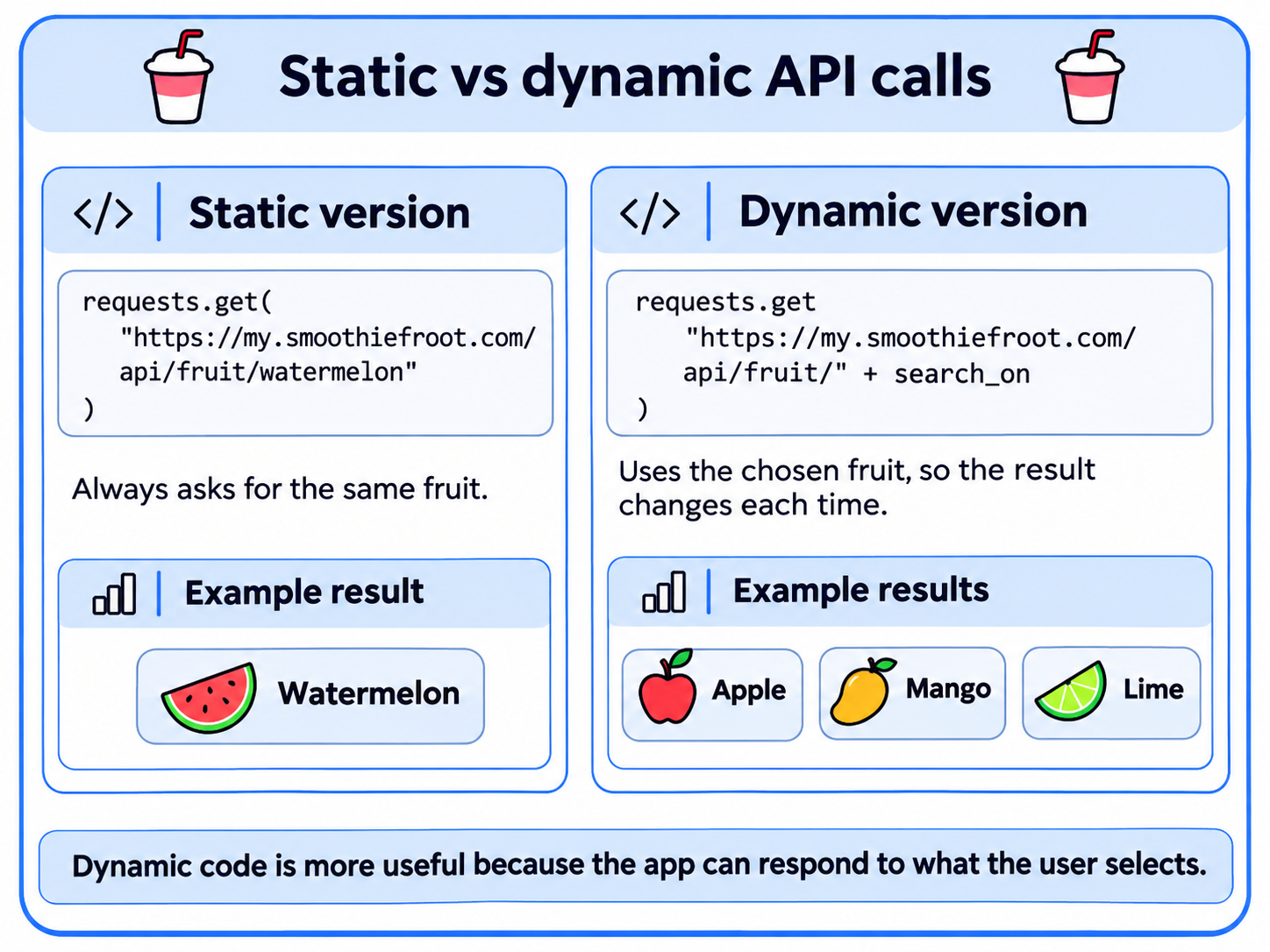
This is another example of why variables are so useful.
Rather than writing a separate API request for every possible fruit, we can reuse the same code and simply change the value of the variable.
For now, we are assuming that the fruit names match what the API expects.
8. What if the customer selects multiple fruits?
In the previous blog, we explored how the customer's selected ingredients are stored in a Python list.
Imagine the customer selects three fruits.
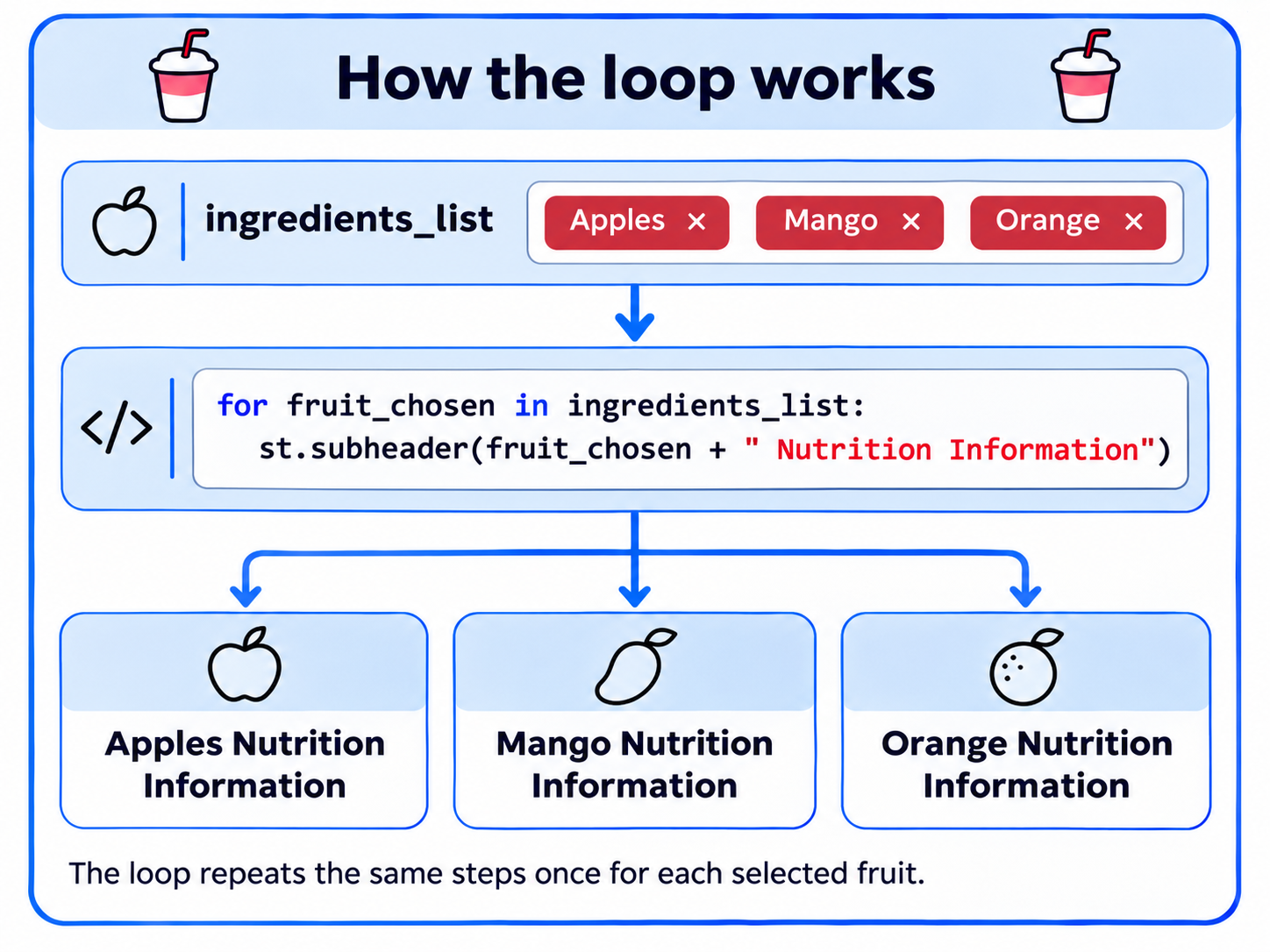
ingredients_list = ["mango", "apple", "watermelon"]We want the application to display nutritional information for all three fruits.
This is where our Python loop becomes useful again.
for fruit_chosen in ingredients_list:

    st.subheader(
        fruit_chosen + " Nutrition Information"
    )

    smoothiefroot_response = requests.get(
        "https://my.smoothiefroot.com/api/fruit/"
        + fruit_chosen
    )

    st.dataframe(
        data=smoothiefroot_response.json(),
        use_container_width=True
    )
Rather than trying to understand the entire block of code at once, let's follow what happens during each iteration.
First iteration — Mango
Python creates a heading for mango, requests its nutritional information and displays the results.
Second iteration — Apple
Python repeats the same instructions, but this time for apple.
Third iteration — Watermelon
Python repeats the instructions again for watermelon.
The result is three separate sections of nutritional information within our application.
Why indentation matters
This was something I spent more time understanding when revisiting the application.
Notice that the API request and the instructions to display the information are all indented inside the loop.
This means Python repeats them for every selected fruit.
If we moved the API request outside the loop, we would only make one request after the loop had finished.
Interestingly, in the previous blog, we did the opposite when saving a smoothie order.
We deliberately placed the SQL INSERT outside the loop because we wanted to save one complete order, not a separate order for every fruit.
| Inside the loop | Outside the loop |
|---|---|
| Request information for each fruit | Work with the completed order |
| Display each fruit's nutrition | Save one order when submitted |
| Repeat an action | Perform an action once afterwards |
Understanding this distinction helped me see why indentation in Python is so important.
It isn't simply about making the code look organised. It changes what the application actually does.
9. What happens if the API cannot find the information?
So far, we have assumed that every request will work successfully.
But what happens if we request information about a fruit that the API doesn't recognise?
Or what if the external service is temporarily unavailable?
Our application might be unable to display the nutritional information.
This is one of the differences between working entirely within our own database and relying on an external system.
We don't have complete control over what happens outside our application.
One way we can begin to investigate a problem is by checking the status code returned by the API.
st.write(smoothiefroot_response.status_code)This can give us an indication of whether the request was successful.
A more developed application would also handle unsuccessful requests and display a helpful message to the customer rather than simply encountering an error.
For now, we don't need to explore all the additional Python code required to achieve this.
The important concept is that we should not assume that every API request will return the information we expect.
10. When two systems use different names for the same thing
As we continued developing the application, we encountered another interesting problem.
Some of the fruit names stored in Snowflake did not match the names expected by the API.
For example:
| Fruit name in Snowflake | Search value for the API |
|---|---|
| Apples | Apple |
| Blueberries | Blueberry |
| Jack Fruit | Jackfruit |
| Strawberries | Strawberry |
As humans, we understand that Apples and Apple refer to the same type of fruit.
However, the API might expect a specific name when we request information.
This meant that simply using the customer's selected fruit name in our API request was not always enough.
To address this, we introduced an additional column in our Snowflake table called SEARCH_ON.
We now had two values:
FRUIT_NAME— the name displayed to the customer.SEARCH_ON— the name used when requesting information from the API.
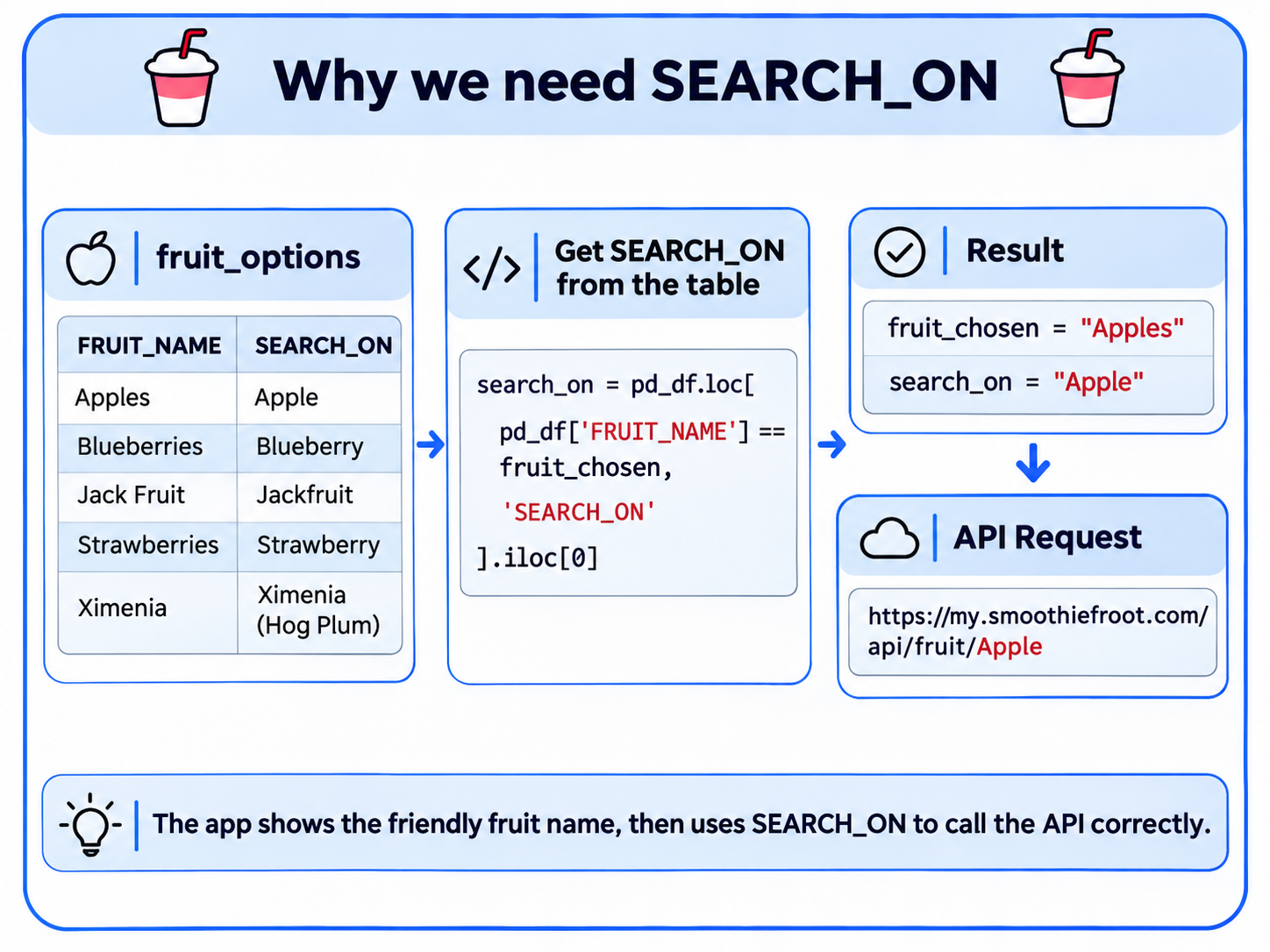
In our completed application, we used the search value when building the API request instead of directly using the selected fruit name.
But this introduces another question.
How does Python find the correct search value for the fruit selected by the customer?
To solve this, we introduced another Python library called Pandas.
Pandas helps us work with and manipulate data in Python. In our application, we used it to help find the corresponding API search value for each selected fruit.
Rather than introducing all of that code here, I will explore Pandas, Snowpark DataFrames and the complete mapping process in my next blog.
11. Putting everything together
Our smoothie application has now evolved from a simple interface that reads and writes information in Snowflake into an application that also retrieves information from an external source.
Each technology has its own responsibility.
| Technology | Role in our application |
|---|---|
| Snowflake | Stores fruit options and customer orders |
| Python | Controls the application logic |
| Snowpark | Allows Python to work with Snowflake |
| Requests | Retrieves information from the external API |
| Streamlit | Displays information and collects customer inputs |
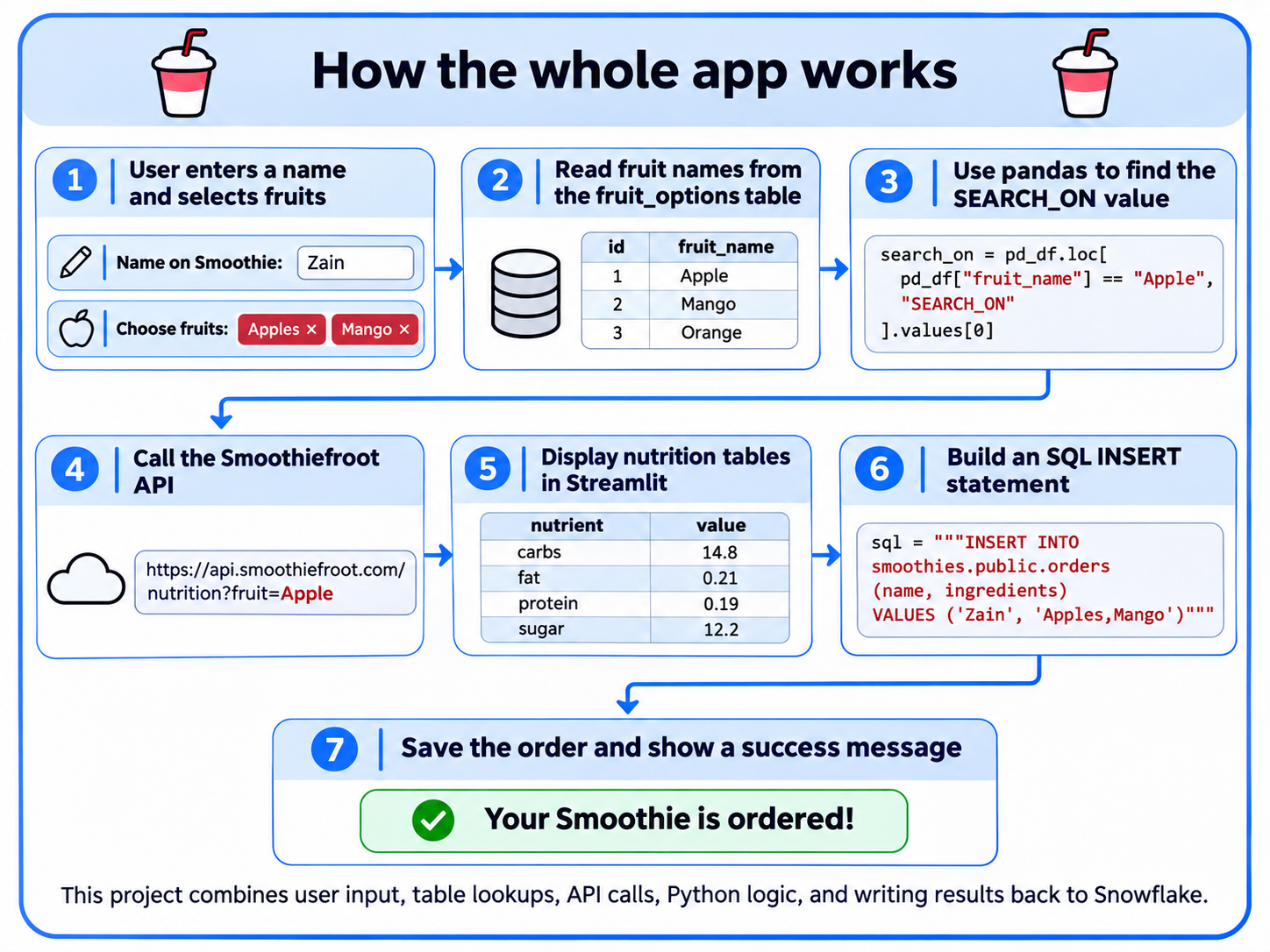
What I find particularly interesting is that the customer doesn't need to understand any of these technologies.
They simply select a fruit and the relevant information appears on their screen.
Behind that simple interaction, several different technologies are working together.
What have we learned?
| Concept | What it allows us to do |
|---|---|
| API | Communicate with another software system |
| requests.get() | Request information from an external source |
| Status code | Understand the outcome of a request |
| .json() | Convert JSON into Python data |
| Dynamic URL | Change the information we request |
| FOR loop | Repeat a request for every selected fruit |
| st.dataframe() | Display the information as a table |
| Data mapping | Help different systems work with compatible values |
Final thoughts
When I first started learning about APIs, they seemed like another technical concept that I needed to understand independently.
However, building this application helped me see how APIs connect with things I had already learned.
JSON was no longer just something I had explored inside Snowflake.
Variables allowed me to change the information being requested.
Python loops allowed me to retrieve information for multiple fruits without repeating the same code.
Streamlit allowed me to present that information in a way that a customer could easily understand.
For me, revisiting the code after completing the workshop was just as valuable as building the application itself. It gave me an opportunity to understand why the code was written in a particular way, rather than simply knowing that it worked.
In my next blog, I will explore how we used Snowpark and Pandas together to solve the problem of mapping information between Snowflake and an external API.
The complete smoothie application code is available on my GitHub: