


Have you ever wanted to send an email or launch a web page directly from a Tableau dashboard? If you haven't tried it yet, now is the perfect time to start! Whether you're a data analyst building interactive reports or a stakeholder consuming data products, adding URL actions opens up smooth, seamless workflows. You can easily enable users to send feedback directly to dashboard authors using mailto: links, jump to external tools, or trigger contextual web searches with a single click.
URL Actions allow users to link to external resources like web pages, videos, files, and email clients right from the dashboard interface. Setting one up is straightforward, but what makes them truly powerful is their ability to pass dynamic values. By embedding field names (like <School_ID> or <User_Email>) or Tableau parameters directly into the URL string, the destination URL updates dynamically based on user selection or filtered data views.
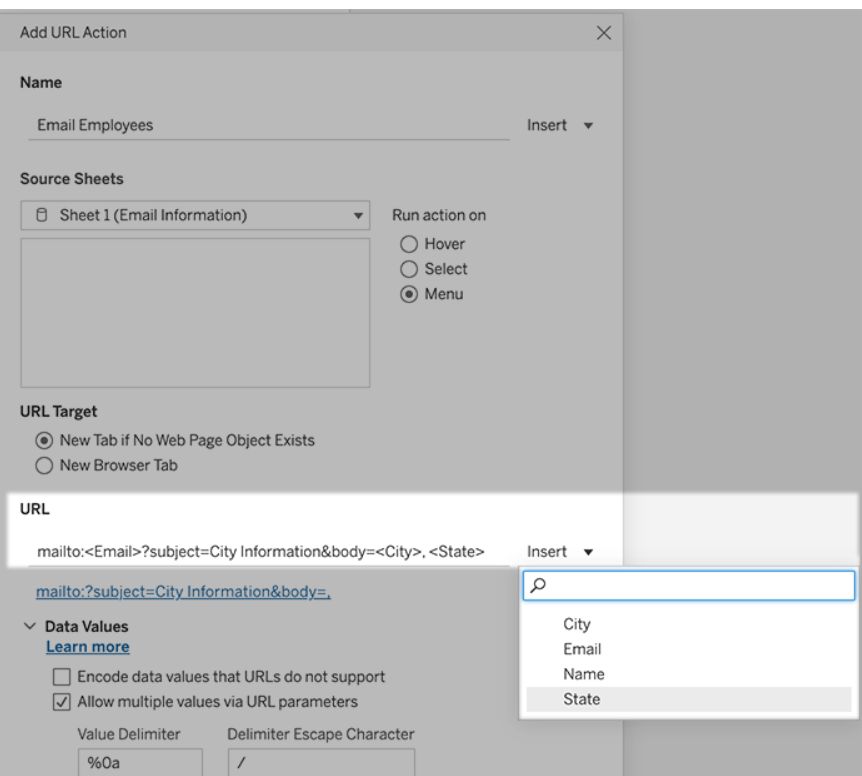
For additional guides on setting these up step-by-step, Tableau offers an extensive guide on URL action syntax and configuration. Jacob Aronson from DSNY11 also wrote a great community blog post highlighting practical examples. To show how effective they can be in real-world scenarios, let's look at how I implemented them in a project.
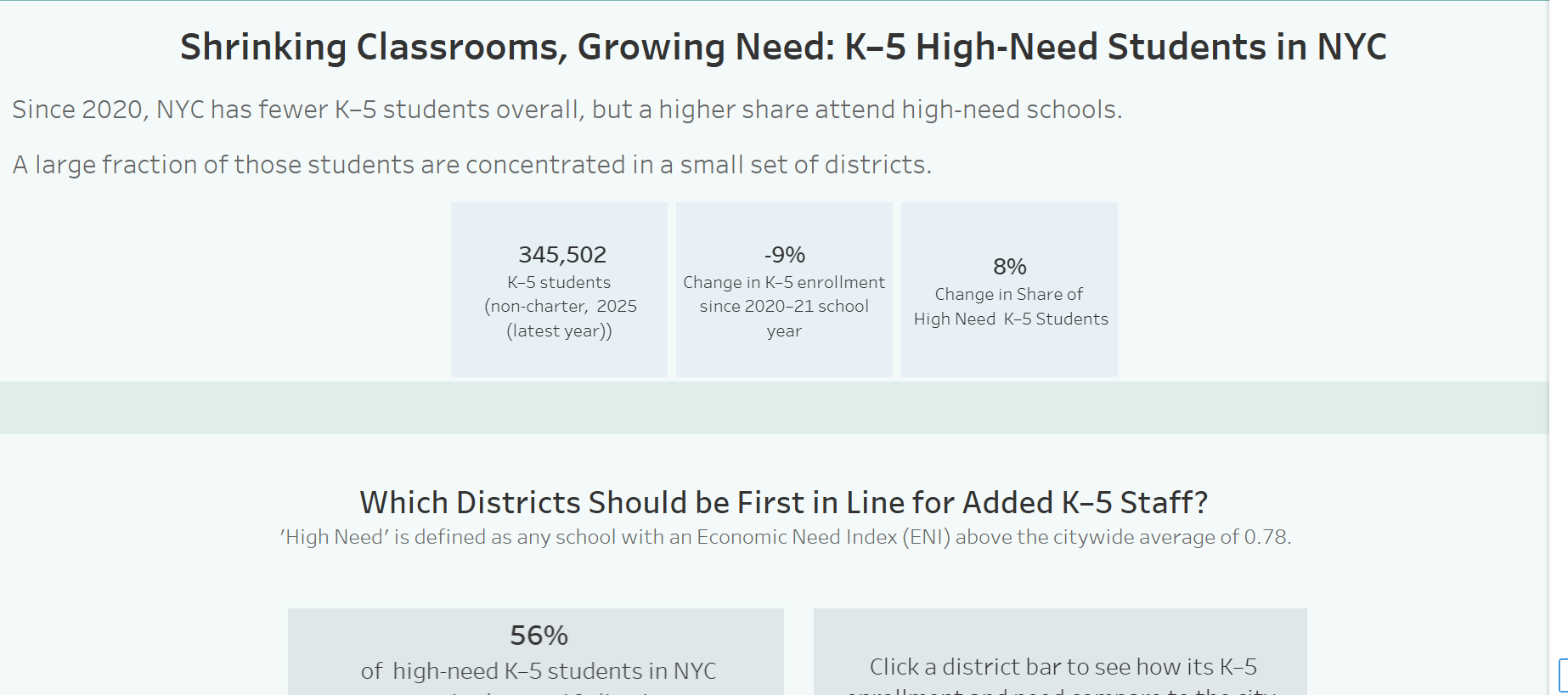
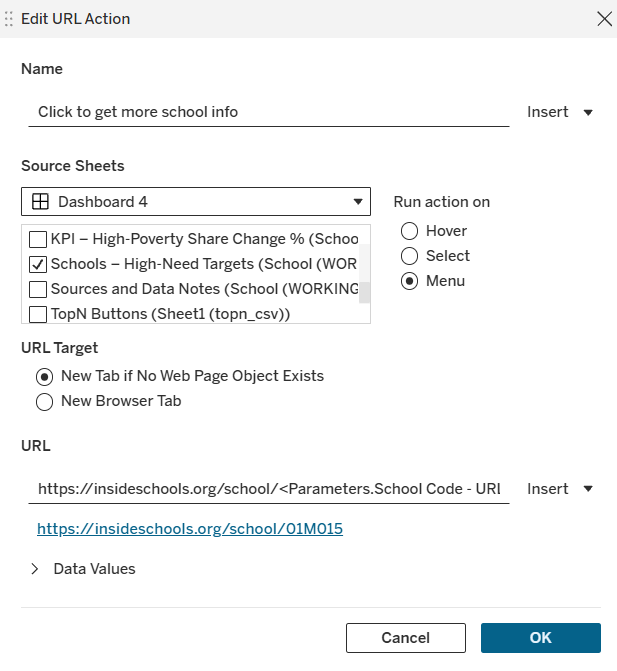
In my initial Data School interview project, I analyzed high-need public elementary schools in New York City. Since viewers might want deeper context on specific schools, I configured a URL action attached to the school scatter plot. Whenever a user clicks on a data point representing a specific school, Tableau passes the school's unique ID directly into a URL for Inside Schools. The action then opens a targeted page showing detailed ratings, quality of education, and community reviews for that exact school.
URL Action at Work: This URL action links to Inside Schools, a webpage that evaluates NYC public schools and the quality of the education and experience received.
Here’s how I built it:
First, we need to know how Inside Schools dynamic URL works. By playing around with looking up a few different schools we see that they use a six character code at the end of the base URL:

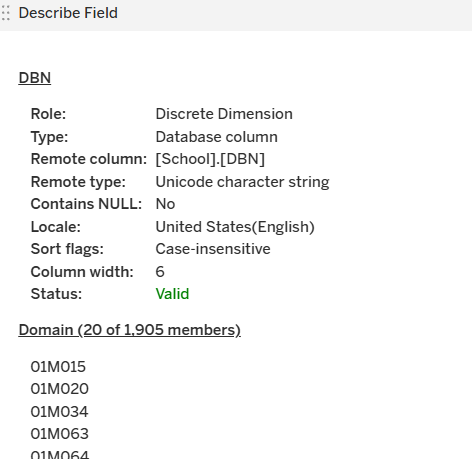
This six character code is actually called the District Borough Number (DBN). This unique identifier allows the Department of Education to identify each school, and it’s conveniently also used here by Inside Schools.
Now that we know what format our URL extension needs to take, we need to generate it. This may initially seem like a tall task, as there are over 1,000 public schools and as many DBNs. Thankfully, the data set for this dashboard comes from the City, and DBNs are included already.
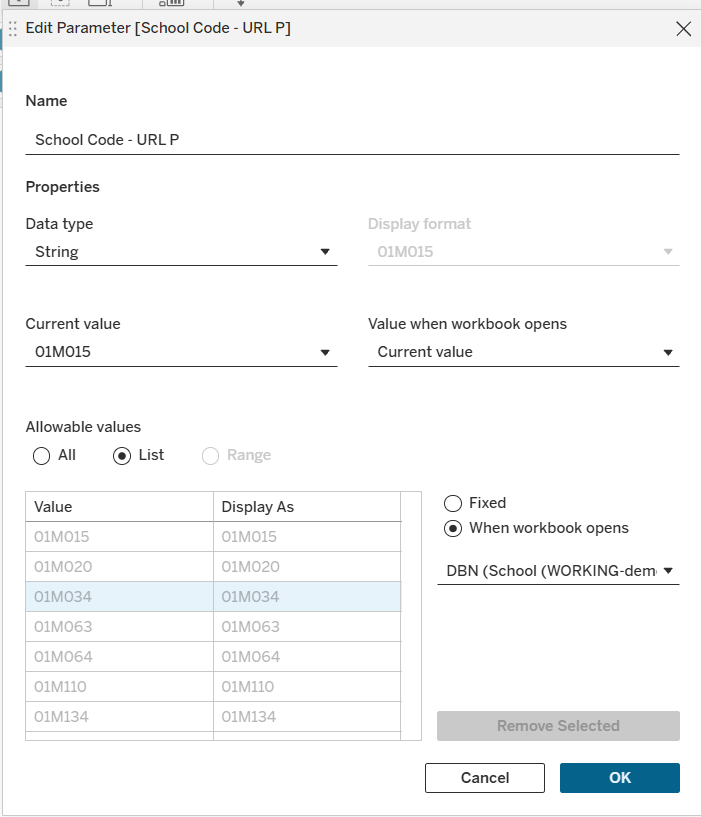
In order to make the URL update dynamically based on which school is selected. We need to create a parameter that keeps track of the selected school’s DBN. Let's call it School Code - URL P (P for parameter ;) ). When a user selects a school on the scatter plot, the parameter will update to that DBN value.
Once we do that, we can then create our action. You can find more detailed steps on creating a URL action in the previously mentioned blogs. For this specific case we want to target the scatter plot, and we want the URL to only open when the menu or tooltip appears. This is an important step as the tooltip already contains additional insights that we might miss if we open the URL directly upon clicking the school.
Now that’s all done, feel free to implement some URL actions in your own dashboards. What creative use cases can you come up with?