


I know the title is a handful, so I will first breakdown what this project seeks to achieve, along with a list of the services we will use in each step.
And before we start, check out this blog by Le Luu about orchestration which became the inspiration for this project.

Project Goal
The goal of this project is to run a datasource refresh on Tableau Cloud without using Tableau Cloud Manager. Why would we need to do this?
- You might not have Cloud Manager but still want automated refreshes or "live" data going into your dashboards on Tableau Cloud
- You may be working with data sources that cannot be handled natively in Tableau Prep (such as OData feeds), meaning you cannot schedule a Prep flow to retrieve the data for you
- You need to use Python scripts inside your Tableau Prep flow (like making an API call), but Tableau does not support running those on Cloud (see tableau documentation or screenshot below)

When you encounter these problems, here is a way to get the datasource to update on Tableau Cloud using Python, Github, and Tableau APIs.
Solution Breakdown
- Load the data into Python
- Write the data into a Tableau Hyper extract file using Tableau Hyper API
- Publish the Hyper file to Tableau Cloud as a datasource using Tableau Server Client (TSC)
- Automate the entire process using GitHub Actions
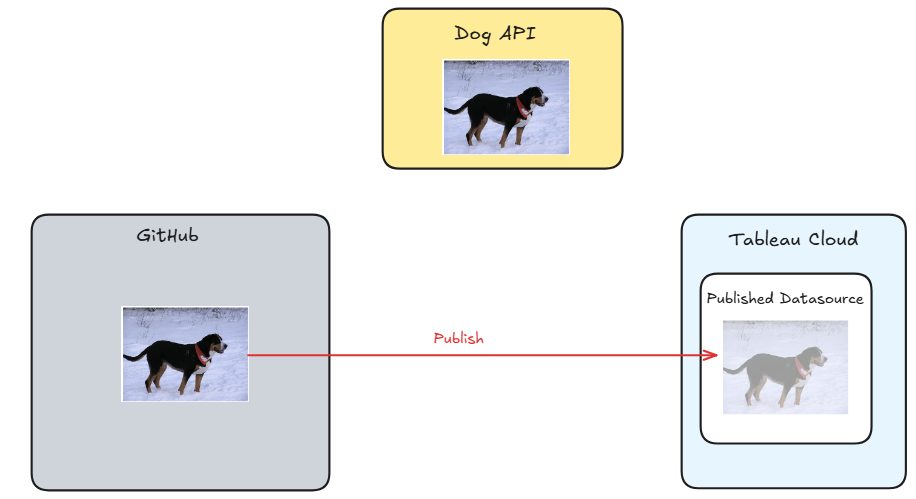
Here is a sketch of the end result:
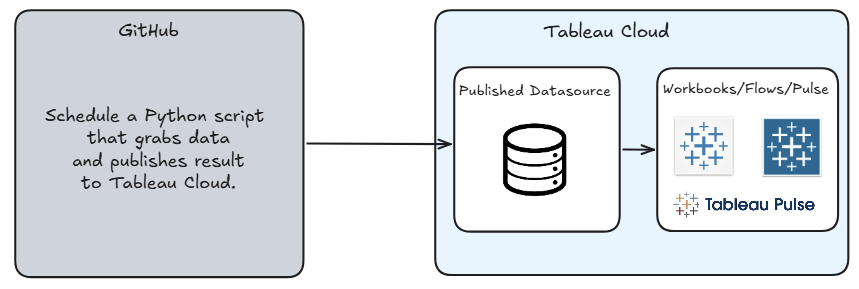
You can see that we will run a Python script inside GitHub that retrieves data and uploads it to Tableau Cloud on a scheduled basis.
Once this is in place, any workbooks, flows, or pulse metrics in Tableau Cloud that rely on this datasource will remain up to date without any manual intervention.
So let's get started on a demo project to implement this process.
Project Brief:
For my demo I want to get data from an API and upload it to cloud. We are using the Dog API which returns a random image of a dog. You can see the API endpoint and the JSON response below:
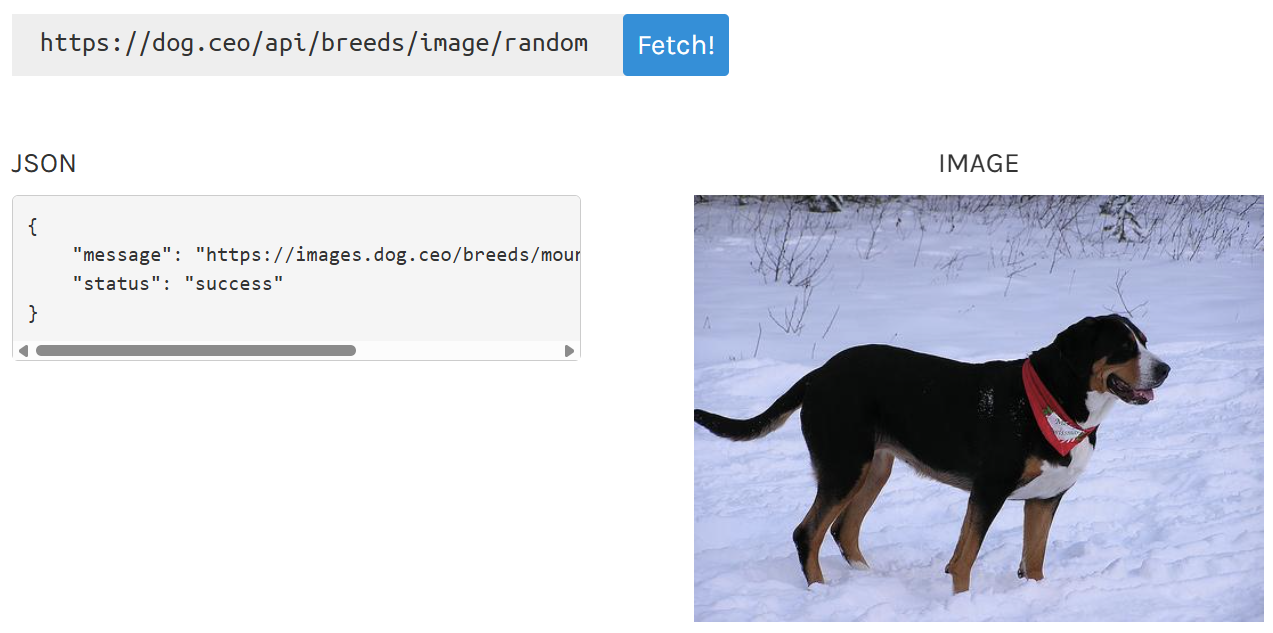
We are going to keep this project simple, so this is the basic objective:
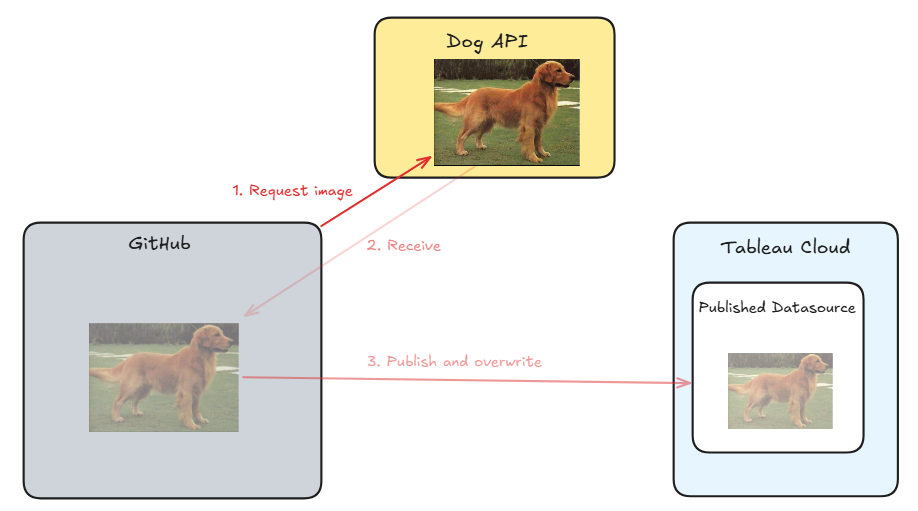
Step 1: Fetch image from Dog API
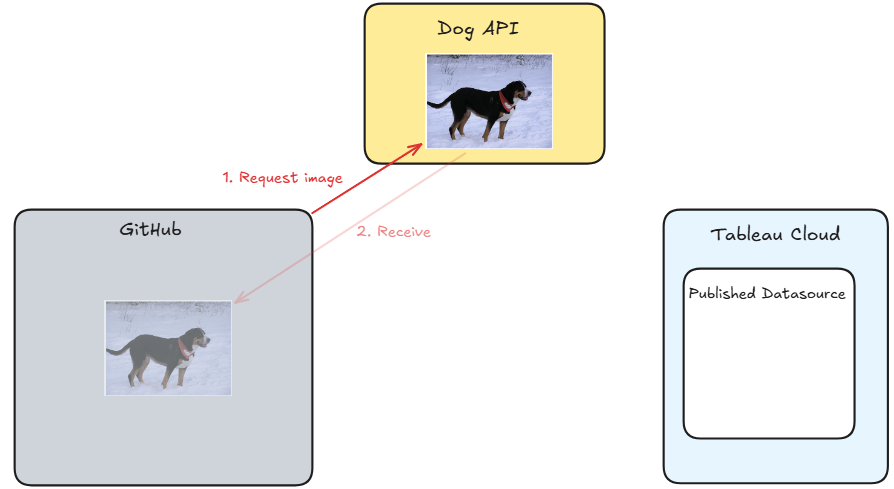
Step 2: Publish the image to Tableau Cloud
Step 3: Repeat and overwrite the current image on Tableau Cloud on a schedule
Why Do This Project?
This process of retrieving a new image of a dog and overwriting the datasource on Tableau Cloud demonstrates the broader concept of updating cloud-hosted datasources programmatically.
In our demo, our data is just a single image of a dog, but the important part is the concept that works to refresh and update a datasource on Tableau Cloud without relying on Tableau Cloud Manager or Tableau Prep scheduling.
You can apply this same concept on real-world business use cases, such as the Tableau Pulse implementation I previously set up, which you can read about here.

Implementation
To implement this process, you need a few components:
- Tableau credentials — this includes your Tableau Server URL, Site ID, Personal Access Token (PAT) name, PAT secret, and Tableau Project ID
- Python packages — including packages for API requests, Tableau Hyper API, and Tableau Server Client (TSC)
- Python script to retrieve data and upload it to Tableau Cloud
- GitHub Actions workflow (yml file) to schedule and automate the process
I can provide everything except the Tableau credentials, so let’s start there—you can reference my blog here for where to find them.

You’ll need the Tableau Server URL, Site ID (not LUID), and Project LUID (although it is referenced as Project ID) to identify where the datasource should be published in Tableau Cloud. You’ll also need a Personal Access Token (PAT) name and secret, which are used to authenticate and log into your Tableau Cloud account via the API.
Once you have your Tableau credentials, you are ready to set up the environment in GitHub.
Store Tableau Credentials in GitHub
First, create a repository for this project, which will be used to run and store your workflow. My repository is called dog_api_to_tableau_cloud.Once you have your repository, configure your GitHub Secrets.
Navigate to:
Your project repository → Settings → Secrets and variables → Actions
Then add a new repository secret one by one, using the names listed below. For each secret, the the value should be the corresponding credential retrieved in the previous step.
TABLEAU_SERVER_URLTABLEAU_SITE_IDTABLEAU_PAT_NAMETABLEAU_PAT_SECRETTABLEAU_PROJECT_ID
Once added, these values will be stored privately and referenced later in your GitHub Actions workflow. This allows your Python script to authenticate with Tableau Cloud and publish the datasource without exposing any sensitive credentials in your codebase.
It is also important to note that if you are pulling data from a external data source that require authentication, those credentials should be stored here in GitHub Secrets as well. You can then reference them in your Python script when making the request.
Great, with your Tableau credentials stored securely in GitHub, let’s move on to setting up the Python script.
Setting up Python Script
In this workflow, we use three main packages: requests, tableauhyperapi, and tableauserverclient. These are listed in a requirements.txt file so they are automatically installed as dependencies during the GitHub Actions workflow in GitHub Actions.
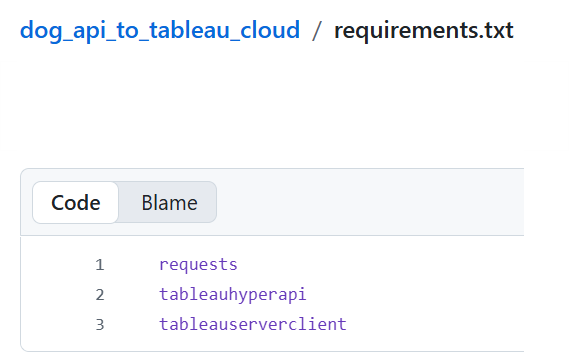
These packages are used for:
- requests
Used to call external APIs and fetch data. In this case, it retrieves the random dog image and breed information from the Dog API. - tableauhyperapi
Used to create and write data into a Tableau Hyper extract file (.hyper). - tableauserverclient (TSC)
Used to authenticate and interact with Tableau Cloud. In this workflow, it publishes the Hyper file as a datasource to a Tableau project.
So in your repository, make sure you have a requirements.txt file in the root directory containing the packages you need. You may not need requests if you are not calling an external API—for example, if your data is coming directly from a database.
Next is the Python script - fetch_and_publish.py.

I handle three main steps in this script — you can find the full version at the bottom of the blog, but I’ll walk through the main() function that gets executed.
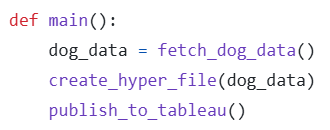
Inside main(), there are three functions:
First, fetch_dog_data() pulls data from the API. It retrieves a random dog image, extracts the breed, and adds a timestamp for when the record was created.
Next, the output from that function is passed into create_hyper_file(), which transforms the data into a Tableau Hyper file format.
Finally, publish_to_tableau() takes the generated Hyper file and publishes it to Tableau Cloud, overwriting the old file.
Once the python script is set up, let's set up the GitHub action to run this on a schedule.
Setting up GitHub Actions
To set up GitHub Actions, we need to create and configure a YAML (.yml) file inside the .github/workflows directory. YAML files define the automation steps GitHub should run and specify when those workflows should execute.
You can have GitHub generate a starter YAML file for you from the GitHub Actions tab, or create a new file named .github/workflows/your_file_name.yml manually. Either way, you’ll still need to configure the YAML file to match the workflow and automation steps you want to run.
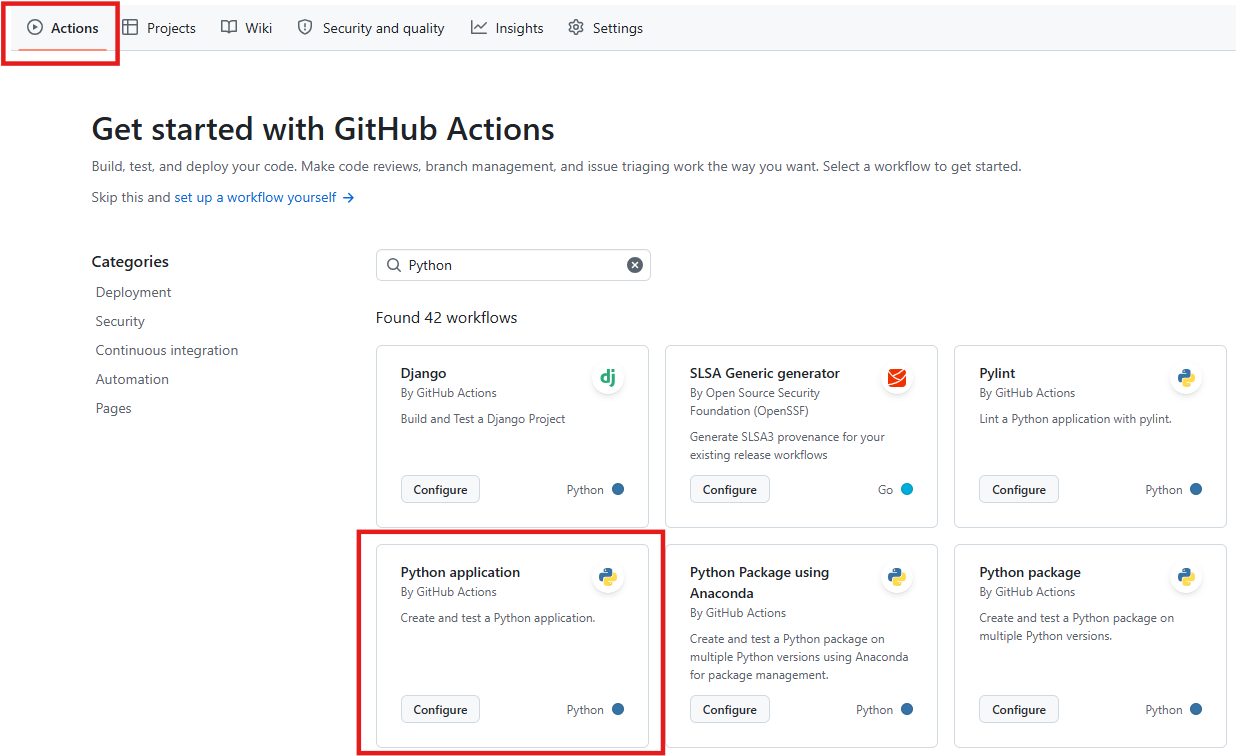
My full YAML file is also available at the bottom of the blog, but here is the key component.
This workflow automates fetching and publishing a Tableau datasource using a Python script. The workflow is called Publish Dog Datasource.
name: Publish Dog Datasource
The workflow executes the fetch_and_publish.py Python script, which handles fetching the data and publishing the Tableau datasource.
run: python fetch_and_publish.pyThis runs the workflow automatically every hour (at minute 0).
on: schedule: - cron: "0 * * * *"The line below also allows the workflow to be triggered manually from the GitHub Actions tab.
workflow_dispatch:Managing GitHub Actions
Once you have your workflow set up, your Python code will execute automatically every hour. Because we included workflow_dispatch, you can also manually run the workflow from GitHub at any time, regardless of the schedule.
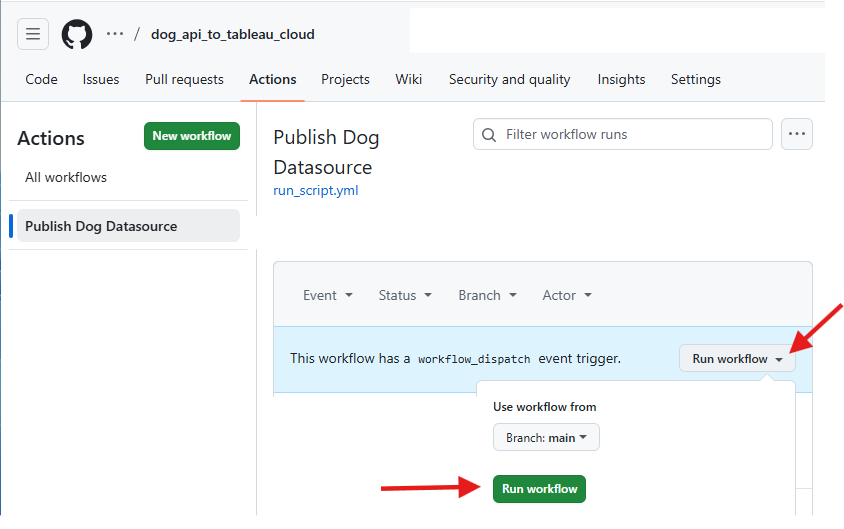
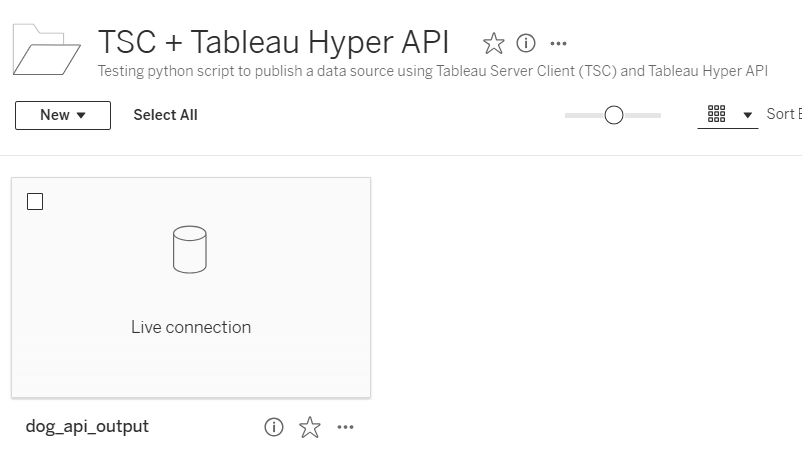
Once the workflow executes, you should then see your datasource appear and update in Tableau Cloud.
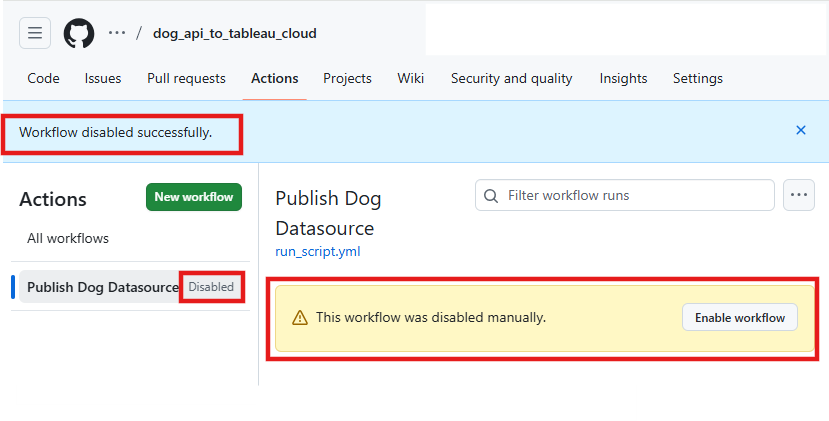
Since this is a demo, it’s also useful to know how to disable the GitHub Action. Disabling the workflow allows you to keep the YAML file in your repository without it being executed on a schedule or trigger.
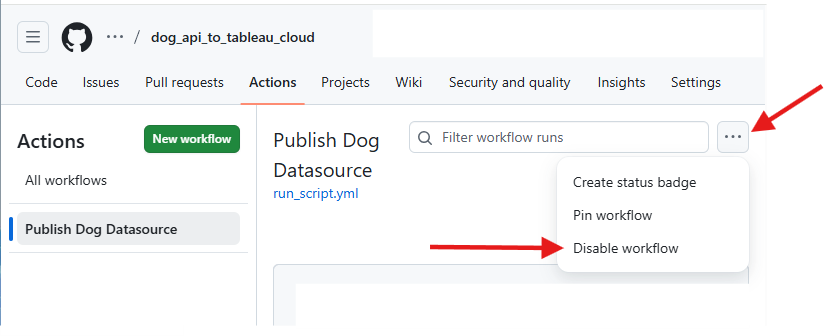
Once you disable the workflow, it will stop running on its schedule and cannot be triggered automatically or manually until it is re-enabled.
Considerations about GitHub
Now that we’ve set up fetching and publishing data from the API to Tableau Cloud on a schedule using GitHub Actions, there are a few considerations to keep in mind.
GitHub Actions on the free tier did not execute the workflow exactly on schedule. While you may configure a job to run every hour, execution can be less predictable depending on available compute resources. In my case, an hourly schedule often ran every 5–12 hours instead of consistently every hour. However, less frequent schedules (such as weekly runs) tend to be more reliable, as they generally run once per week on the same day, even if not at an exact time.
This is important to consider if you are publishing a datasource to Tableau Cloud and then running downstream processes, such as a Tableau Prep flow, on a schedule.
Another consideration is that the free tier of GitHub includes 2,000 CI/CD minutes per month, which means your private repository workflows can only run for a limited amount of time on GitHub-hosted runners before reaching the usage limit. For public repositories, GitHub Actions is free to use and does not consume these paid minutes. If you are planning to keep your repository private, consider the compute time of your code and the schedule you want to run to make sure your plan can support it.
Appendix
requirements.txt
This lists all the Python packages your project depends on so they can be automatically installed with pip install -r requirements.txt to ensure the code runs correctly.
requests
tableauhyperapi
tableauserverclient
fetch_and_publish.py
This script fetches a random dog image from an API, builds a Tableau Hyper extract, and publishes it to Tableau Cloud.
# import packages
import os
import requests
from datetime import datetime

from tableauhyperapi import (
    HyperProcess,
    Telemetry,
    Connection,
    CreateMode,
    TableDefinition,
    SqlType,
    Inserter
)

from tableauserverclient import (
    PersonalAccessTokenAuth,
    Server,
    DatasourceItem
)

# API that returns a random dog image + breed
DOG_API_URL = "https://dog.ceo/api/breeds/image/random"

# Local Hyper extract file name
HYPER_FILE = "dog_image.hyper"

# Table name inside Hyper file
TABLE_NAME = "Extract"

# Tableau Cloud credentials stored as environment variables (GitHub Secrets)
TABLEAU_SERVER_URL = os.environ["TABLEAU_SERVER_URL"]
TABLEAU_SITE_ID = os.environ["TABLEAU_SITE_ID"]
TABLEAU_PAT_NAME = os.environ["TABLEAU_PAT_NAME"]
TABLEAU_PAT_SECRET = os.environ["TABLEAU_PAT_SECRET"]
TABLEAU_PROJECT_ID = os.environ["TABLEAU_PROJECT_ID"]

# Name of the published datasource in Tableau Cloud
DATASOURCE_NAME = "dog_api_output"


def fetch_dog_data():
    # Call API to fetch random dog image data
    print("Fetching dog image...")
    response = requests.get(DOG_API_URL)
    response.raise_for_status()

    # Convert response to JSON
    data = response.json()

    # Extract image URL and derive breed from URL
    image_url = data["message"]
    breed = image_url.split("/")[-2]

    # Timestamp for when data was fetched
    created_at = datetime.utcnow().isoformat()

    return {
        "breed": breed,
        "image_url": image_url,
        "created_at": created_at
    }


def create_hyper_file(dog_data):
    # Create Tableau Hyper extract file
    print("Creating Hyper file...")

    # Remove old file if it exists
    if os.path.exists(HYPER_FILE):
        os.remove(HYPER_FILE)

    # Define schema for Hyper table
    table_definition = TableDefinition(
        table_name=TABLE_NAME,
        columns=[
            TableDefinition.Column("breed", SqlType.text()),
            TableDefinition.Column("image_url", SqlType.text()),
            TableDefinition.Column("created_at", SqlType.text())
        ]
    )

    # Start Hyper engine and create database
    with HyperProcess(
        telemetry=Telemetry.DO_NOT_SEND_USAGE_DATA_TO_TABLEAU
    ) as hyper:

        with Connection(
            endpoint=hyper.endpoint,
            database=HYPER_FILE,
            create_mode=CreateMode.CREATE_AND_REPLACE
        ) as connection:

            # Create table inside Hyper file
            connection.catalog.create_table(table_definition)

            # Insert one row of data into table
            with Inserter(connection, table_definition) as inserter:
                inserter.add_row([
                    dog_data["breed"],
                    dog_data["image_url"],
                    dog_data["created_at"]
                ])
                inserter.execute()

    print(f"Created Hyper file: {HYPER_FILE}")


def publish_to_tableau():
    # Authenticate to Tableau Cloud using PAT (Personal Access Token)
    tableau_auth = PersonalAccessTokenAuth(
        token_name=TABLEAU_PAT_NAME,
        personal_access_token=TABLEAU_PAT_SECRET,
        site_id=TABLEAU_SITE_ID
    )

    # Connect to Tableau Cloud server
    server = Server(
        TABLEAU_SERVER_URL,
        use_server_version=True
    )

    # Sign in and publish datasource
    with server.auth.sign_in(tableau_auth):

        # Define datasource metadata
        datasource = DatasourceItem(
            project_id=TABLEAU_PROJECT_ID,
            name=DATASOURCE_NAME
        )

        print("Publishing datasource to Tableau Cloud...")

        # Publish Hyper file (overwrite existing datasource if present)
        server.datasources.publish(
            datasource,
            HYPER_FILE,
            mode="Overwrite"
        )

        print("Publish complete!")


def main():
    # Full pipeline execution
    dog_data = fetch_dog_data()      # Step 1: get data from API
    create_hyper_file(dog_data)      # Step 2: build Hyper extract
    publish_to_tableau()             # Step 3: publish to Tableau Cloud


if __name__ == "__main__":
    # Entry point when script is executed
    main()
run_script.yml
This YAML file defines a GitHub Actions workflow that runs a Python script on a schedule (every hour) or manually, setting up the environment, installing dependencies, and executing the code to publish a Tableau datasource.
# Name of the GitHub Actions workflow (shown in the Actions tab)
name: Publish Dog Datasource

# Defines when the workflow will run
on:
  # Allows manual triggering from the GitHub Actions UI
  workflow_dispatch:

  # Scheduled trigger: runs every hour at minute 0
  schedule:
    - cron: "0 * * * *"

# Defines the jobs that will run in this workflow
jobs:
  publish:

    # The virtual machine environment used to run the workflow
    runs-on: ubuntu-latest

    # Environment variables loaded from GitHub Secrets (secure storage)
    env:
      TABLEAU_SERVER_URL: ${{ secrets.TABLEAU_SERVER_URL }}
      TABLEAU_SITE_ID: ${{ secrets.TABLEAU_SITE_ID }}
      TABLEAU_PAT_NAME: ${{ secrets.TABLEAU_PAT_NAME }}
      TABLEAU_PAT_SECRET: ${{ secrets.TABLEAU_PAT_SECRET }}
      TABLEAU_PROJECT_ID: ${{ secrets.TABLEAU_PROJECT_ID }}

    # Sequence of steps executed in the job
    steps:

      # Step 1: Pulls the repository code into the runner
      - name: Checkout repo
        uses: actions/checkout@v4

      # Step 2: Sets up Python environment (version 3.11)
      - name: Setup Python
        uses: actions/setup-python@v5
        with:
          python-version: "3.11"
          cache: "pip"

      # Step 3: Installs required Python dependencies
      - name: Install dependencies
        run: pip install -r requirements.txt

      # Step 4: Runs the Python script that fetches data and publishes to Tableau
      - name: Run script
        run: python fetch_and_publish.py