


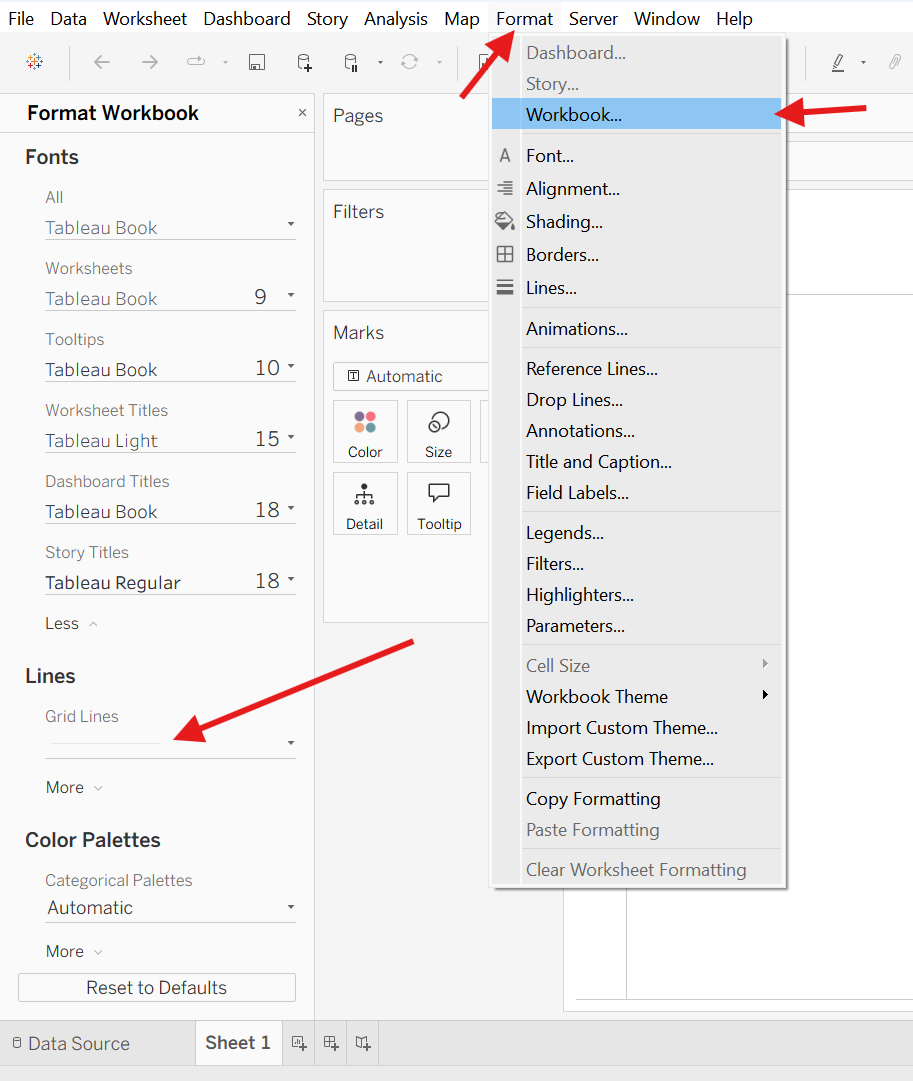
- Clear gridlines from all the sheets on the dashboard/workbook
Go to Format -> Workbook -> Grid Lines -> (Change Automatic to Off)
- Expanding Tables: Ctrl + Arrows
If you ever make a table that's too small to show the measures inside, it will show # instead of the actual numbers.
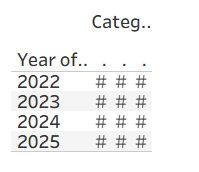
Instead of manually dragging the table to be bigger, you can use your Arrow keys and Control button to expand the table faster!
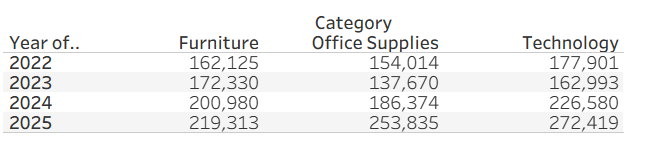
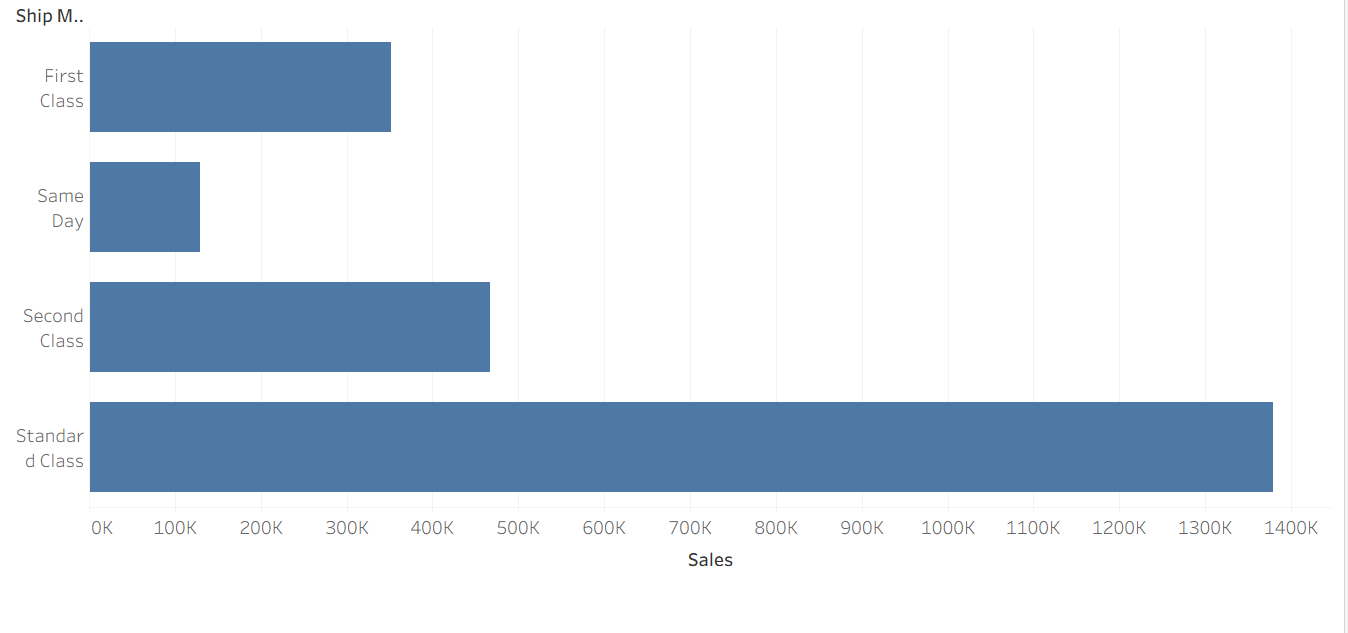
You can also do Ctrl + ↓ or Ctrl + ↑ to scale charts too!

- Copy Formatting
When you right click on a sheet, there is an option to Copy the Formatting of the sheet.
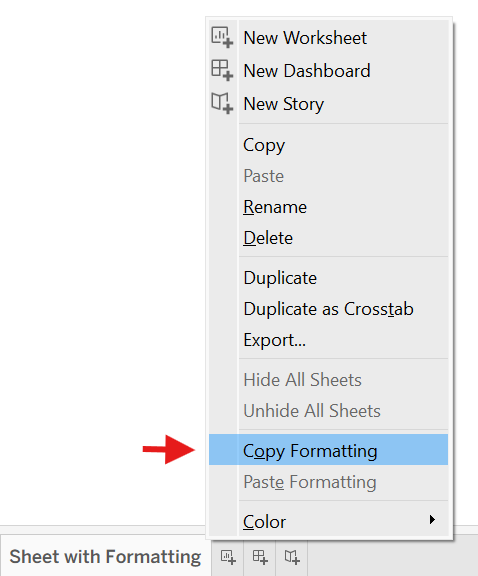
Then you have an option to paste the formatting onto a new sheet.
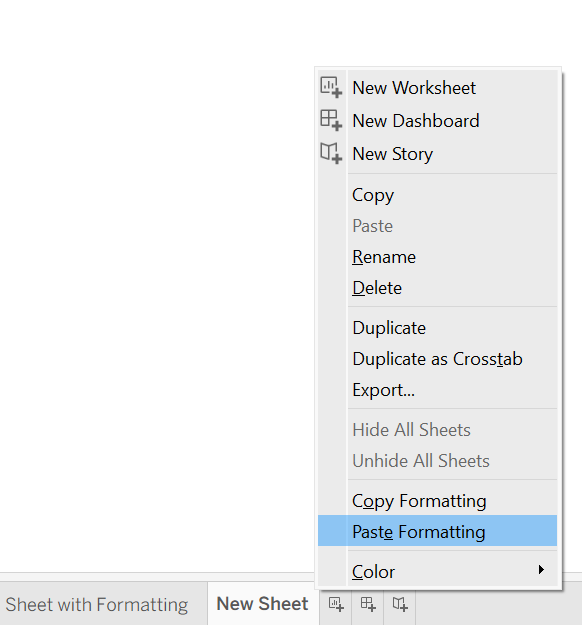
Robert Headington has a great blog post and gif that shows this process, so I recommend checking it out here!
I hope some of this saved you time!