


Most Tableau projects follow a familiar path: you build worksheets to visualize specific insights, combine those sheets into interactive dashboards, and then sequence those dashboards into a Tableau Story to guide your stakeholders.
However, as workbooks grow, many developers hit a wall with Stories due to three major drawbacks:
- A rigid, cramped layout: The enforced top header bar eats up valuable screen space and limits overall canvas customization.
- Styling and branding constraints: You have minimal control over fonts, tab shapes, and active/hover colors.
- A strict linear narrative: Viewers are forced into a rigid left-to-right flow rather than exploring insights on their own terms.
That’s why many developers skip Stories entirely and build dashboards using navigation buttons instead. This approach gives you full design control, allowing you to build intuitive, web-app-style user flows that look and feel completely custom.
Unlocking Design Control with Navigation Buttons
Using native navigation buttons over standard stories gives you complete creative freedom over how users interact with your workbook. You can easily find the Navigation object in the Objects pane on the left sidebar of your dashboard workspace—simply drag and drop it directly onto your canvas to get started.
- Custom look and feel: You can use custom images, branded colors, icons, and distinct hover states instead of plain, default story tabs.
- Non-linear exploration: Instead of forcing stakeholders down a rigid left-to-right path, you can build custom tab bars or side menus so users can jump directly to the views they need.
- Saving screen space: Navigation buttons pair seamlessly with show/hide collapsible containers, letting you tuck away filter panels or instruction sheets until a user clicks to view them.
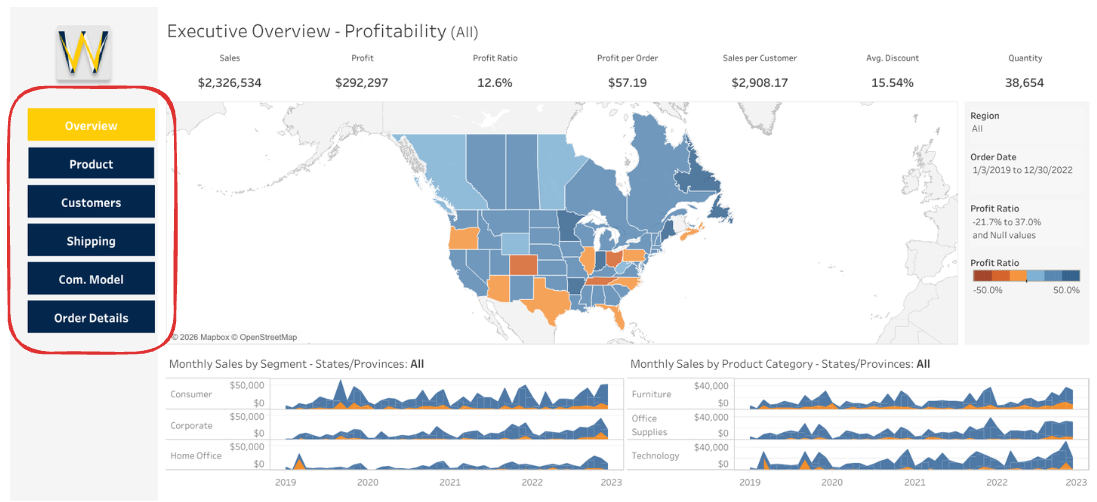
Adding Data-Driven Precision with Go-To-Sheet Actions
While navigation buttons handle page-to-page routing, Go-To-Sheet actions handle data-driven navigation.
By combining a Go-To-Sheet action with a filter action, you can make chart elements act as interactive navigation triggers. For example, when an end user clicks on a specific bar chart segment (like "Manufacture bar"), Tableau can automatically take them to a granular detail sheet that is pre-filtered specifically to that selection.
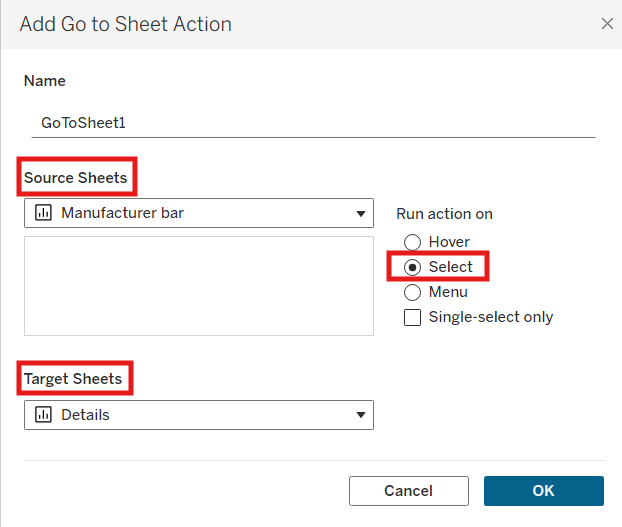
Navigation Buttons vs. Go-To-Sheet Actions
While both features help users navigate your workbook, they serve two distinct purposes:
- Navigation Buttons (Macro-Level Routing):
- How they trigger: Clicked via a standalone button object.
- Data context: Static—they move the user between pages without applying filters.
- Best for: Global UI elements like main menus, tabbed headers, or "Back to Home" controls.
- Go-To-Sheet Actions (Micro-Level Drill-Downs):
- How they trigger: Clicked via a specific chart element (mark, bar, or cell).
- Data context: Dynamic—they pass filter context from the selected data point to the destination sheet.
- Best for: Contextual deep-dives (e.g., clicking a "West Region" bar to open an itemized transaction sheet pre-filtered to the West Region).
Best Practices for Better Dashboard UX
To keep your navigation intuitive and user-friendly, keep these tips in mind:
- Maintain consistent button placement: Place your navigation controls in the exact same spot across every dashboard tab to build muscle memory for your users.
- Always provide a clear "Way Back": Never send users to a detailed view without a clear "Back to Overview" button or a reset filter option.
- Set action triggers to "Select": Always configure Go-To-Sheet actions to trigger on "Select" rather than "Hover" to prevent accidental screen jumps while users move their mouse across charts.
- Test in a browser: Hover states, font sizing, and action triggers can behave slightly differently in Tableau Server or Tableau Cloud compared to Tableau Desktop.
In short, Tableau Stories work well enough for quick, slide-deck-style walkthroughs. But when your goal is to deliver a polished, modern data portal, combining navigation buttons and Go-To-Sheet actions gives your end users a far more seamless experience.