


In this blog I'll be walking through how I recreated my Michigan Water Infrastructure dashboard in Tableau Next. See below for the original dashboard.
What is Tableau Next?
Tableau Next is an agentic analytics platform built natively on Salesforce. While both Tableau Desktop and Tableau Next are part of the same Ecosystem, there was essential differences which will be highlighted during my process of recreating my dashboard.
Recreating the Dashboard Walkthrough
- Data handling
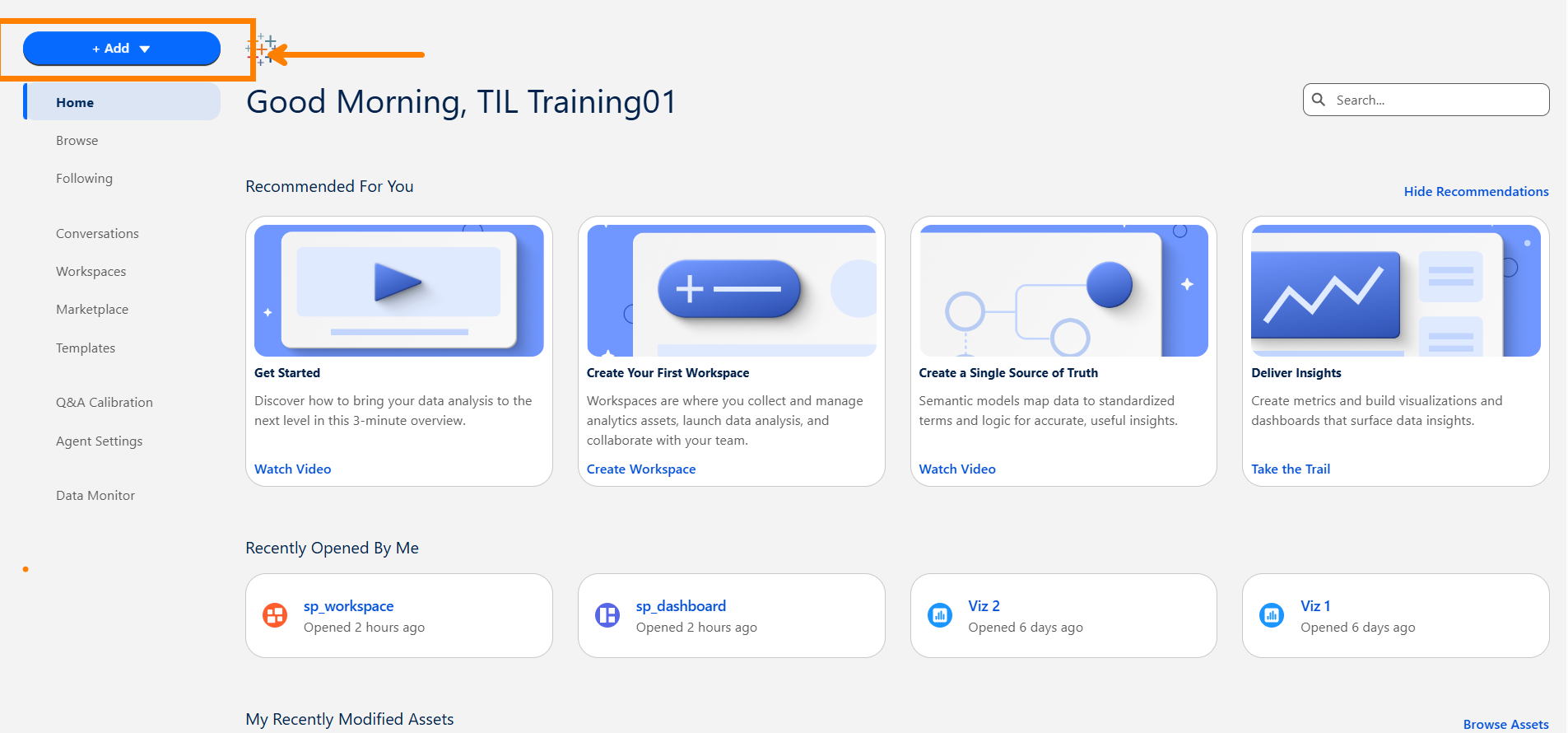
Press the add button, click on data, then select or create the workspace you're working in. After, you'll want to select how you're adding your data. For this project, I'm navigating to "Create New" and then "From File Upload"

Here, the a notable difference from Tableau Desktop was that I could only upload a .xlsx or .csv. My original dataset was cleaned and saved as a hyperfile, so I had to convert my file before continuing. The data I'm using for this project is about funding for water infrastructure in Michigan.
Now the the data is added, I created a Data Lake Object.
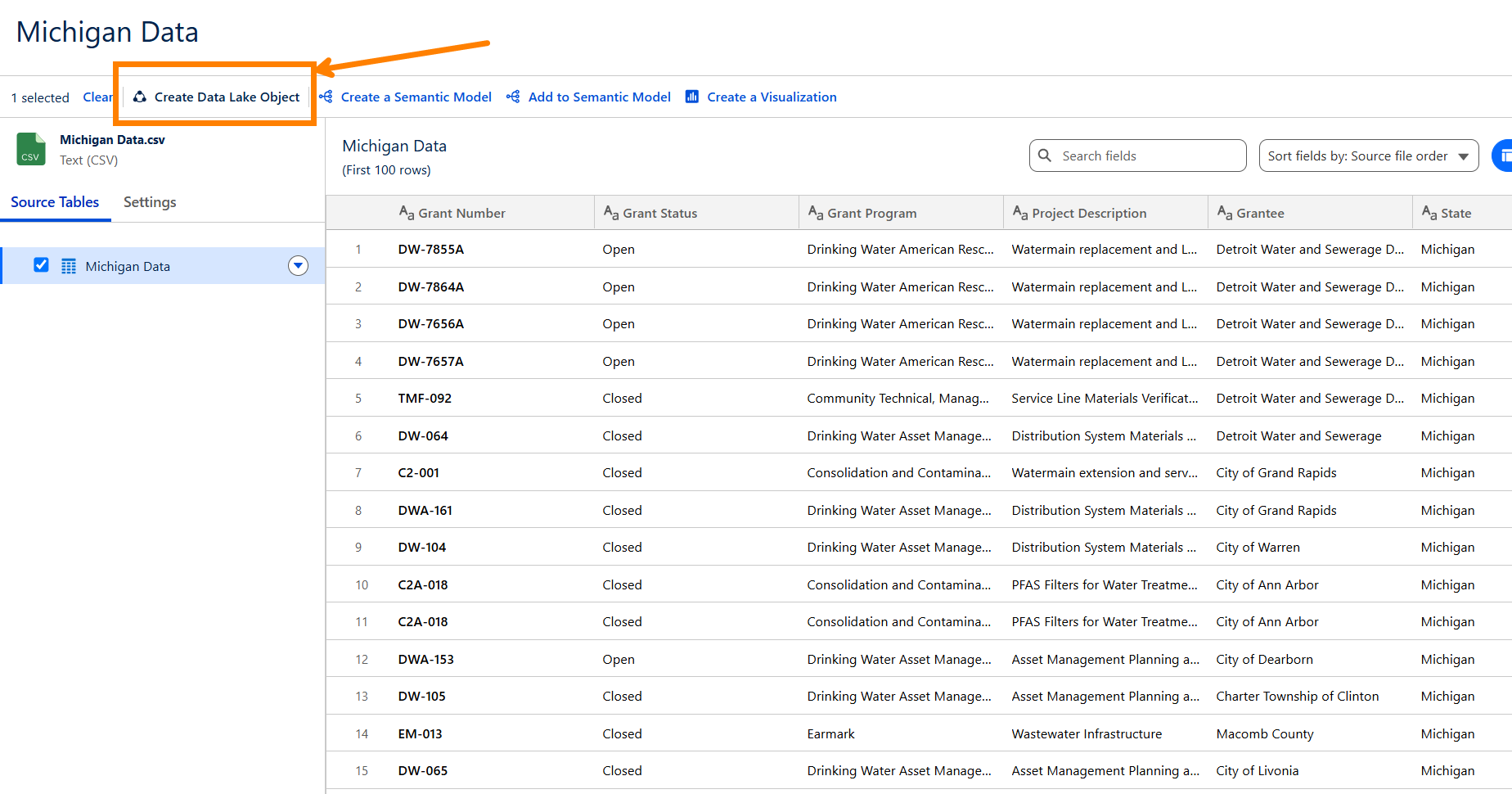
I only have one file, but if you have more, you have to repeat this process from the beginning and create a Data Lake Object for each file you plan on using.
Additionally, there's additional functionalities, where you could transform your data or create a semantic model where you can form logical relationships with your different Data Lake Objects. For this project, my data is already in the state I want it and I'm only using one dataset.
One helpful view of your options can be seen by navigating to your workspace where you can see a layout of everything you've created so far.
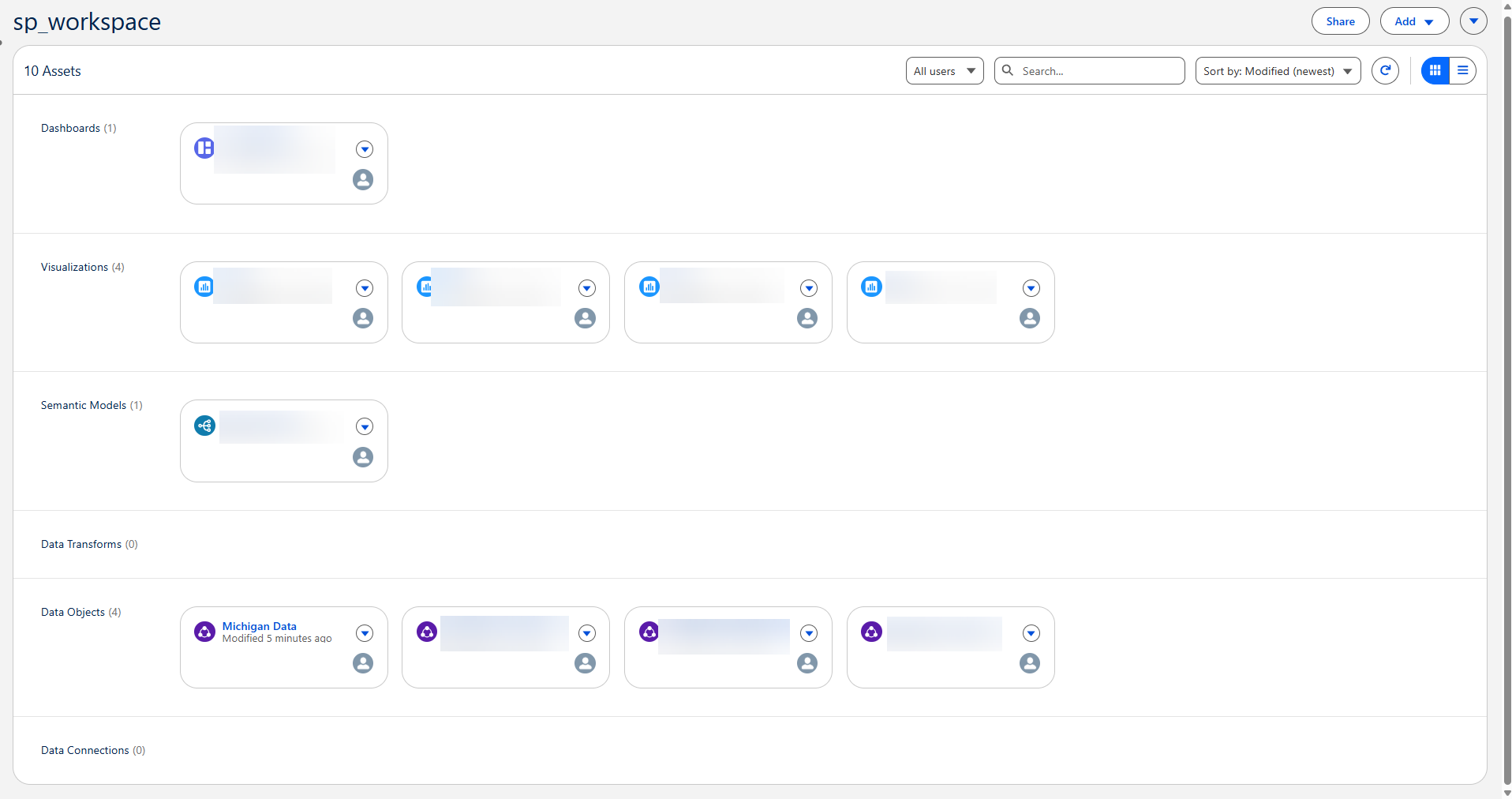
Here, from the "Add" at the top right, similar to the first "Add" section we talked about, you can also open "Data Transform", "Semantic Models", "Visualizations", or "Dashboard" as options.
- Creating a Semantic Model
A Semantic Model is necessary to build a visualization and then a dashboard.
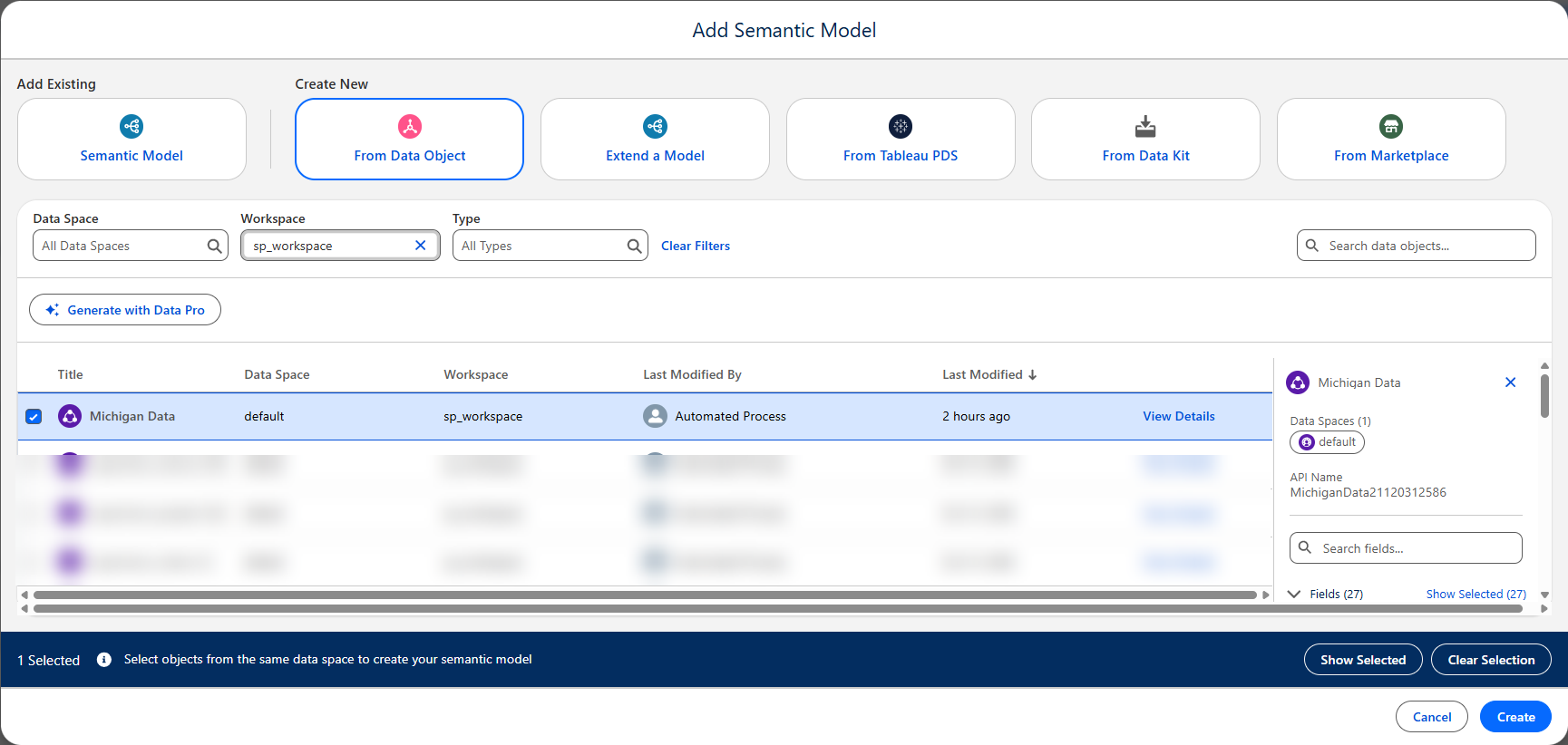
If you have multiple Data Objects this is where you can form logical relationships. Within this Semantic Model, I'll be building metrics to recreate my KPIs.
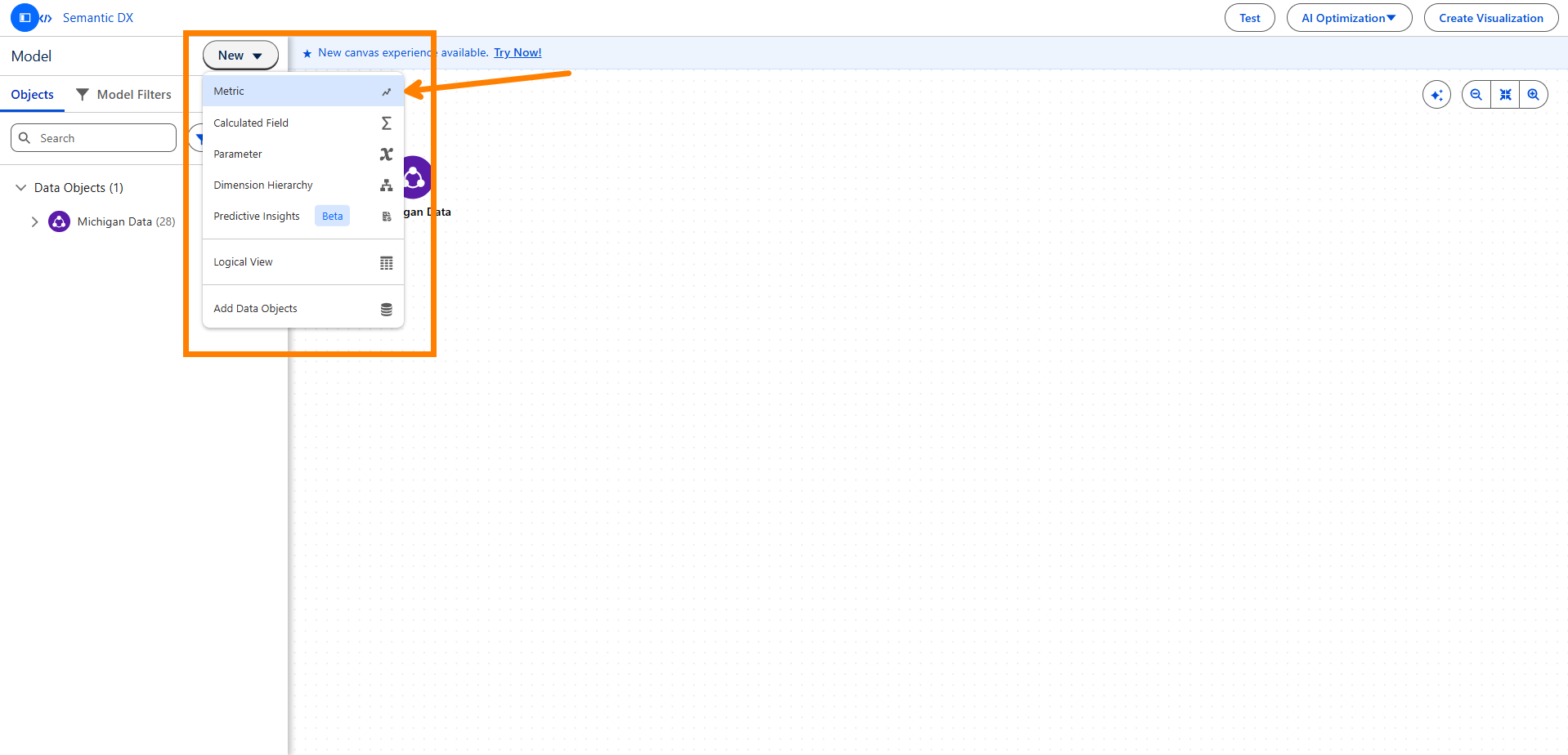
Here is what it looks like when you create a new metric.
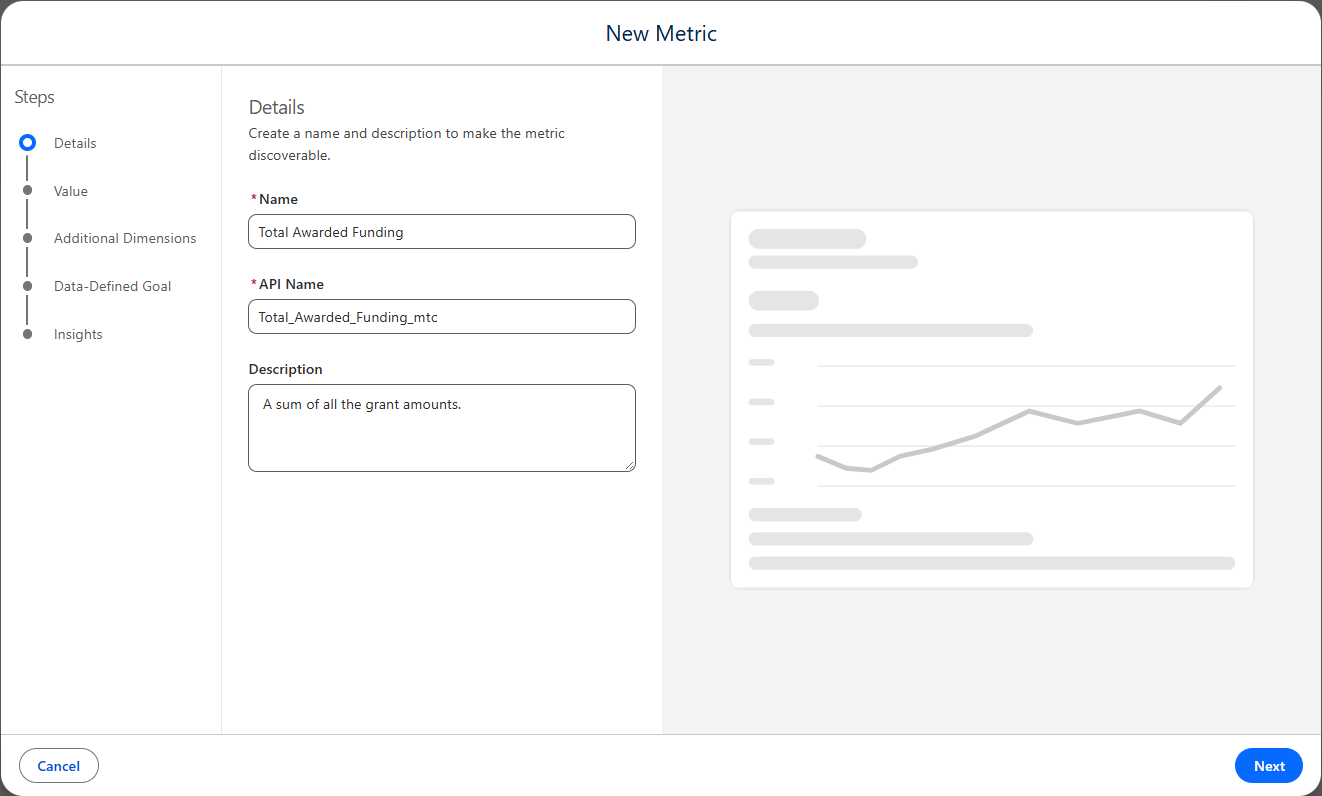
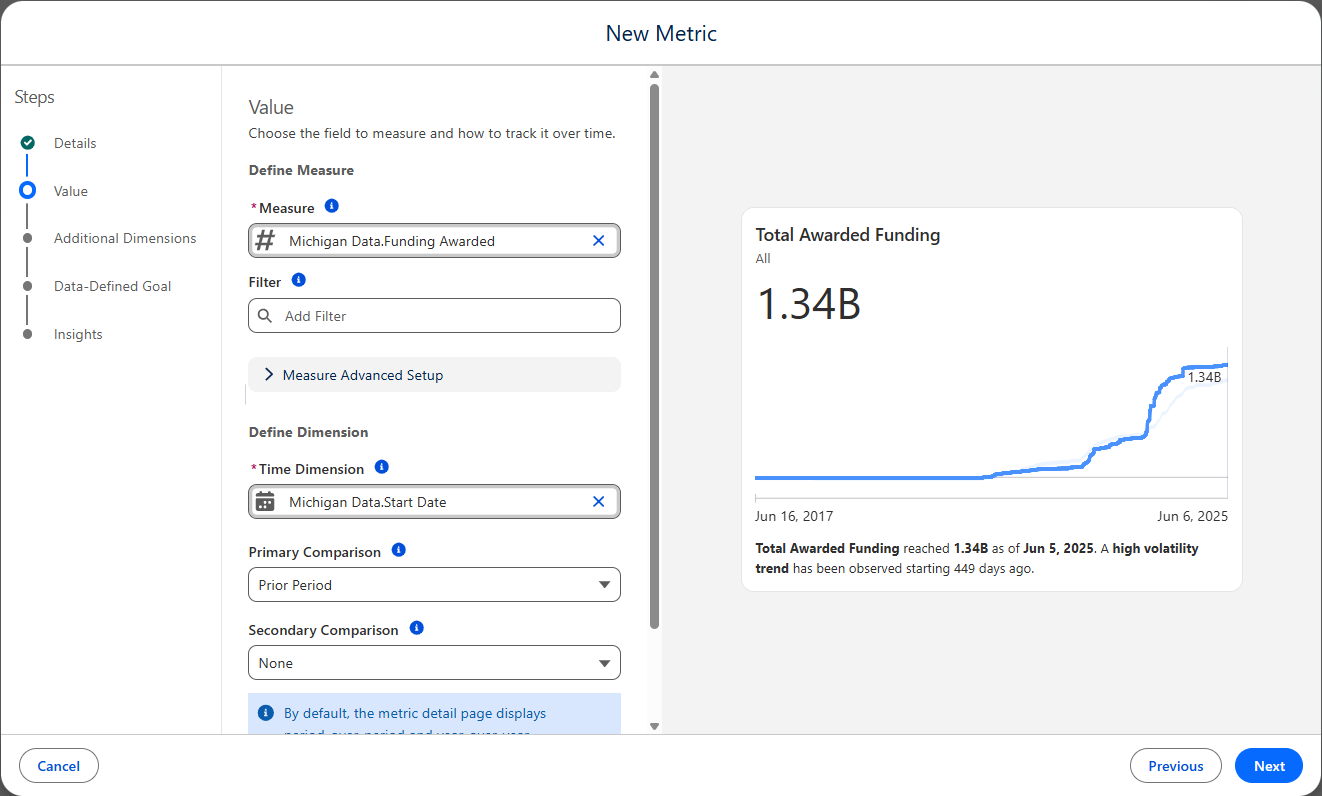
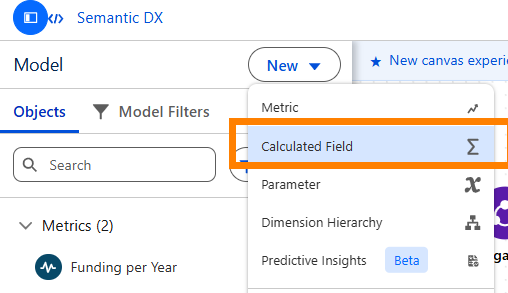
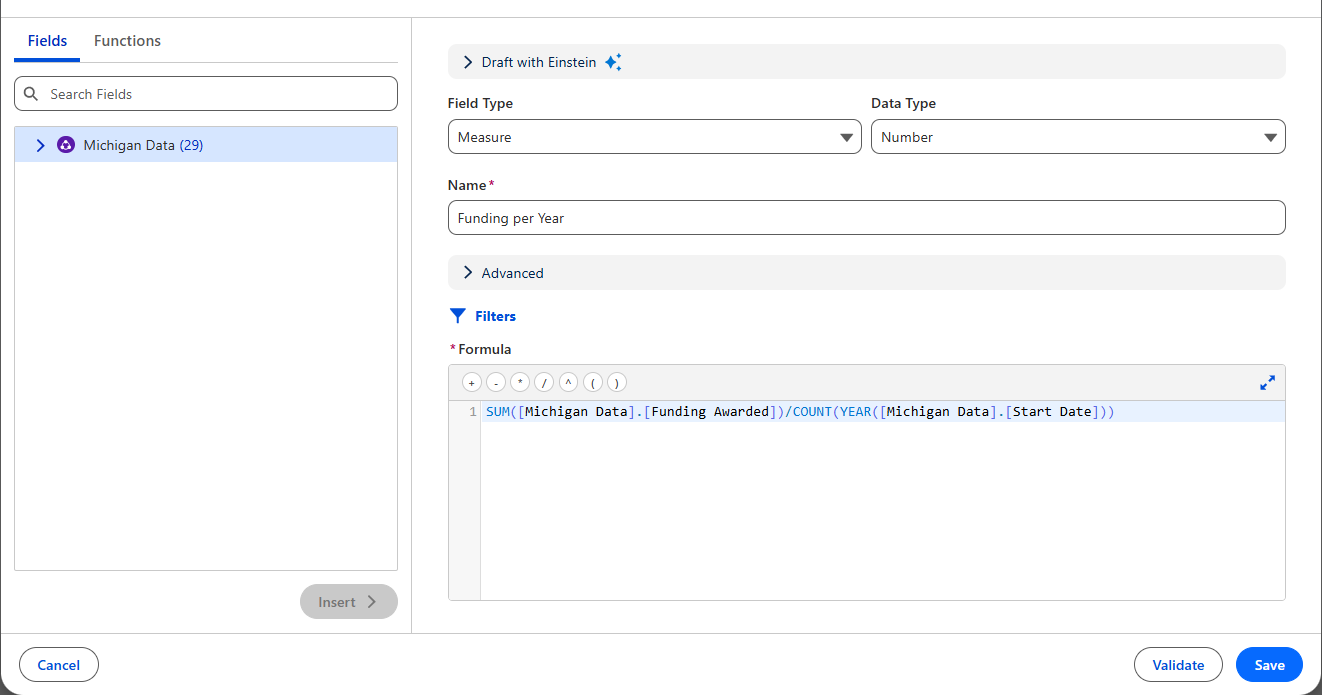
One of my KPIs was made from a calculation, where Funding per Year = SUM(Funding Awarded)/COUNT(YEAR(Start Date)), so for that one I created a calculated field and used that new field to create a metric.
- Making Visualizations
After creating my metrics in the Semantic Model, I named my Model and clicked "Create Visualization". To make a visualization in Tableau Next, a you have to have a Semantic Model.
For this project, I'll only be recreating the Overview from my Michigan Water Infrastructure dashboard.
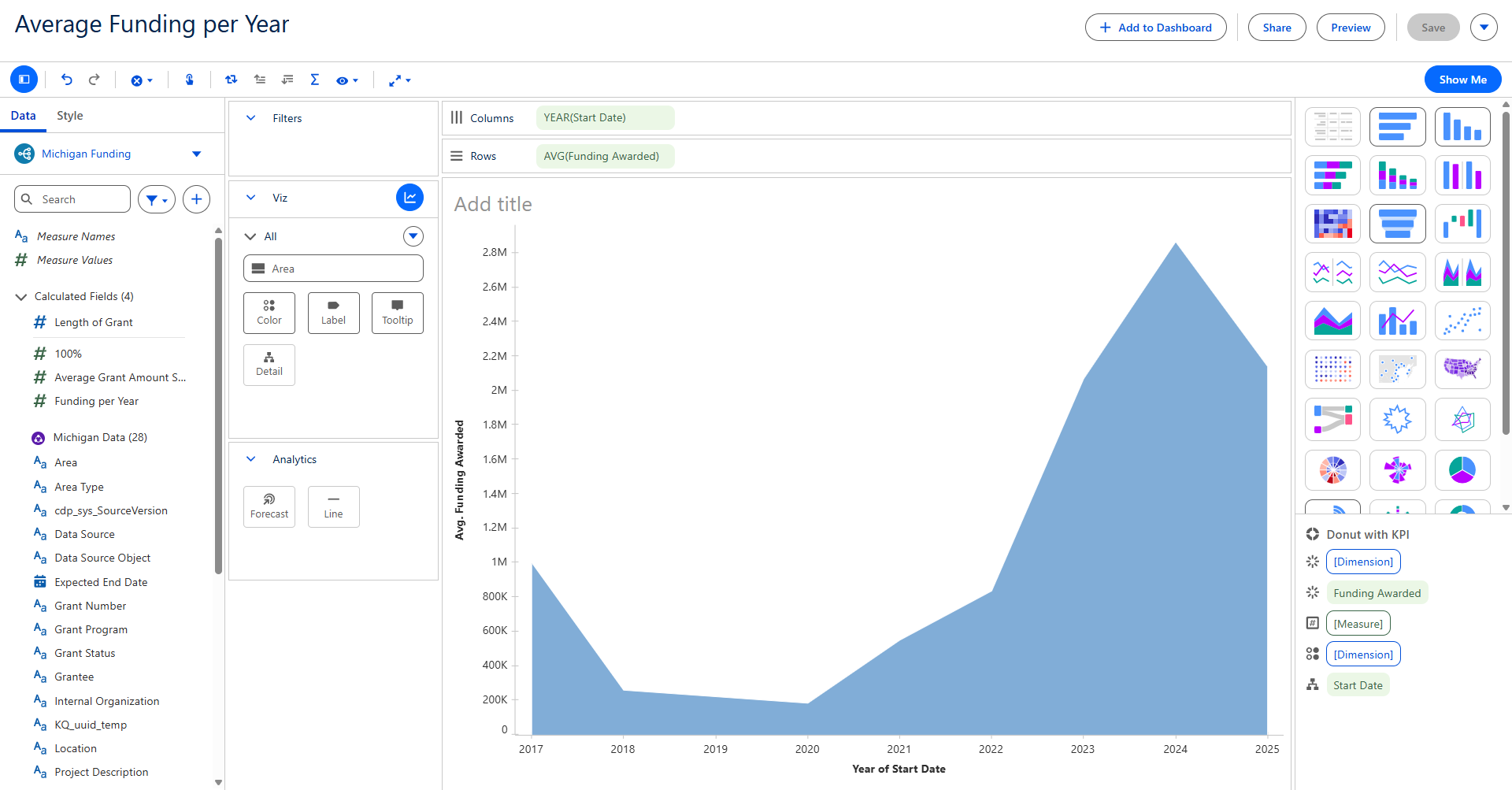
To build a visualization, it's similar to Tableau Desktop where you have to drag your measures and dimensions onto columns and rows, with the added bonus of the show me having more complicated chart options like a radial chart.
- Creating the Dashboard
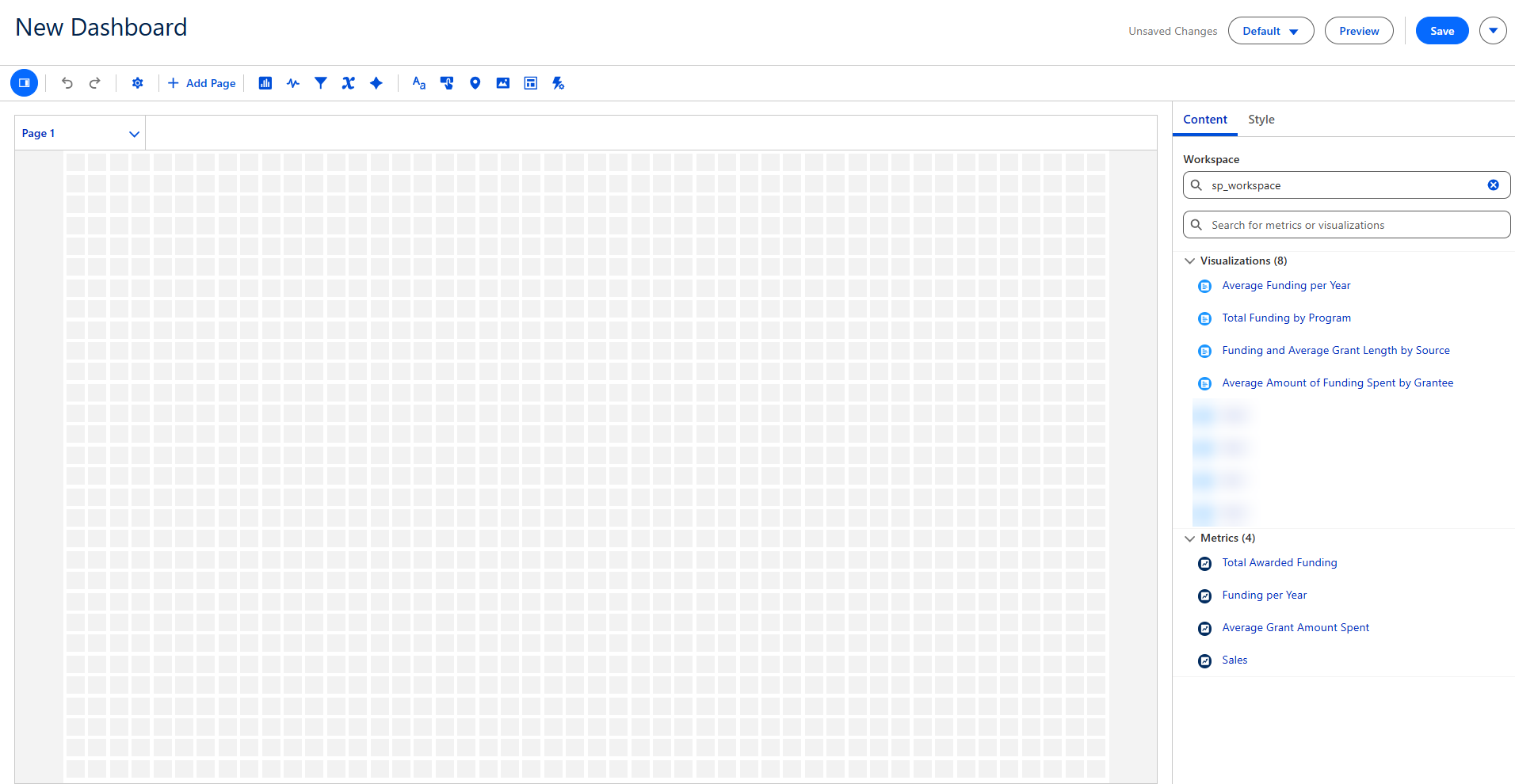
Click on "Dashboard" then "Blank Dashboard" and drag and drop your visualizations and metrics.
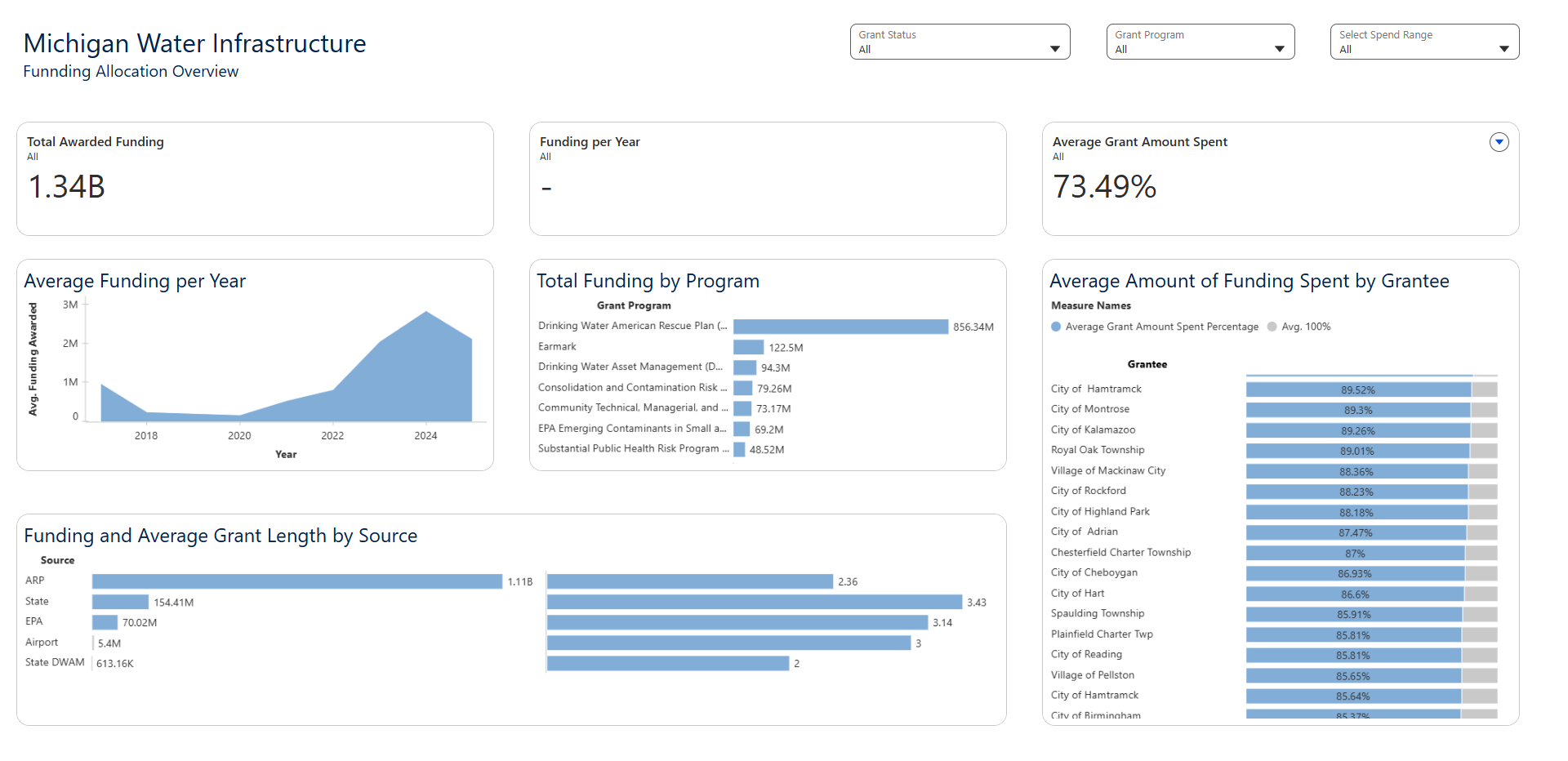
Currently, there is a system issues causing some metrics not to work, so this is what my final output looks like:
Thank you for joining me! Happy dashboard building!