


When most people think of Tableau, they think of dashboards: bar charts, KPIs, filters. But Tableau has everything you need to build something that feels nothing like a report. Parameters can hold values, actions can change them on a click, and calculations can redraw the view instantly.
Put those together and you can build a game.
In this blog, I'll walk through how I built "The Memory Assay", a classic flip-and-match memory game, entirely in Tableau.
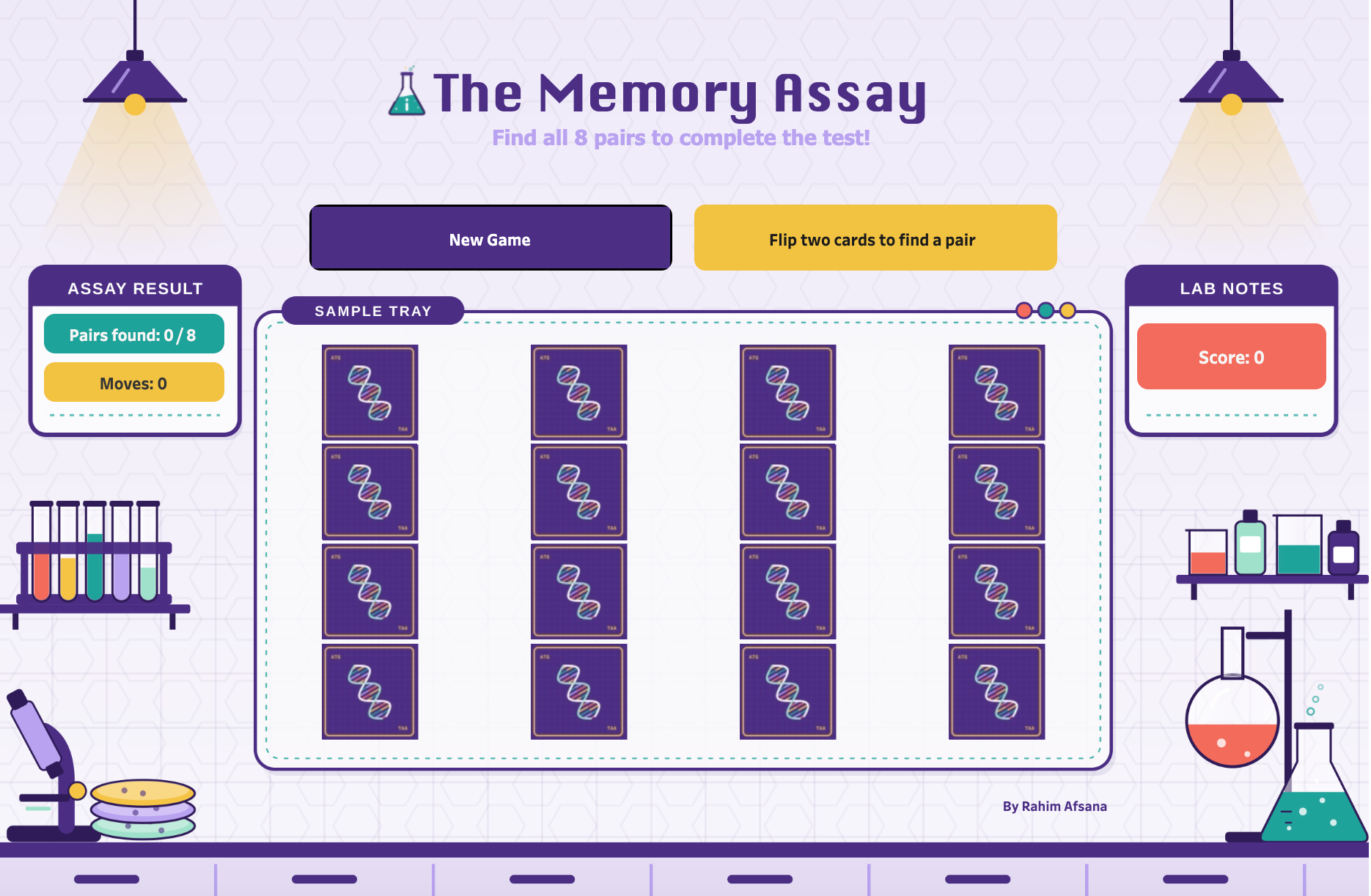
Play it here: [link to Tableau Public]
Here's what the game does:
- 16 face-down cards on a 4 × 4 grid
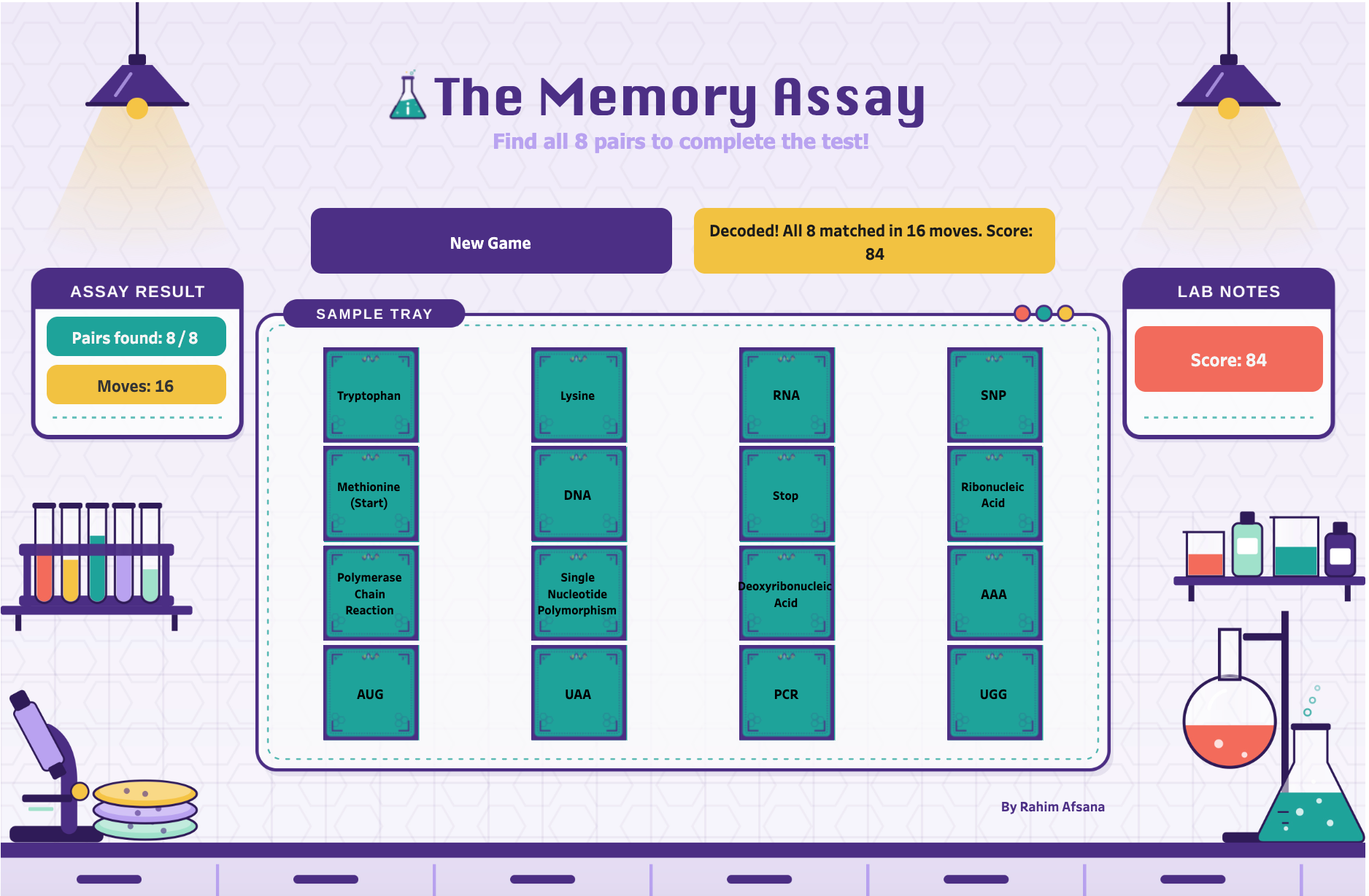
- Click two cards: if they match, they stay face up; if not, they flip back
- A live score, move counter and status message
- A New game button that resets and reshuffles the board
Let's build it.
Step 1: Creating a dataset
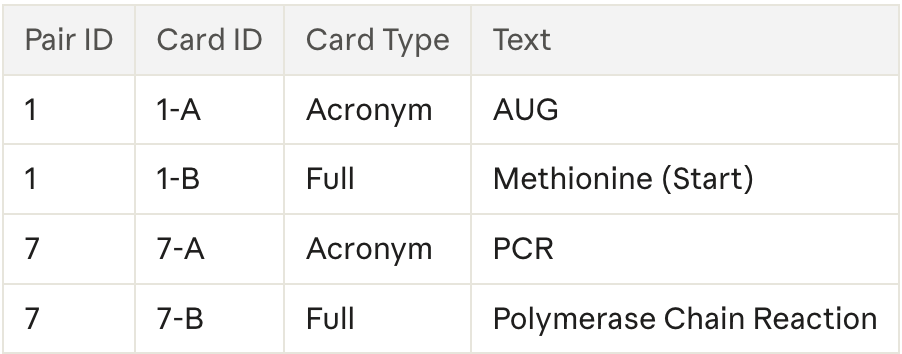
In Tableau, every row becomes a mark, and in this game every mark is a card. Each pair needs two separate cards in two different places, so each pair needs two rows.
- Pair ID links the two cards. Two cards with the same Pair ID are a match. Set it as a string, which matters later.
- Card ID gives every card its own name, so the game knows exactly which card was clicked. The -A / -B ending means you can always get the Pair ID back with
SPLIT(). - Card Type lets you style the short codes and the longer definitions differently.
- Text is what the card shows when it's face up.
That's the whole dataset: 8 pairs, 16 rows.
Step 2: Parameters
This is the key idea behind the whole build. Tableau doesn't remember anything between clicks. Every time something happens, it redraws the view from the data, and the data never changes.
Parameters are the way to hold a value and change during play. So they become the game's memory:
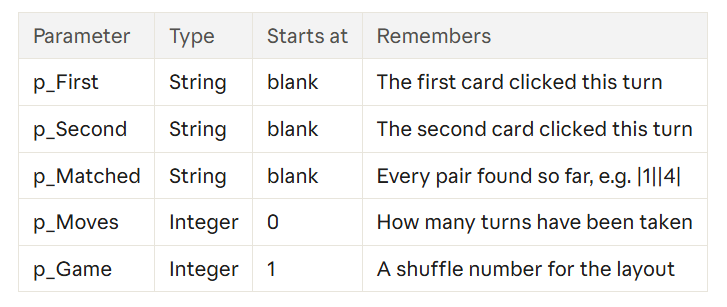
The pipes in p_Matched mark where each Pair ID starts and ends. Searching for "|1|" will never accidentally match inside "|11|". From this, everything follows one loop: a click writes to the parameters, and the calcs read the parameters to redraw the board.
Step 3: Shuffling the cards
A memory game needs the cards in a random order, but Tableau’s RANDOM() changes every time the view refreshes, which isn’t great for a game. Instead, I gave every card a repeatable random number:
// Hash Raw
SIN([Card Num] * 12.9898 + [Day Number] * 78.233 + [p_Game] * 37.719) * 43758.5453

// Card Hash
[Hash Raw] - FLOOR([Hash Raw])
It looks scary, but it’s a well-known trick. SIN of a big number jumps around unpredictably, and keeping only the decimal part gives a random-looking number between 0 and 1 for each card. Card Num is just a unique number per card. Day Number is the number of days since a fixed date, so the layout changes every day. p_Game changes every time someone clicks New game.
Then I ranked the cards by that number and turned the rank into a position on the board:
// Grid Col
(RANK_UNIQUE(MIN([Card Hash])) - 1) % 4

// Grid Row
INT((RANK_UNIQUE(MIN([Card Hash])) - 1) / 4)
Put Grid Col on Columns and Grid Row on Rows, both as discrete, with Square marks, and you have a 4 × 4 board.
These are table calcs, so set Compute Using to Specific Dimensions with every field ticked or the grid falls apart. Recheck this every time you add a field to the sheet.
Step 4: Flipping the cards
Each card decides whether it should be face up by checking the parameters:
// Is Revealed
CONTAINS([p_Matched], "|" + [Pair ID] + "|")
OR [Card ID] = [p_First]
OR [Card ID] = [p_Second]
A card is face up if its pair has already been found, or if it’s one of the two cards picked this turn. That one calc drives everything you see: the card’s colour (Hidden, Flipped or Matched), and whether its text is showing.
Step 5: Handling a click
This is where it all comes together. Each click fires four parameter actions at once: one updates p_First, one p_Second, one p_Matched and one p_Moves.
The clever part is that all four read the parameters as they were before the click. So together they can work out a whole turn in one go:
- First click: the card is stored in
p_First. - Second click: the card is stored in
p_Second, and moves goes up by one. If the two cards match, the pair is added top_Matched. - Third click: a new turn starts, and the old picks are replaced.
The most important calc is the one that checks for a match:
// Set Matched
IF [Is Second Pick] AND SPLIT([p_First], "-", 1) = ATTR([Pair ID])
THEN [p_Matched] + "|" + ATTR([Pair ID]) + "|"
ELSE [p_Matched]
END
If this is the second card of a turn, and its Pair ID matches the first card’s, the pair gets added to the found list. Both cards then stay face up for the rest of the game.
Step 6: The finishing touches
At this point the game works, but a few things made it feel clunky. Here’s how I fixed them.
- Flipping wrong pairs back. In a real memory game, a wrong pair flips back after a second. Tableau has no timer, so I used parameter actions that run on Hover. When a wrong pair is showing and you move your mouse onto another card, they clear
p_Firstandp_Second, and the cards flip back. It feels automatic. - No more greyed-out cards. By default, clicking a mark highlights it and fades everything else. I added a filter action from the sheet to itself (True → False) that clears the selection instantly, and a highlight action on a field that’s the same for every card, so nothing fades.
- Scoring. 12.5 points for every pair and −2 for every wrong guess, so a perfect game scores 100.
- New game. One button whose parameter actions clear the board, reset the moves, and add 1 to
p_Gameto reshuffle the cards.
Step 7: Making it look like a game
Coloured squares work, but they still look like a chart. So I added custom card images using a dual axis: one layer shows the coloured squares and text, and a second layer of Shape marks sits on top with a DNA card back for hidden cards and decorative frames for flipped and matched ones.
The whole game sits on a lab-themed background, with a sample tray for the cards, an “Assay Result” box for the score and a “Lab Notes” box for the status messages.
Building a game is a great way to really learn Tableau. You can’t rely on a default chart, so you end up properly understanding parameters, actions and table calcs.