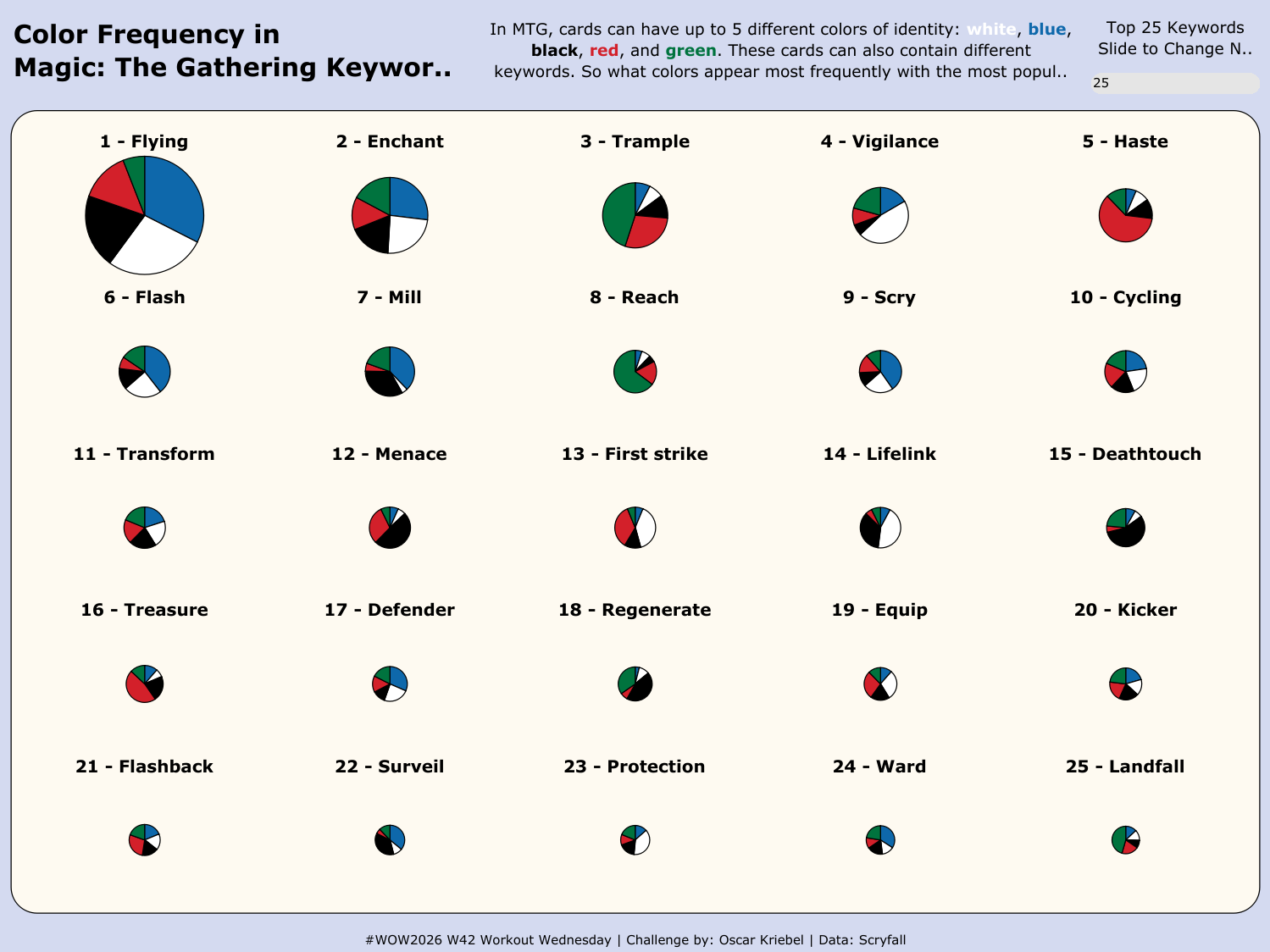
For Week 42 of the 2026 Workout Wednesday, I've been invited to create a dashboard for this event, which you can find on my profile. After going back and forth over a few ideas, I ended up settling on a dataset courtesy yet again from Scryfall, which I've cleaned to investigate the color identity of different keywords in the trading card game Magic: the Gathering.
REQUIREMENTS
- Dashboard size: 1200 x 900
- Font: Verdana
- One worksheet: Trellis/Small Multiple Pie Chart
- Trellis Pie Chart:
- Split by Keyword
- Pie chart:
- Split by Color Identity
- Angle by Number of Cards with that Color Identity
- Sized on the total number of unique cards with a keyword
- Title based on the Keyword
- Include ranking of the total number of unique cards
- Parameter to include Top N Keywords
- 1 to 25 for N
- Filter to Top N Keywords based on parameter
- Trellis should be sized on the number of Keywords allowed automatically
- Colors used in dashboard:
- Background color: #d4daf0
- Chart background: #fefaf1
- White: #ffffff
- Black: #000000
- Green: #00733e
- Blue: #0e68ab
- Red: #d3202a
STEP-BY-STEP GUIDE
This dashboard uses a thin but tall dataset. Each row contains a color identity and keyword for a card. The name is provided to allow for a count of cards in the end. In the end, we'll only have one worksheet and a rather simple dashboard structure.
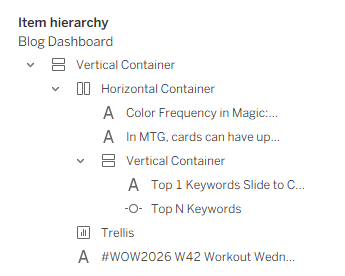
We'll use a vertical container for the basis of the dashboard. At the top will be a horizontal container with our header and text of the chart. After that is the chart, and then the footer of the dashboard with credit to the source. Inside of the horizontal container for the header, there's two text items for the title and description, then a vertical container for the parameter and a custom text title.
In order to build the trellis chart, we should first start with the parameter, Top N Keywords. It's a simple parameter with an integer type and a range from 1 to 25 with a step size of 1. With the parameter made, we can show it in the worksheet for the trellis and set it to 1 for now.
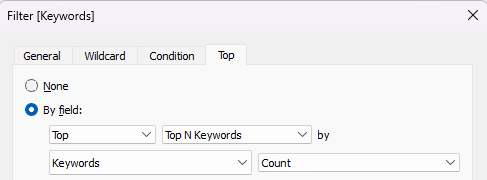
With the parameter, we can drag Keywords onto the filter. We'll navigate to the Top tab, selecting By field, then having it be Top of Top N Keywords by Count of Keywords. This will then only show the top N keywords based on how often the keywords shows up in the dataset, limited by our parameter. With the parameter set to one, we have only the top keywords, which makes it easier to start designing the chart.
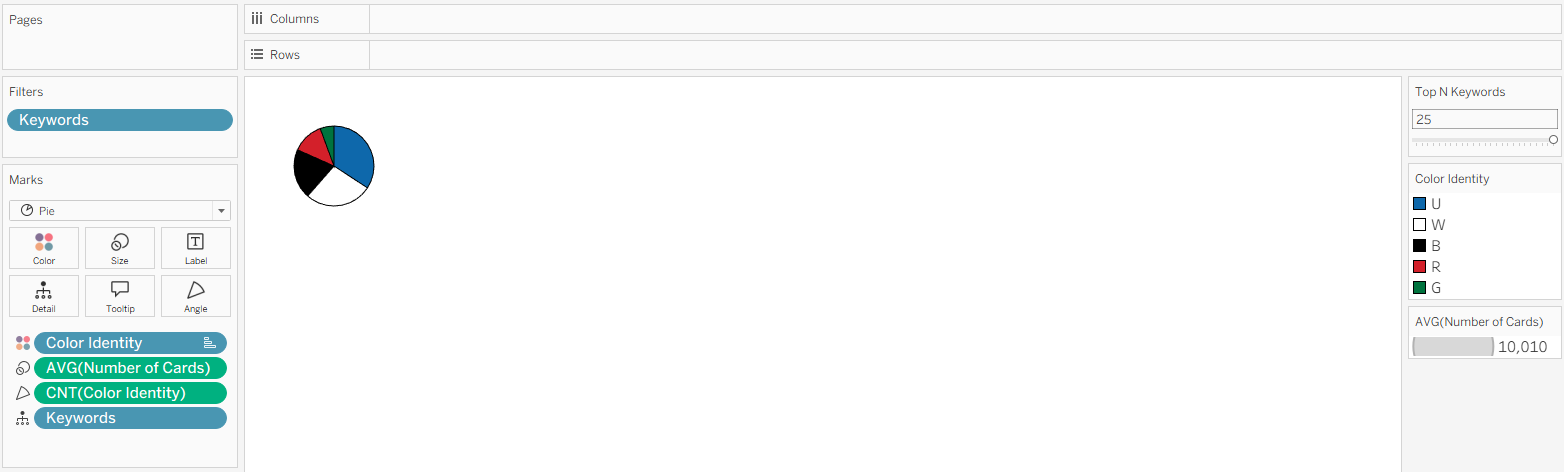
From there, we'll set the mark type to be a Pie, then put our Keywords onto detail. This'll break down the chart into each keyword once we allow more than 1. Since we want to have each color identity be a slice of the pie, we'll put that onto color. Go ahead and set the colors to make the color identity: W for white, B for black, G for green, R for red, and U for blue (in Magic: The Gathering, U stands for blue as B is already used for Black). We'll also put a border on it so that the white can stand out and split our slices.
Then to make the slices proportional to the number of times they show up on cards, we'll put a count of the color identity onto the angle card on the marks card. We can now click on our color identity on the color and use it to sort descending. This'll now show the slices based on the global frequency of the color identity across all keywords.
We can also put a distinct count of the card names onto the size to eventually have the pie charts sized based off of their total popularity. To do this, we'll need to make a LOD calculation to get the total number of cards that keyword has, since a card can have multiple color identities. This calculation for the Number of Cards is:
{ FIXED [Keywords] : COUNTD([Name]) }
We can then put that new calculation on the size to have the size of the pie chart accurately represent the total number of cards that have that keyword. It won't change anything right now as there is only one keyword being displayed, so no difference can be shown.
Now to add the keyword and its ranking, we'll need to add a number value straight onto the row but double clicking on the row band at the top. We do this to be able to have a dual axis with another number value that we can set to be the header value. We'll have the one with the pie chart be at 0, and then I found that the best was 1.2 for the header based on the size of the dashboard. We'll use an average aggregation on the numbers so that they stay consistent across all keywords.
We'll once the axes have been put on the same axis and synchronized, I would also set the range for the axis to be from -1 to 1.5 to give the most space for each keyword. With removing all pills from the 1.2 mark, we'll set it to a text type and add the keyword onto the label as well. That'll let us show the name of the keyword above the pie chart.
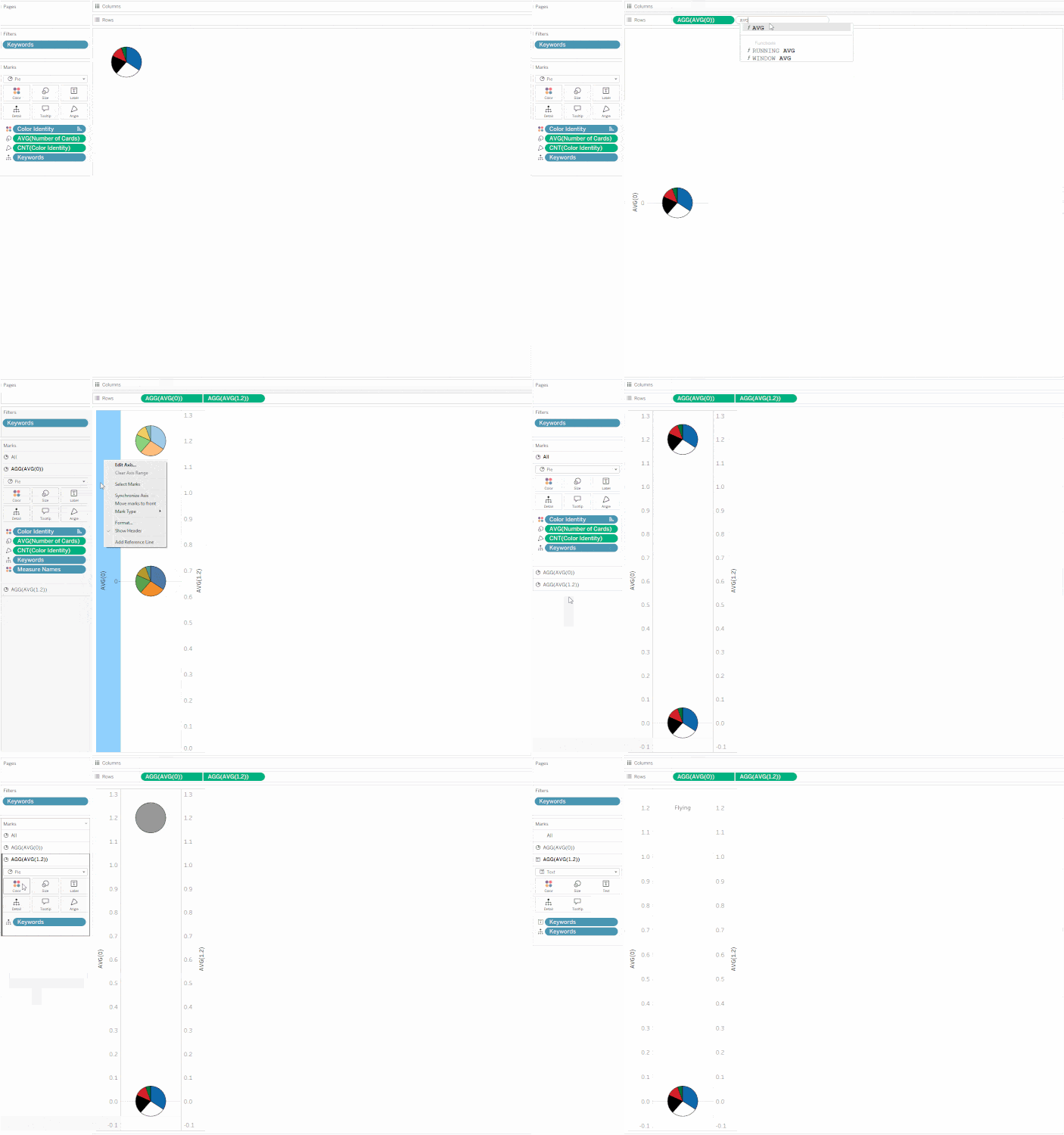
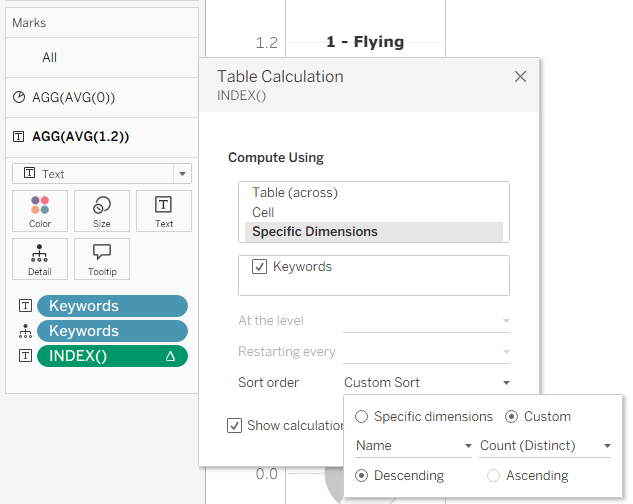
To add the ranking, we can double click on the marks card to add a new calculation there, which will be the INDEX() function to produce the ranking. We'll customize the table calculation such that it doesn't repeat every keyword and is sorted by the same way we are sizing the pie charts, which is the distinct count of names in descending order. With the table calculation on label as well, we can format the text to put the ranking and the keyword itself together. All together, that'll give us the header for each pie chart. I put it to a font size of 12 for this chart.
Now that we're happy with the way that the chart looks, we now need to enable the ability for it to split up into multiple charts as we increase the number of keywords we want to look at. This is where we now implement the trellis/small multiple chart using the pie chart we just made as the basis.
For implementing this kind of chart, I recommend checking out this blog by Ellie Kershenbaum for how the calculations are done. The two calculations are for getting the column and row that we put each keyword into:
Columns:
(INDEX()-1) % ROUND(SQRT(SIZE()))
Rows:
INT((INDEX()-1) / ROUND(SQRT(SIZE())))
Turning these into discrete types, we can put them onto their specific band. Once they're on the rows and columns, set up the table calculations to be the same as what was done previously for the ranking. If everything's done right, then you should be able to change the parameter and see the keywords fill in correctly!
You'll notice that the pie charts have some room that they can fit in. Unfortunately, I couldn't figure out a way to get the pie charts to resize based on both the total number of cards and on the number of shown keywords. Instead, we can maximize the size it currently has. Change the parameter to be its maximum at 25, then set the size mark for the pie chart to point of where it just doesn't get cut off for the first pie chart, since that will be the largest one.
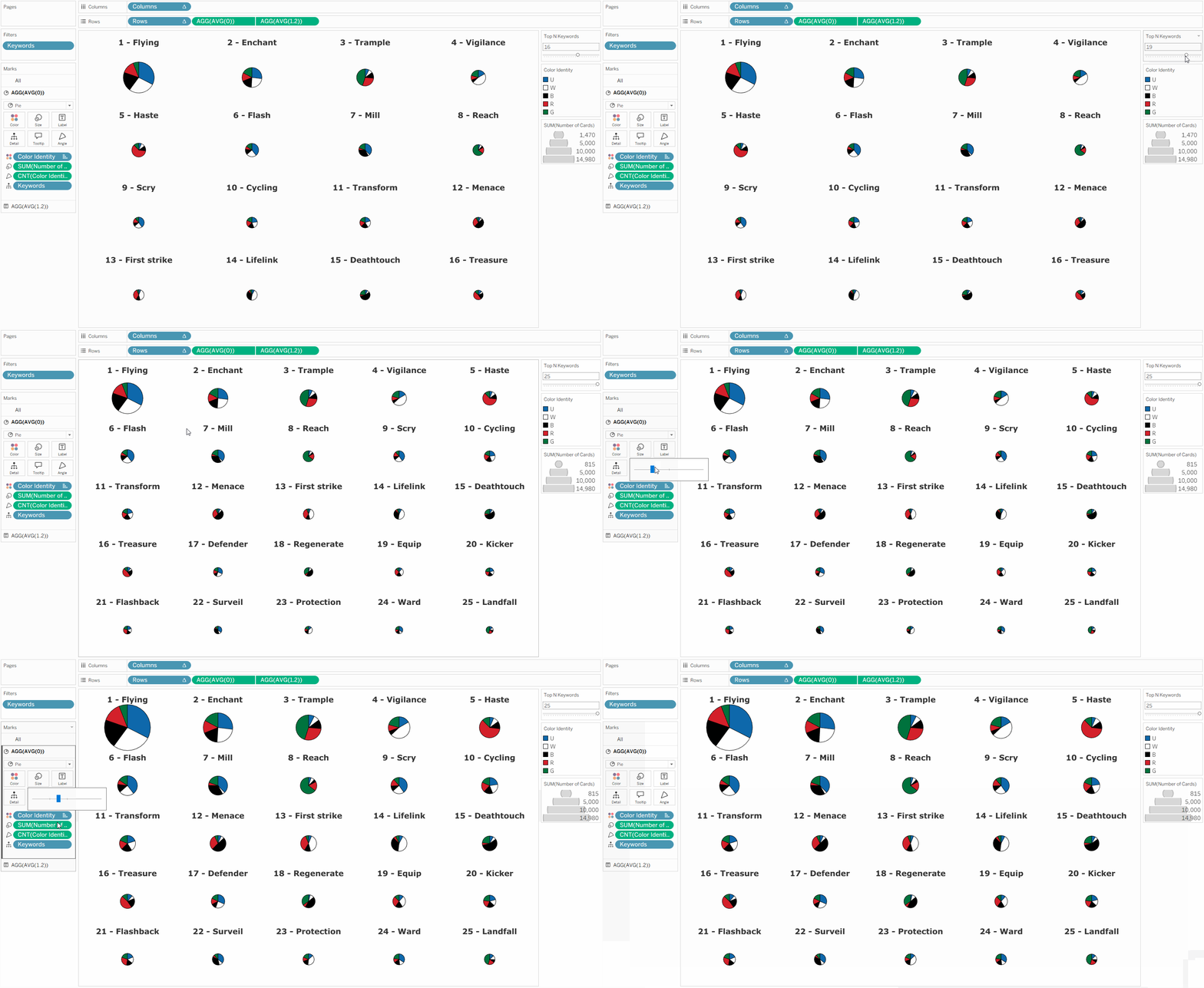
From there, you can format your chart, removing the different headers and grid lines, and set the background color. Add in the formatting to the tooltips, removing it for the titles and customizing the one for the pie charts. I also like to add in a dummy highlight action to make it a bit easier in the user experience, which you can find out how to do in one of my previous blogs. Back in the dashboard, you can add in the padding and corner radius to the chart to make it match. And with that, you have the completed dashboard!