This blog will walkthrough my solution for the preppin data challenge 2023 week 1 but in power BI.
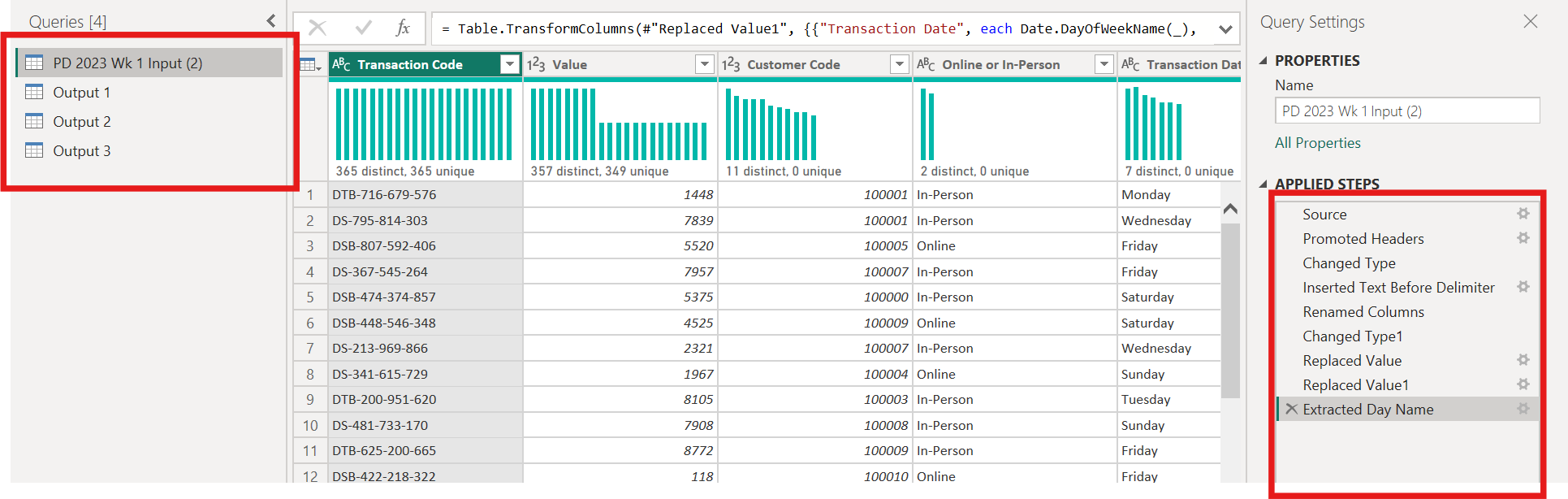
The final query settings will look like this, and there will be 3 different resulting queries, for the 3 different outputs.
Pre-Cleaning
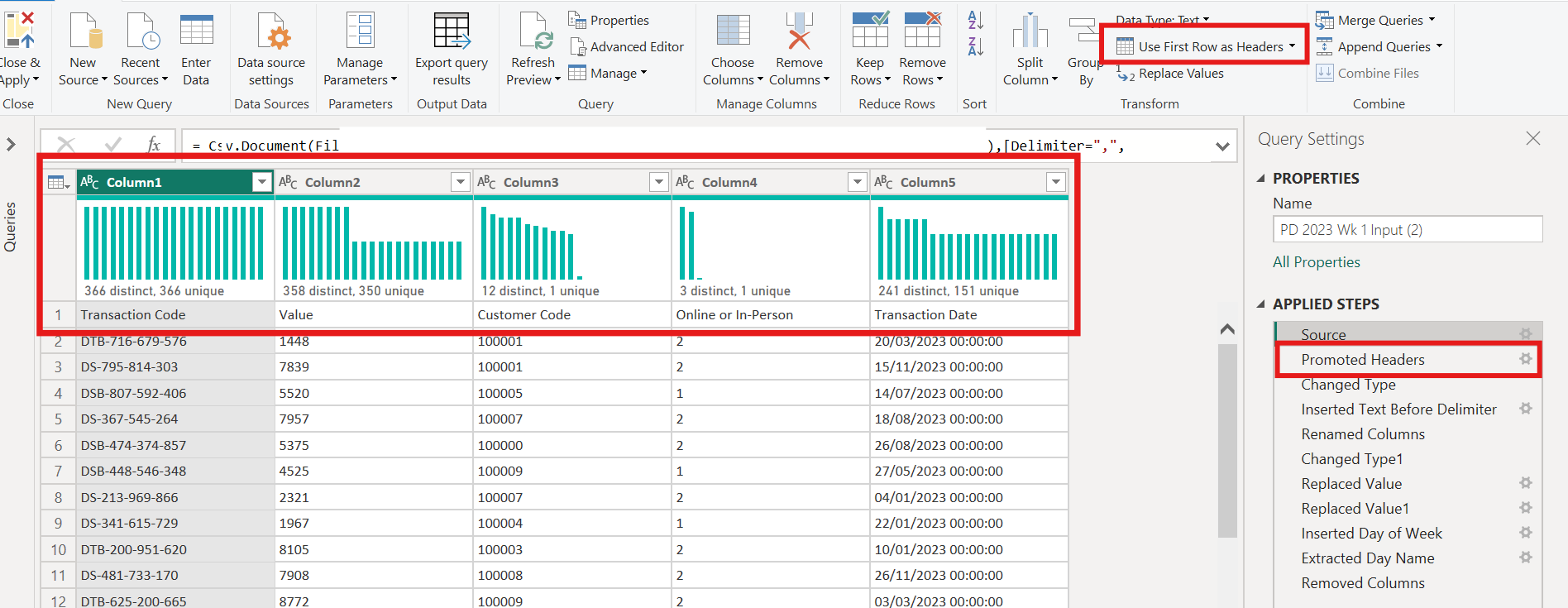
Before proceeding you will notice the the headers of each row are within the data. to over some this. To solve this select 'Promote rows to headers' under the Home tab.
1. Split the Transaction Code to extract the letters at the start of the transaction code. These identify the bank who processes the transaction.
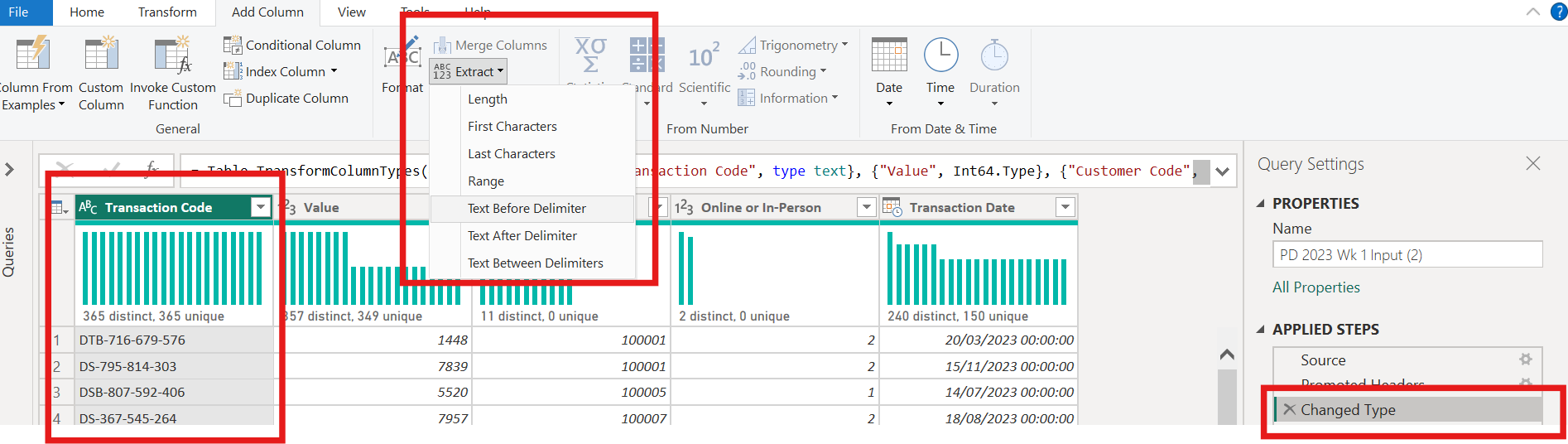
To do this select 'Extract' under the Add Column tab. This will create a new column. You will also see this extract button under the Transform tab, this would write over the current column. I have decided to add a column so that no data is lost. Select 'Text Before Delimiter' to obtain the letters only.
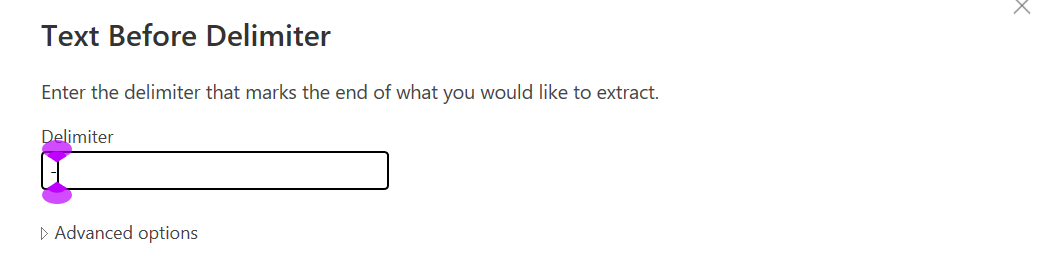
A small window will pop up, here insert the delimiter you would like to use, In this case '-' is what we want to extract by.
- Rename the new field with the Bank code 'Bank'.
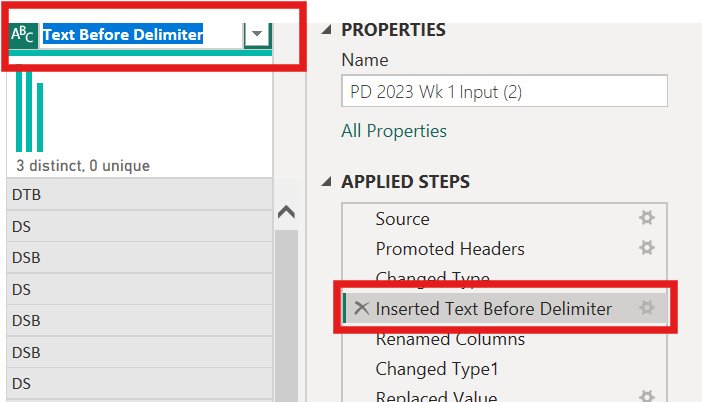
You will see a new column appear to the rightmost column. To rename this column double left click in the header name.
- Rename the values in the Online or In-person field, Online of the 1 values and In-Person for the 2 values.
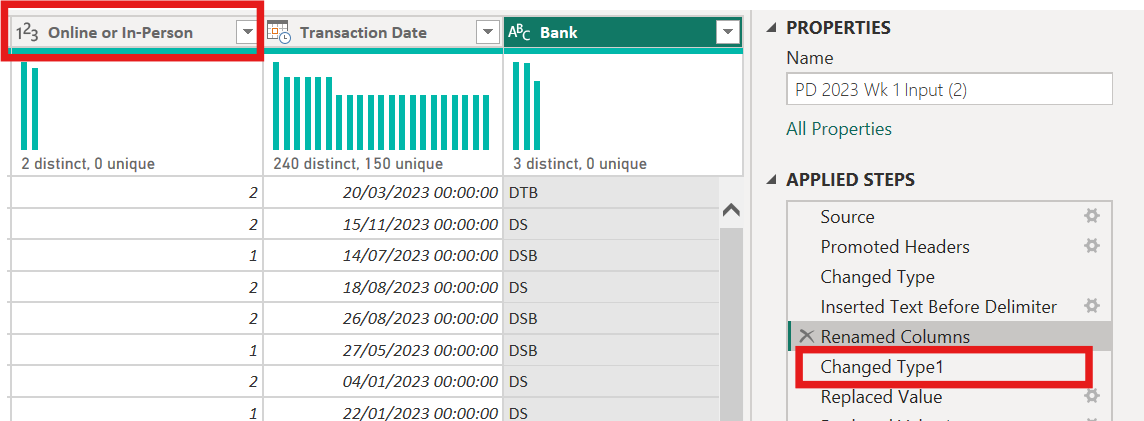
To replace the 1 and 2 with the desired text I will use a 'replace values' function. But before I do this I need to change the date type to a string, this is because the characters I will replace with are strings.
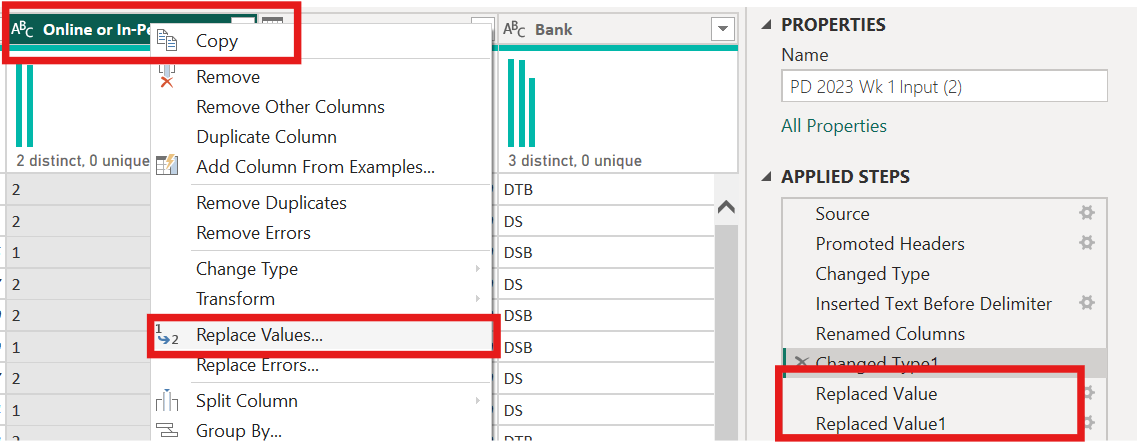
Next right click on the column of interest and navigate to 'Replace Values'.
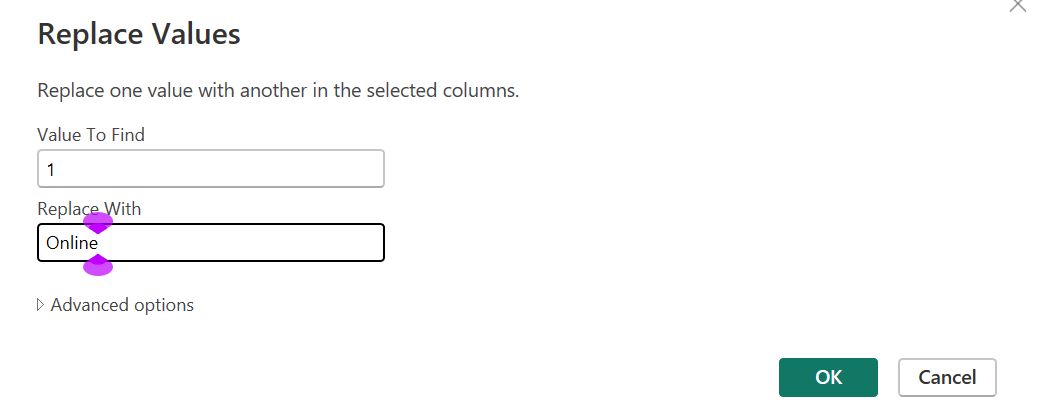
Insert '1' into value to find and insert 'Online' into Replace with. This will search all '1's in the column and replace them with the word 'Online'. Do the same for 2 and In-Person.
- Change the date to be the day of the week
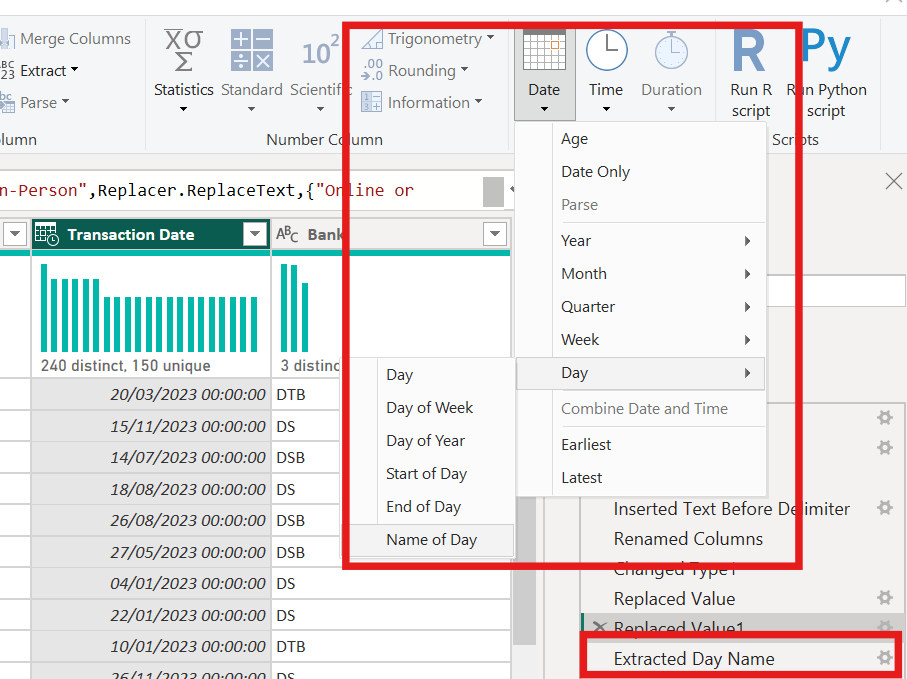
To do this select 'Date' under the transform column tool bar. You could also use the insert column tool bar. Use the series of drop downs to select 'Name of Day'. This will create a new column which shows the day of the week in number.
- Different levels of detail are required in the outputs. You will need to sum up the values of the transactions in three ways.

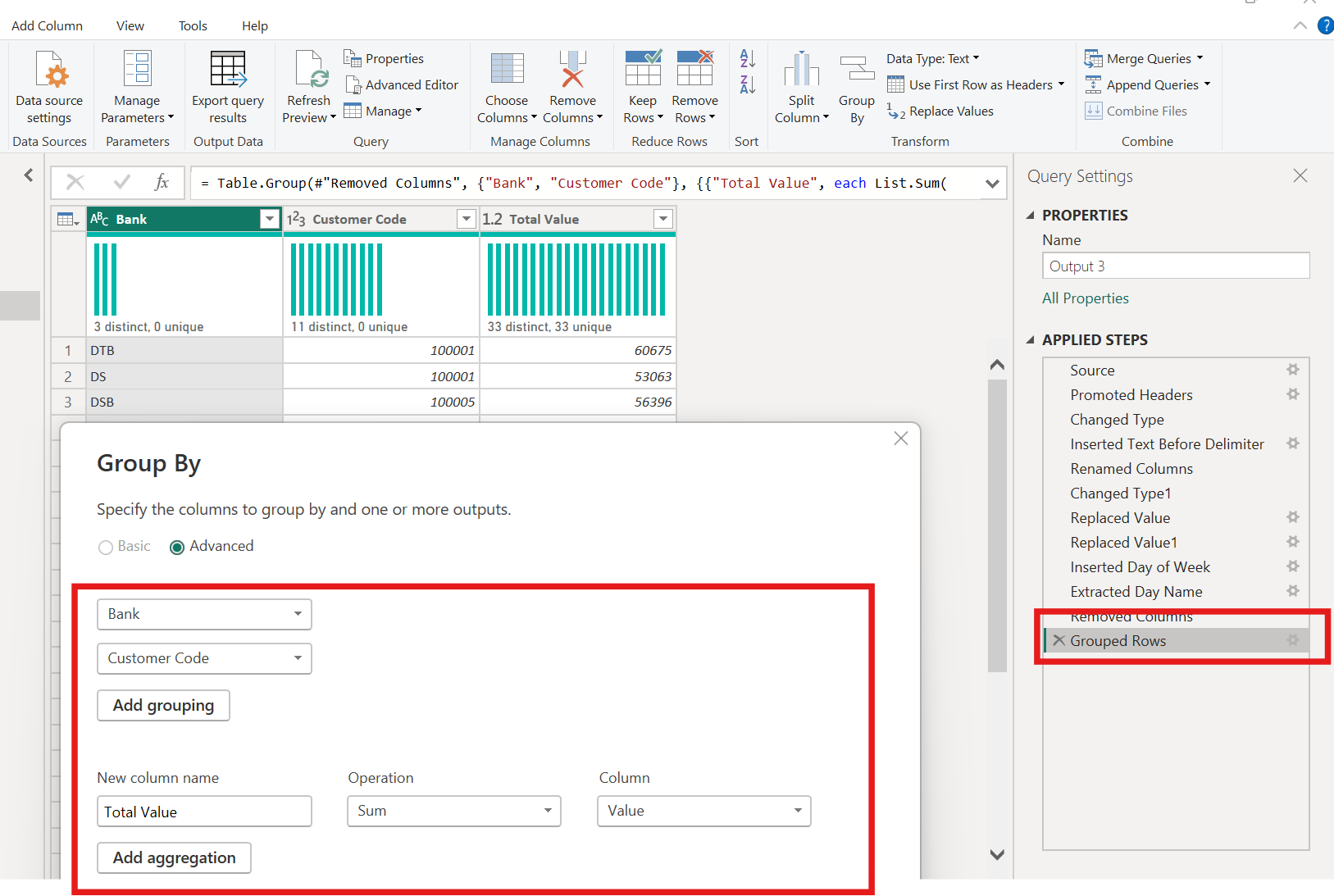
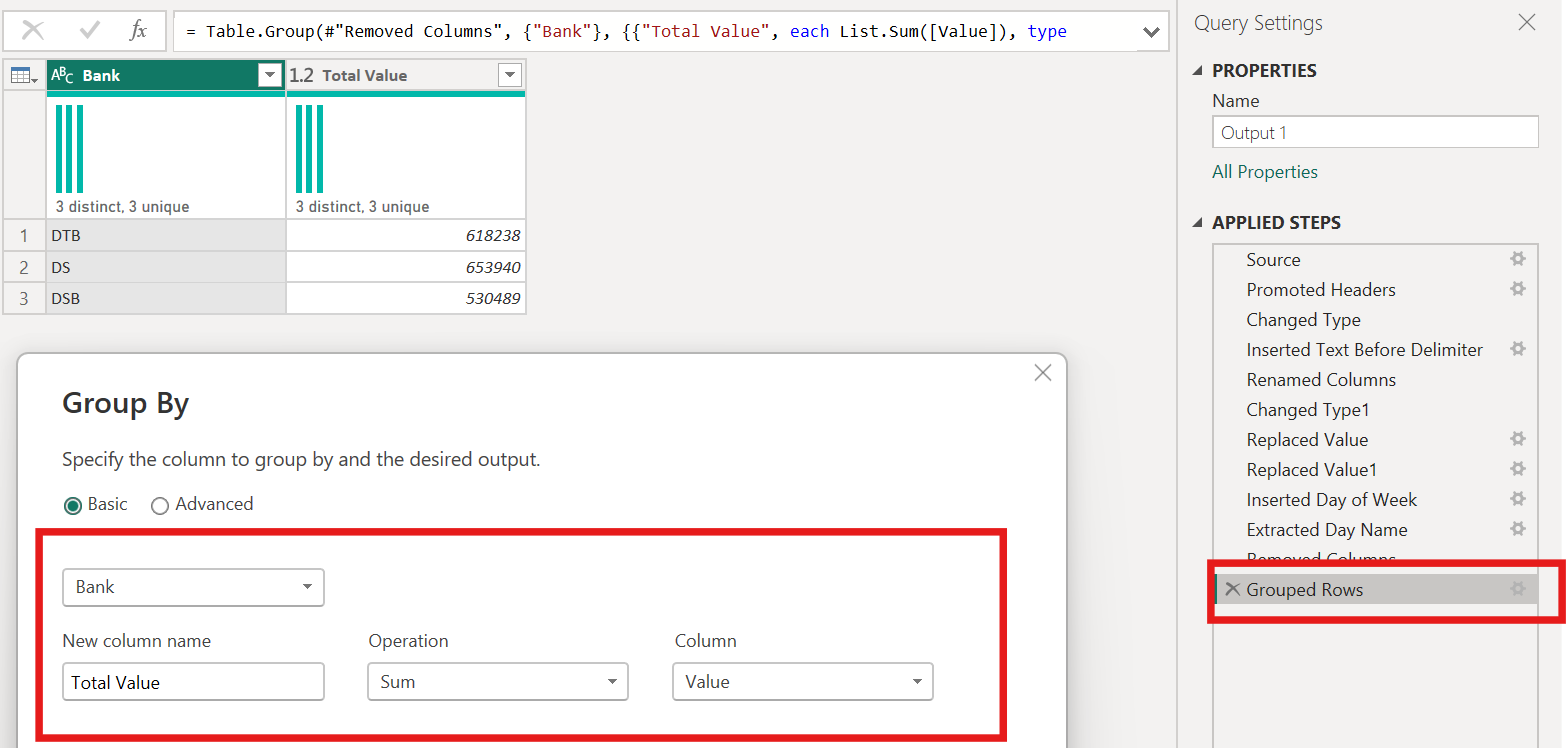
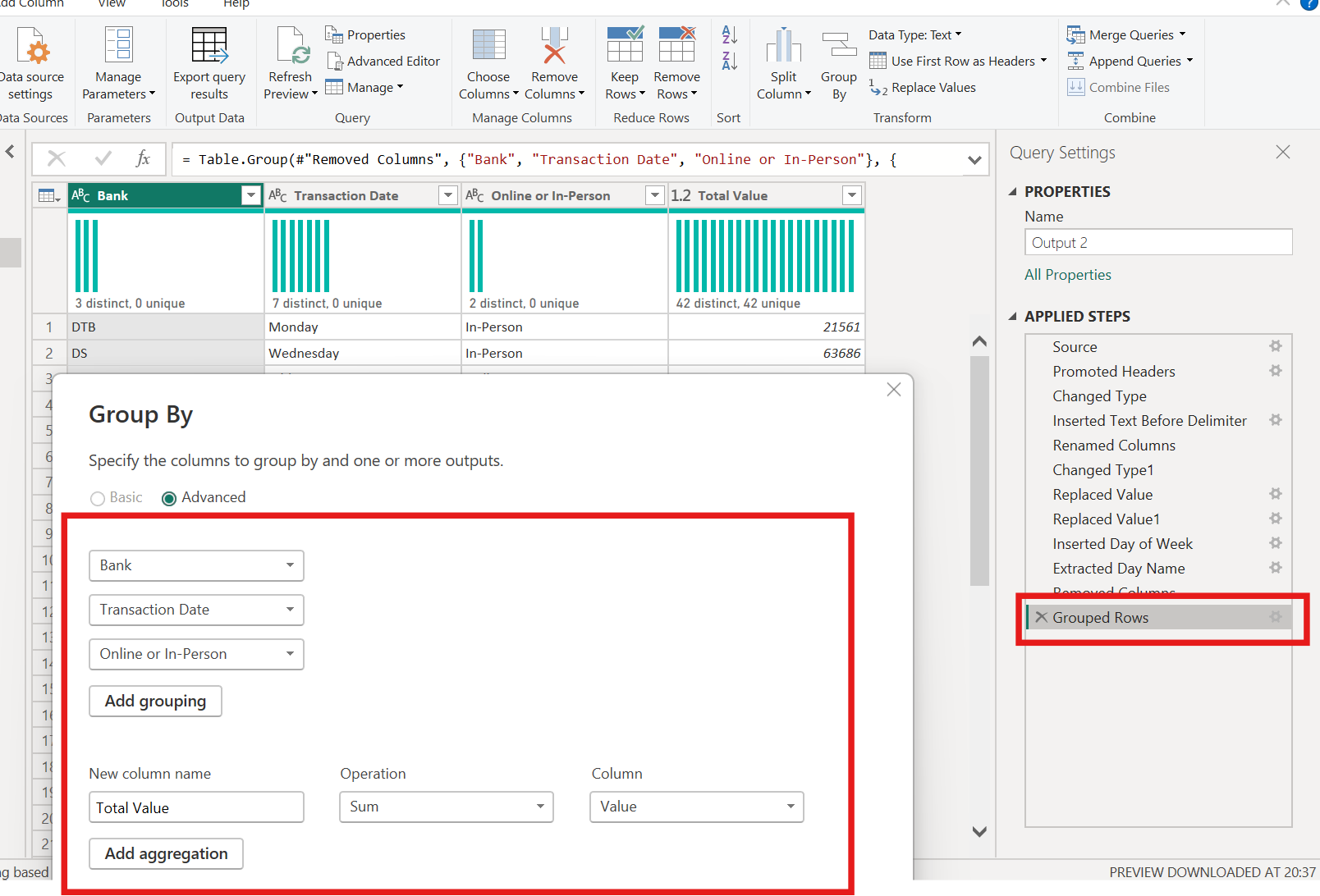
For all 3 outputs you will need to select group by. A window will pop up, here you will select the columns you want to group by and the columns you would like to aggregate by. In this case all outputs will be aggregated by the the Value, I have named the new column 'Total Value'.
Below shows all the different grouping combinations and their results.
- 1. Total Values of Transactions by each bank
- 2. Total Values by Bank, Day of the Week and Type of Transaction (Online or In-Person)
- 3. Total Values by Bank and Customer Code