


In normal life, have you ever wondered if a party with 20 people total, and only has 3 pizzas, how to split those 3 pizzas to 20 people equally?
Or in a company with 10 departments, each department has 10 to 15 employees, how to split 10 cakes to make sure each employee has 2 pieces?
If you are solving some problems like that, I hope the Tile tool in Alteryx can help you solve the problem! :)

Before getting started, make sure that you already installed Alteryx Designer from version 2025.1 and later. There are 5 methods that you can use in the Tile tool. I will go through each method and explain the algorithm behind how this tool works.
Assume that I am managing a company that has 4 departments (1,2,3,4) and 4 rooms (A, B, C, D). In each department, the number of employees is different. So, I have a Text Input like this:
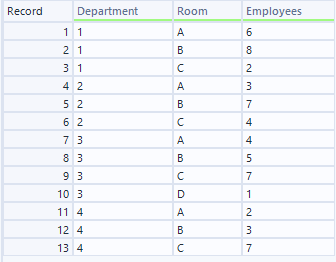
Now, let's get started!
Equal Sum
Equal Sum is one of the methods in the Tile tool. This option will ensure that each Tile (the group after splitting) has the same total for the Sum field, based on the sort order or Group by feature selected by the user.
Use the sample data from Fig. 2 in the Text Input tool. I want to split the whole company into 2 groups equally to play a game.
Divide a category into 2 groups with No Sorting and No Group By
Problem 1: I want to know the total number of employees in the company, so I use the Summarize tool to sum all employees. I also use the Formula tool to get the number of employees for each group.
As the total number of employees is 59 (an odd number), the first/ second group includes 30 employees, and the remaining one will include 29 employees. Now, I want to know pick employees from the department and a room for each group.
I connect the Tile tool (from the Preparation tool Palette) and connect it to the Text Input tool, then configure the settings:
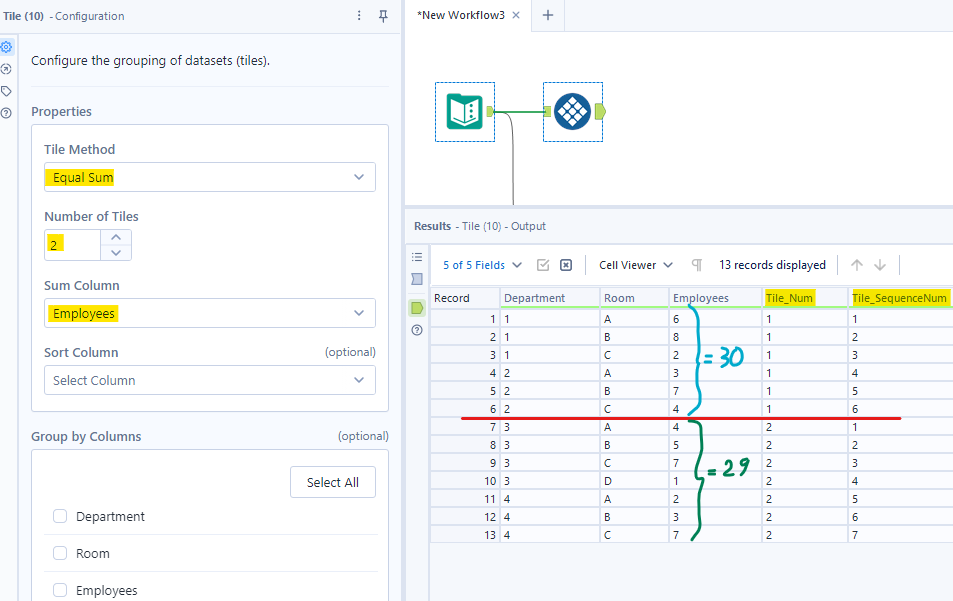
In the Tile Method, I choose Equal Sum. I put 2 in Number of Tiles (we want 2 groups). For the Sum Column (numeric fields only), I choose Employees. Then, run the workflow. Now, you see 2 new columns were created (Tile_Num and Tile_SequenceNum) in fig. 3.
From the top of the table, the Tile tool will add Employees until it reaches 30. That's "Equal Sum". From fig. 4, you see that employees in both departments 1 and 2 have 30 employees for Tile_Num 1. Departments 3, 4 will belong to Tile_Num 2.
Luckily, it can pick some employees as we want (30 for group 1, 29 for group 2) equally. However, if I change a little bit in the data, from Department 2, room C to 2, and Department 3, room A to 6 (Fig. 4).
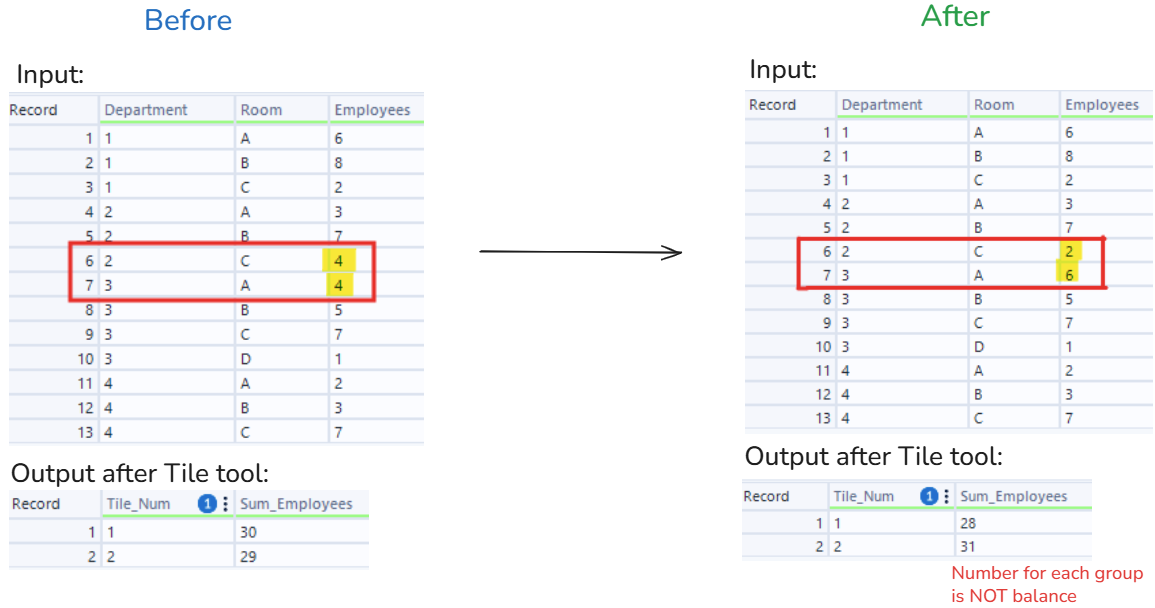
From the result in Fig. 4, you see that the output is not the same as we expected. Tile_Num 1 includes 28 employees, Tile_Num 2 includes 31 employees (not balanced).
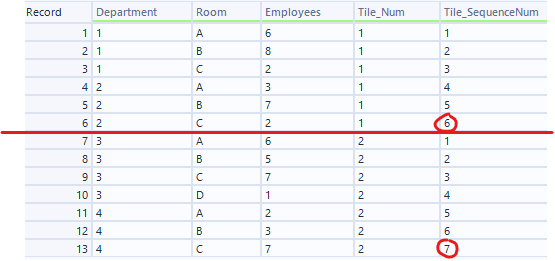
It split the whole table into 2 equal tiles. If you look at the Tile_SequenceNum column, the max Tile_SequenceNum is still 6 for Tile_Num 1. In Tile_Num 2, the maximum of the Tile_SequenceNum is still 7. However, the sum of employees is not what we want (Fig. 5).
The Tile tool can help to solve that problem!
Divide a Category into 2 groups equally with Sorting and No Group By
I will keep the sample data as I just changed it. Record 6 has 2 employees. Record 7 has 6 employees.
Problem: How to adjust the number of employees in each group equally, so that the number of employees for each group is equal.
The result could be different, as it depends on the column you choose to sort.
a) Descending sort on the Employees column
Note: When you use the "Sort Column" feature (Optional), it sorts by descending order of that column by default.
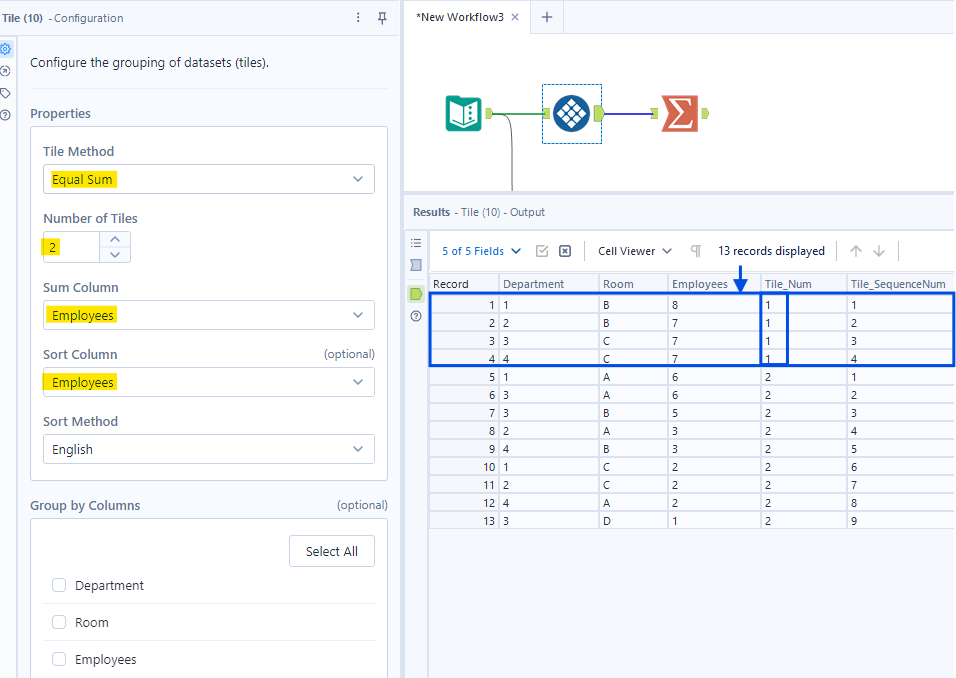
When you choose sort by the Employees column, it will sort the Employees column in descending order first. Then, it will check:
- Condition 1: Add each employee's value from the top (After sorting), the cumulative number should be less or equal than the specified number (we set 2 for the number of titles and the ceiling number of 59/2=30). If it's satisfied, keep the Tile_Num and continue counting the Tile_SequenceNum.
- Condition 2: If the cumulative number is greater than the specified number, create a new Tile_Num and reset the Tile_SequenceNum
Let's run the table with that condition after the table is sorted on the Employees column in Desc (Fig. 6):
- First run, Department 1 - Room B, #employees = 8 <= 30 (condition 1 satisfied, not enough 30)
=> Tile_Num = 1, Tile_SequenceNum = 1 (initial value) - Second run, Department 2 - Room B, #employees = 7 + 8 (from first run) = 15 <= 30 (condition 1 satisfied, not enough 30)
=> Tile_Num = 1, Tile_SequenceNum = 2 (continue the sequence num) - Third run, Department 3 - Room C, #employees = 7 + 15 (from the previous run) = 22 <= 30 (condition 1 satisfied, not enough 30)
=> Tile_Num = 1, Tile_SequenceNum = 3 (continue the sequence num) - Fourth run, Department 4 - Room C, #employees = 7 + 22 (from the previous run) = 29 <= 30 (condition 1 satisfied, not enough 30)
=> Tile_Num = 1, Tile_SequenceNum = 4 (continue the sequence num) - Fifth run, Department 1 - Room A, #employees= 6 + 29 (from the previous run) = 35 > 30 (condition 2 satisfied, more than 30)
=> Tile_Num = 2, Tile_SequenceNum = 1 (number of employees is overflow in Tile_Num 1, so create a new Tile_Num 2 and the Tile_SequenceNum is reset) - Continue until the end...
If you use the Summarize tool to group by the Tile_Num and get the sum of Employees, you will get the result:
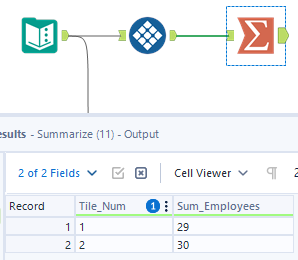
From Fig. 7, you see that Tile_Num 1 has 29 employees while the Tile_Num 2 has 30 employees.
b) Descending sort on the Department column
If you select the Sort Column as Department, it will sort the Department column in descending order. Same logic as I mentioned in part a, it will add the number of employees until reaching the half number of the total employees in the table (ceiling of 59/2 is 30).
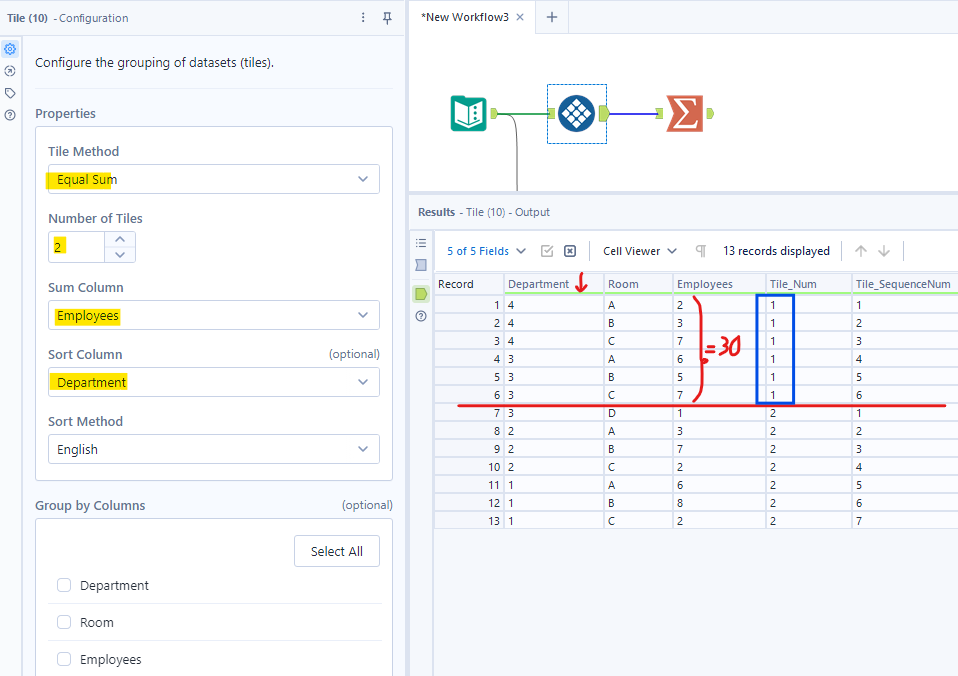
In the result, you might see the number of employees in Tile_Num 1 is different from the result in part 2 (sorted by the Employees column) if you check the summarize tool.
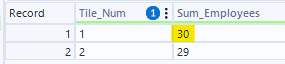
The number of employees in Tile_Num 1 is 30 because it reaches 30 employees (ceiling of 59/2). That's perfect! So the rest is in Tile_Num 2.
c) Descending sort on the Room column
Keep that logic and change the Sort Column to Room. Then, check the Summarize tool, you will get the result like this:
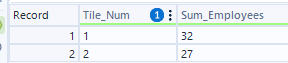
Ah ha! Why does Tile_Num 1 include 32 employees, while Tile_Num 2 includes 27? :) Let's figure it out!
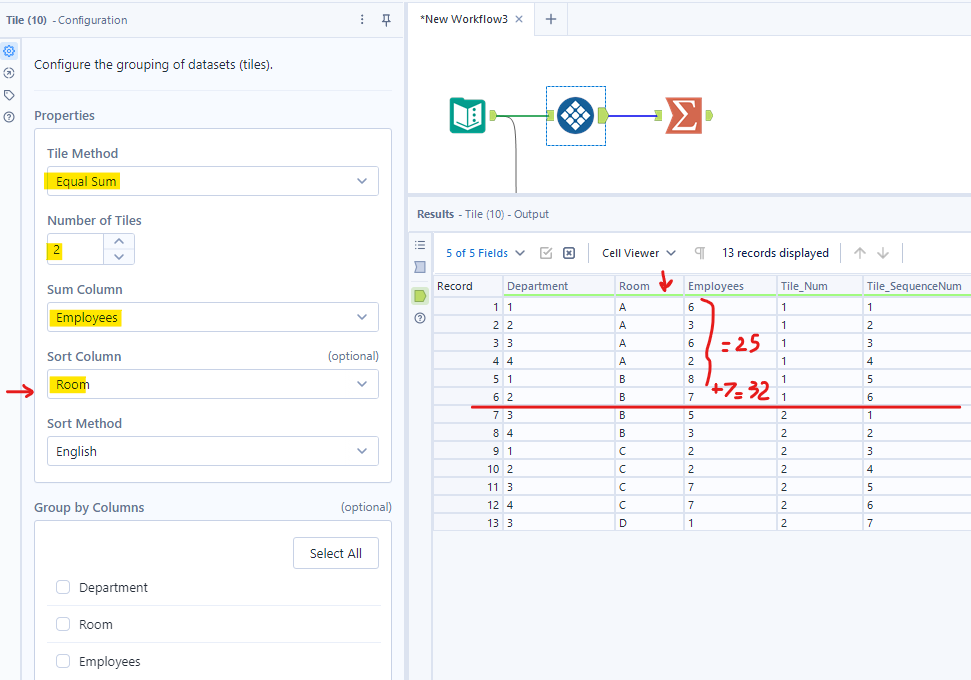
If you sum the Employees value from the top table (after sorting in the Room column), on the fifth run, the cumulative number is 25 (still need 5 more). However, the next value is 7, so the cumulative number becomes 32 (for Tile_Num 1). The rest is in Tile_Num 2.
If you look back at part a that I track the flow, when the cumulative number is greater than 30. It stops there and gets the previous number. So I wonder if there is a limit to how much overflow is allowed.
Divide a Category into 2 Groups with Sorting and Group By
This option is used if you want to split a category column into n tiles grouped by another column.
Problem: For each department, split the employees into 2 equals group.
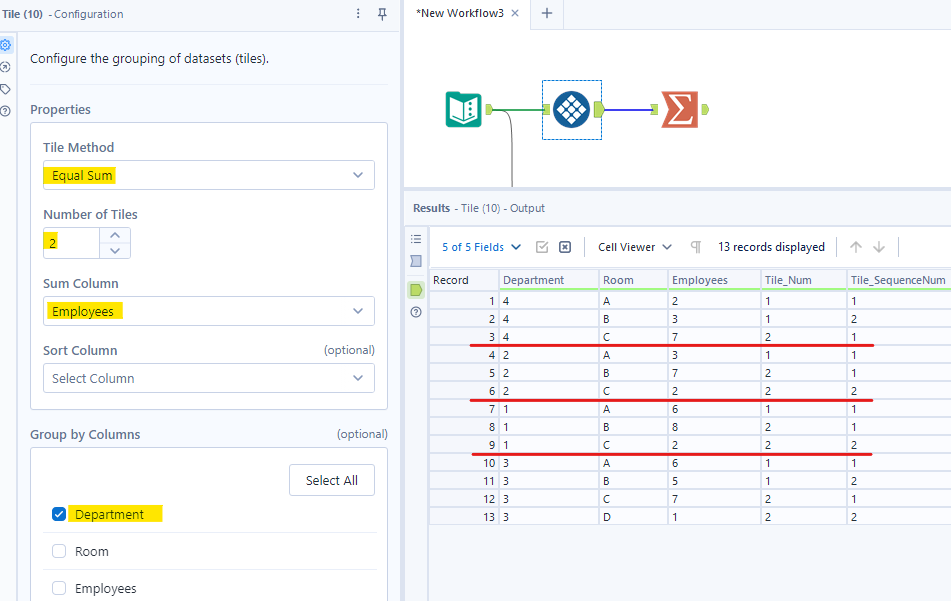
If you set the Tile tool like Fig. 12, why do the results return like that? Let's figure out!
As you set the group by Department column, and sum on the Employees column with 2 tiles, so let's look at each Department.
For Department 4, the total number of employees = 2+3+7 = 12. The ceiling number of 12/2 = 6. Use the same logic as I mentioned above.
- First run, Department 4 - Room A, #employees= 2 <= 6 (need 4 more)
=> Tile_Num = 1, Tile_SequenceNum = 1 - Second run, Department 4 - Room B, #employees = 3 + 2 = 5 <= 6 (need 1 more)
=> Tile_Num = 1, Tile_SequenceNum = 2 - Third run, Department 4 - Room C, #employees = 7 + 5 = 12 > 6 (overflow, also last row in Department 4)
=> Tile_Num = 2, Tile_SequenceNum =1 - continue for other Departments
If you look at the Summarize tool to group by Department, Tile_Num and sum of Employees, you will get this result:
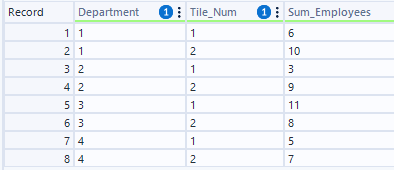
You can see from the result table that the number of employees for each Tile_Num in each Department is not balanced because we cannot split the number of employees of each Room.
You can also try to group by other columns. If you choose the Sort Column same as the Group By column, the result won't change because it will sort itself.
In this blog, I introduced the method "Equal Sum" in the Tile tool. Same as its name, it will ensure that each tile has the same total of the Sum field based on the sort order and the group by columns. From the example above, you see that we can order the column, and it will affect the cumulative number when splitting. The group by column will define how you want to split.
"Equal Sum" is based on the sum (whole number of each category), so you will see the result is not always equal. So how about splitting the employee's value from each department, breaking it down into individual value and clustering them?
I will see you in the next blog with another method, "Equal Records". See you soon!