


Python Managers are command line tools that allow you to keep multiple Python versions on your machine and choose which version to use based on your environment.
Why pyenv?
There are several reasons you may need a Python Version Manager:
- You’ve started a new role where a project version differs from your system version.
- You need to align your project version with the optimal version for a 3rd party library.
- Or, you want to test the latest Python release.

This article covers how to use a popular command-line tool called pyenv which sets the active Python version at different scopes:
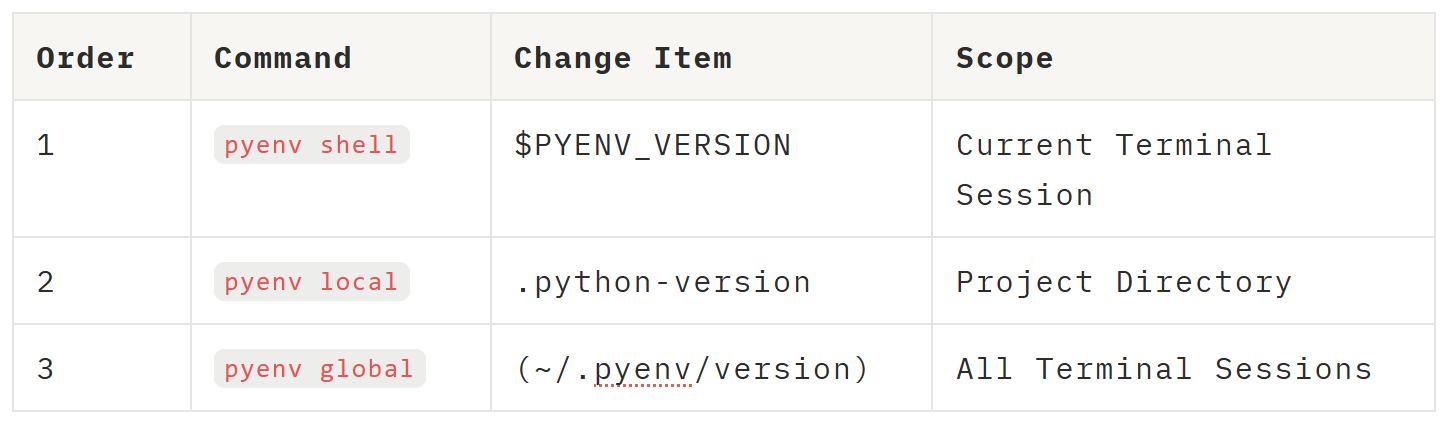
Continue reading to learn how to download pyenv, set up a basic configuration for pyenv, and use pyenv with virtual environments.
Install pyenv
Manually install pyenv on windows:
Invoke-WebRequest -UseBasicParsing -Uri "<https://raw.githubusercontent.com/pyenv-win/pyenv-win/master/pyenv-win/install-pyenv-win.ps1>" -OutFile "./install-pyenv-win.ps1"; &"./install-pyenv-win.ps1"
Or, install on mac:
brew install pyenv
Install multiple versions
After installing pyenv, you can install the Python versions you need:
1 - Check your version of pyenv
pyenv --version
2 - Update pyenv to the latest version
pyenv update
3 - List all installed Python versions
pyenv --versions
4 - Show Python versions available for install
pyenv: --pyenv install --list
5 - Install multiple versions of Python
pyenv install 3.12.10
Setup pyenv
We will use pyenv to set a version in bottom up scoping order to clearly see how each command resolves.
System version
If you have MacOS or used python before, you may have python already installed on your system.
- Check on your system version to compare it to what we will be setting up through pyenv
python3 --version
Global version
- See which Python executable (.exe) path is seen at the global and local levels
pyenv which python3
You may receive a response that “No global/local python version has been set yet”.
- Set the global version using the same version we installed through pyenv earlier.
pyenv global 3.12.10
Local version
Local versions are for a specific project directory. This writes a .python-version file to the current folder, which pyenv reads whenever you're working in that directory.
-
Go to the project directory
cd path/to/project -
See which Python executable is currently set at the local level
pyenv which python3 -
Set the local version to an older release to override the global
pyenv local 3.11.9
Now, check that a .python-version file exists in the root of your project directory with the specified version.
Shell version
The Shell version is for the current terminal session only. This sets the $PYENV_VERSION environment variable, which takes the highest priority in pyenv's resolution order and overrides both local and global.
-
Open a new tab in PowerShell and install the latest version of Python
pyenv install 3.10.14 -
Set the shell version for this session
pyenv shell 3.10.14
Open a new terminal tab and you should see your Python version is back to what you set globally.
Use pyenv in a virtual environment
Python Managers and Virtual Environments are complementary, not alternatives.
When a future developer clones your project, pyenv will automatically read the .python-version file to set the correct Python interpreter. They can then run:pip install -r requirements.txt
1 - Set the Python version you want to use for your local project
pyenv local 3.11.9
2 - Build your virtual environment with the specified Python interpreter.
python -m venv .venv
3 - Activate the environment and install any dependencies
.\.venv\Scripts\activate
4 - Install packages
pip install <your-package>
IMPORTANT: If you are using Git, be sure to add the venv path to the .gitignore file. Virtual environments hold a lot of information and significantly increase the size of your project. You can still share your environment with future developers by adding two files to the root of your project directory:python -m pip freeze > requirements.txt
Happy coding!