


Using git can fell overwhelming when there are so many commands and options. This is especially true for the checkout command which has more than one meaning AND there are alternative commands that do the same thing.
After RTFM and running the command myself, git checkout is part of my regular git workflow with it's own alias!
Simply, simplify git checkout into five scenarios:
- Get information about the current branch.
- Create a new branch.
- Switch to a new branch.
- Restore or add a file from another branch.
- Delete a file by overwriting with another branch or file.
Scenario 1: Branch status
Without any arguments or options, we can check the status of our working branch to make sure it is up to date.
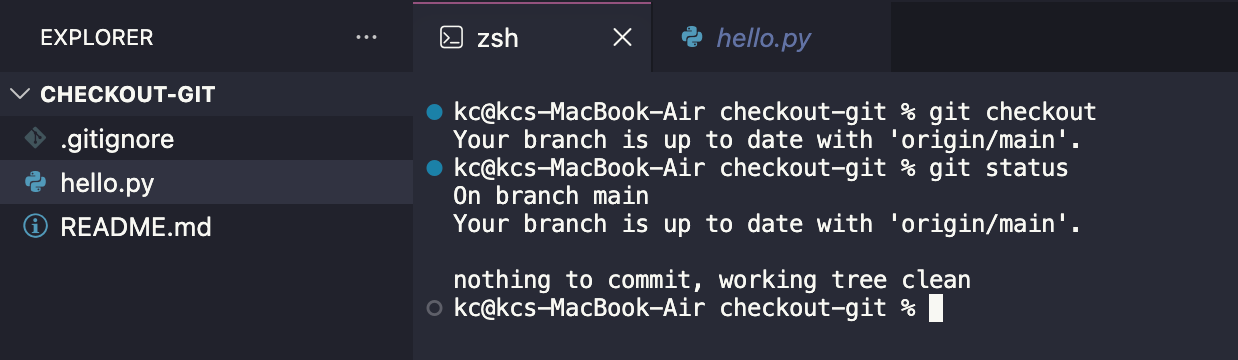
We can use git checkout to tell if your branch is up to date. Alternatively, git status does this and tells us your current working branch and checks for any local commits.
Two Copies Concept
When you name a branch, you get two separate copies of that branch:
Local branch: any branch on your computer
Remote branch: a branch on the server you interact with via push/pull
You make new commits to your local branch and push those changes to the remote branch. If you don’t push those commits then your local and remote branches will be out of sync, even though they have the same name.
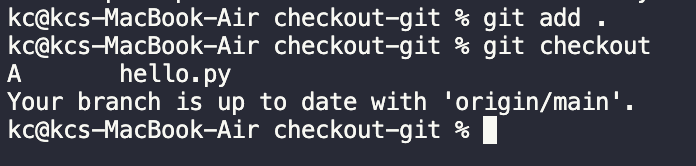
It’s important to note that checkout is only tracking commits. Although the checkout will show the files that I have changed, it would still consider my branch to be up to date with the main branch.
You can see this best when you know you have added changes to your branch, but checkout still shows that it’s up to date with the remote.
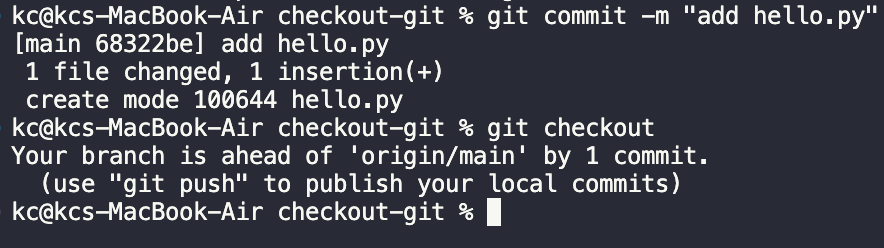
Once you commit those changes to your current branch, the checkout will show if you are ahead (or behind) the remote branch.
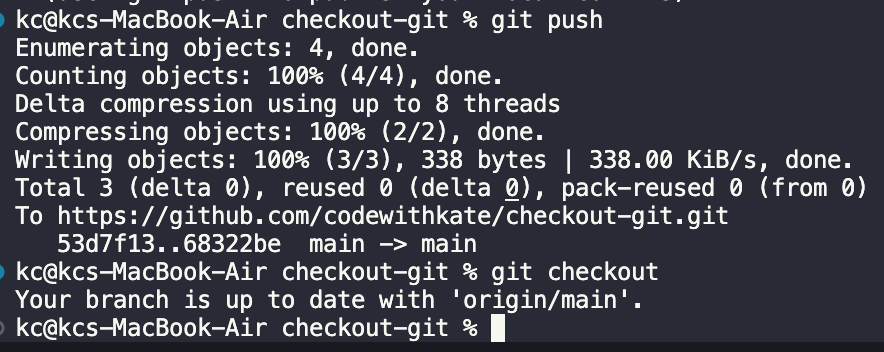
Be sure to push to keep your local commit(s) in sync with the remote branch.
Scenario 2: Create A Branch
Having knowledge of the two copy concept, we can introduce the first checkout argument: <branch>
You will get an error if you try to call git checkout <new-branch> and a branch of that name does not exist.

Create a new branch by using the -b option. Git will automatically switch you to this branch upon creation.

Scenario 3: Switch Branches
It’s best practice to make all changes away from the main branch. You can use the checkout or switch commands to switch to different branches.
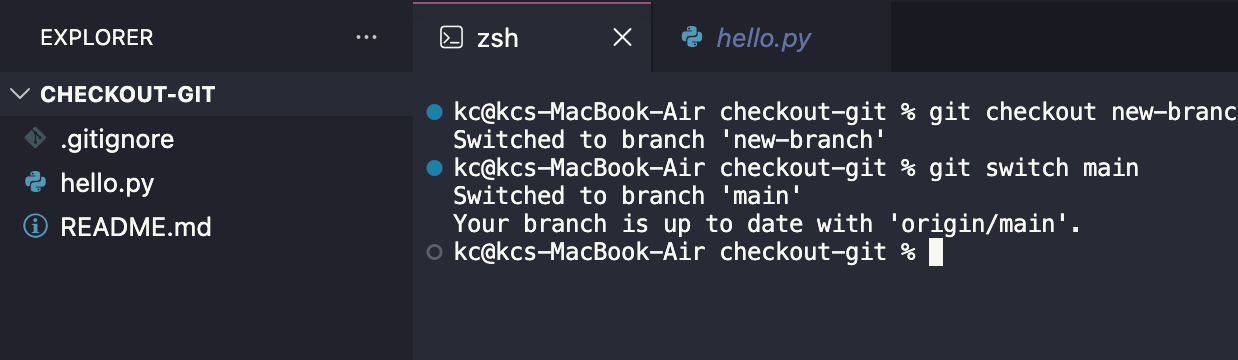
Use whichever command you prefer.
Scenario 4: Add File From Branch
Here, we introduce the a second checkout argument: <file>
This allows you specify a specific file to checkout from another branch with the git checkout <branch> <file> command.
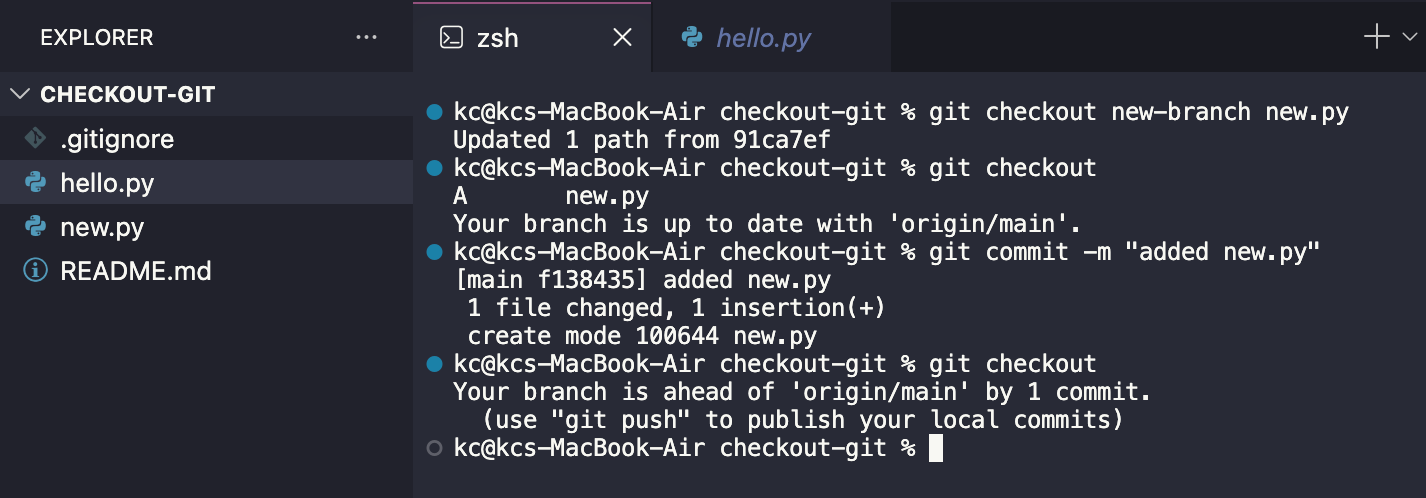
Here are the steps to bring up a file form another branch:
- Checkout a file to add it to the working directory
- Add the file to the local branch
- Commit the file to the local branch
Finally, you push the commit to the remote branch to sync changes.
Scenario 5: Delete a file
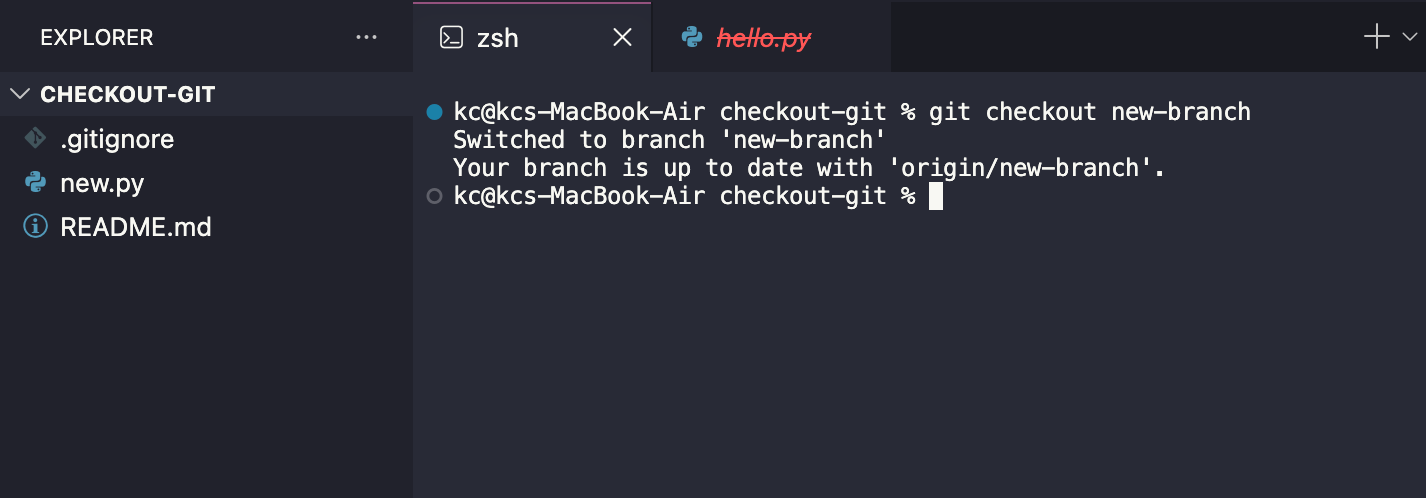
It’s important to note that Git is replacing all the current branch’s file paths with the paths from the branch you are switching to. This means that switching branches could delete files in your working directory if they don’t exist in the branch you’ve switch to.
This is the case my example where I only had the new.py file in the new-branch. Luckily, I kept the hello.py file open in my IDE. However, it is not listed in the working directory and the name is crossed out in red to show it’s been deleted.
Scenario 6: Restore File From Branch
If you have switched to a repo and accidently a file you still hav open, then you can simply save it to bring it back to your working directory. However, the file will be untracked in your local and remote branches.
If a version of the file exists on another branch or you were unlucky enough to not have the file you need open, you can use git checkout branch file to restore files.
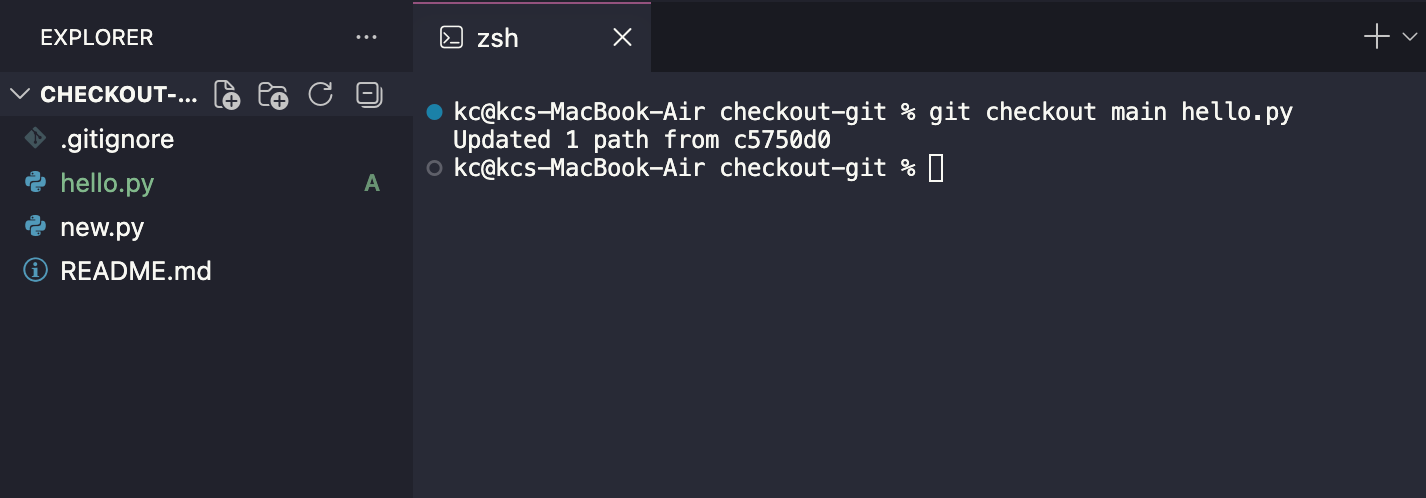
For example, hello.py can be restored from the main version. You’ll still need to follow the steps for publishing these changes as a commit to the current branch.
Yes, we just used the same command as we did to add a new file. This is because Git is using paths and will simply bring in content. There are other tools for managing differences. Feel free to explore those options in the docs: https://git-scm.com/docs/git-checkout
Bonus: actions/checkout
Everything up tot his point has been using git checkout on your local machine.
There are other platforms, like GitHub, that provide layers on top of git commands that allow to achieve skills, like CI/CD (continuous integregation/continuous deployment).
GitHub Actions has a checkout feature that makes a copy of your repository for you to reference in the orchestration pipeile. Similar to the local command, you have many different options to select one or many objects (repos, branches, pull requests, etc.)
- uses: actions/checkout@v7
  with:
    ref: my-branch
Read more at https://github.com/actions/checkout
Happy coding!