


What are parameters in Tableau Prep?
Parameters in Tableau Prep are designed to make data preparation flows more dynamic and interactive. They can help automate repetitive adjustments in a data preparation process.
Why would you need parameters?
Typical uses can include:
- Filtering records dynamically
- Switching between files or databases
- Adjusting calculations
- Defining date ranges
- Creating reusable flows for different scenarios
Overall, Tableau Prep parameters are especially valuable in processes where the same preparation logic is repeatedly applied to changing datasets/variable inputs.
How do parameter use cases vary in Tableau Prep and Tableau Desktop?
Tableau Desktop parameters are mainly focused on interactive analytics with visualisations, while Tableau Prep parameters focus on streamlining and scaling the data preparation process.
Example 1 - Apply user parameters to calculated fields:
Here, a Tableau flow is preparing data to show how many days an individual has worked during 2026. The flow for this process requires a birthday/holidays/sick days input. Rather than manually editing a source file to upload someone’s information to a file in Tableau Prep, the image below shows how a parameter can be created where:
- Someone can enter their birthday, amount of holiday they’ve taken, alongside sick days taken.
- This string is then assigned to a column.
- The column data type is then converted to a date and further calculations are done to find the number of days worked!
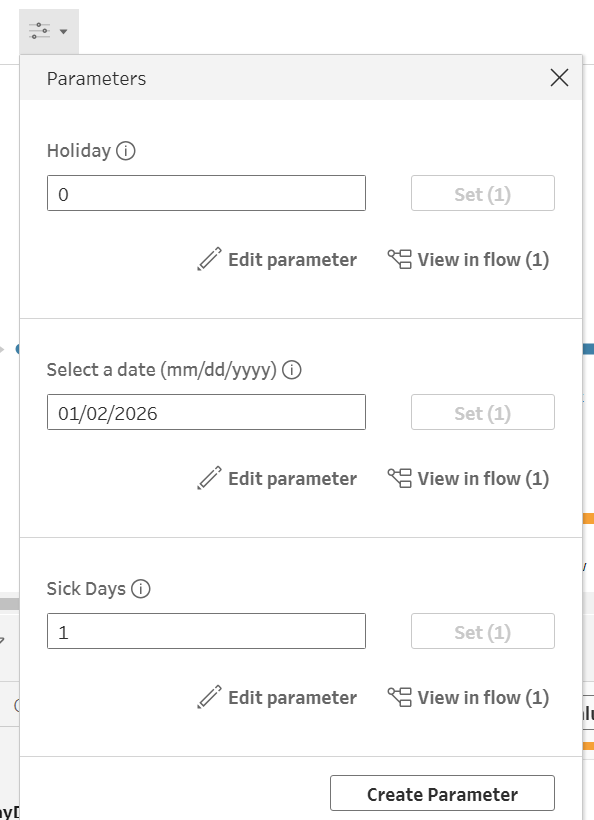
^ A user inputting information into parameters.
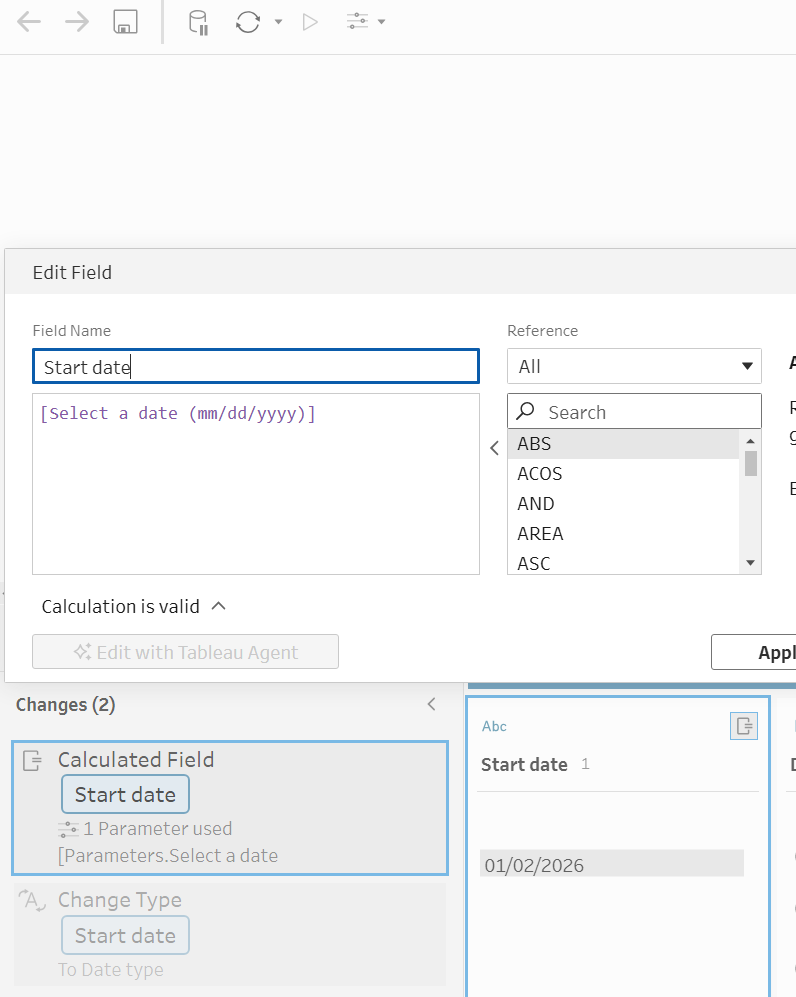
^ How the parameter input is then assigned to a column through a calculated field.
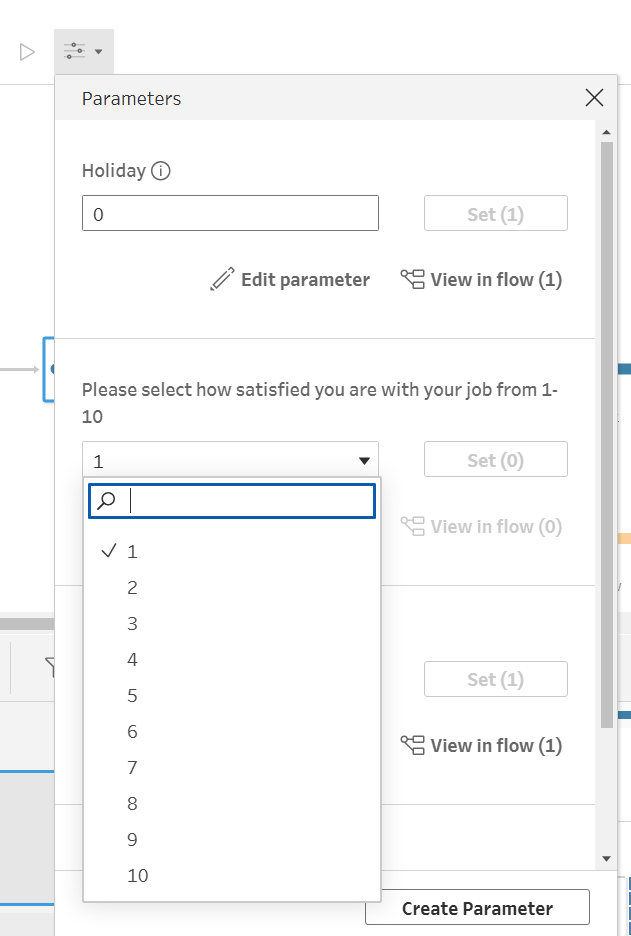
In addition to a user being able to input a value, you can also enable the user to select a parameter from a predefined list. This can help to avoid input errors within the data preparation process. An example is below:
Example 2 - Dynamic file path
Parameter
[File name]
Possible values that a user could select:
- EmployeeSatisfactionReport_January.csv
- EmployeeSatisfactionReport_February.csv
- EmployeeSatisfactionReport_March.csv
The parameter is inserted into the input file path so the same flow can process different files without the need to redesign the workflow.
Example 3 - Filtering
This parameter looks at keeping employee satisfaction above a chosen value.
Parameter: [Minimum Satisfaction]
Filter logic: [Satisfaction] > [Minimum Satisfaction]
Users can then adjust the threshold depending on what employee satisfaction requirements they may have.