


As I continue to work more and more with Tableau Prep, my workflows are getting messier and harder to follow. What started as simple, linear flows has slowly turned into multiple branches, and repeated cleaning/logic steps. For personal use, this has been manageable, but the moment I need to hand my work over to someone else, it becomes almost impossible to comprehend.
This is where one of Tableau Prep’s most underutilized features comes in handy: Grouping Steps
CREATING GROUPS
First, identify the sequential steps that you want to group together. These are usually steps that belong to the same logical process (ex. Cleaning).
After highlighting all steps you want to include, right-click on one of the steps and select the menu option “Group”.
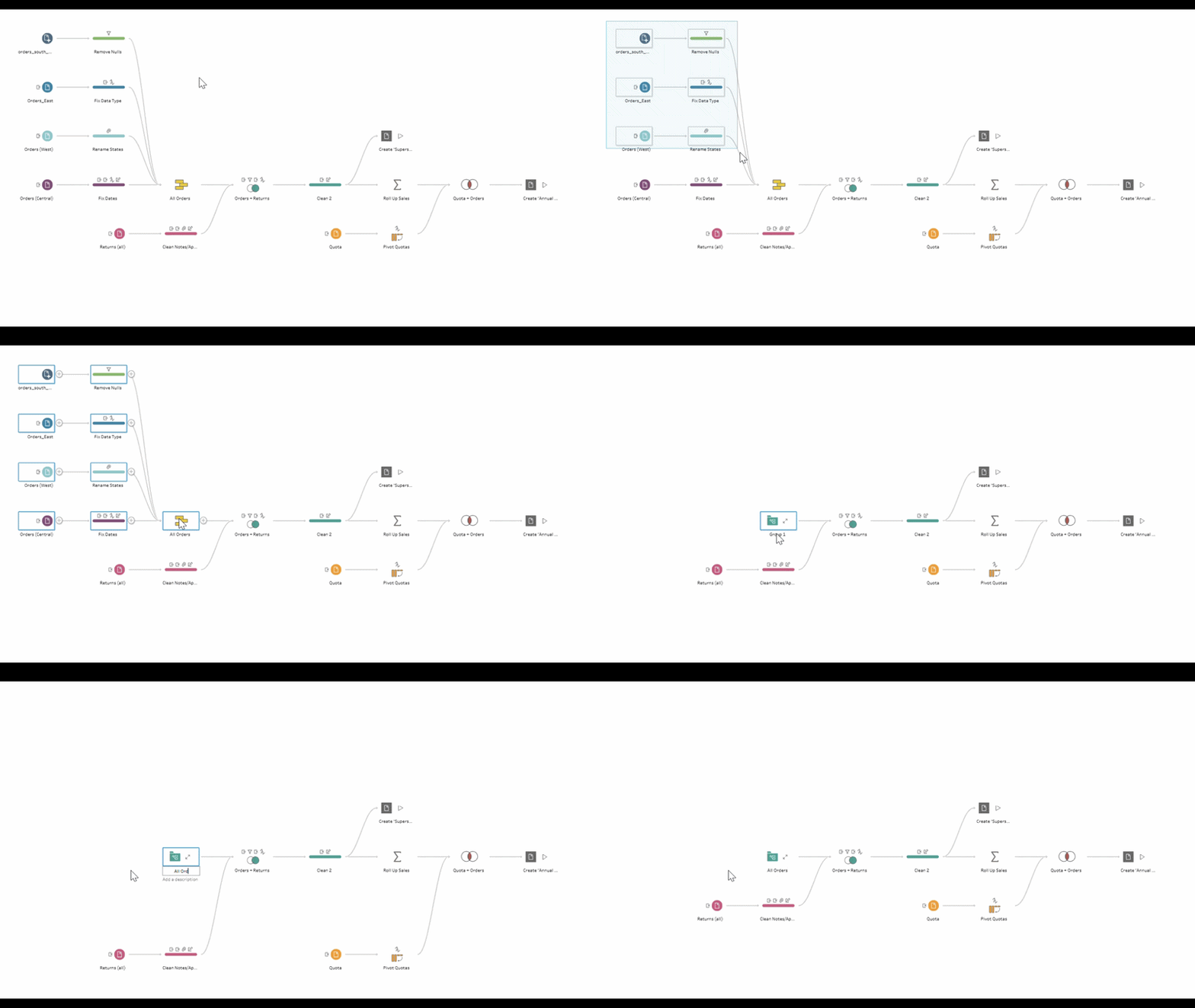
You should now be left with a folder icon that contains all of your steps. Feel free to move it around your flow and rename it, the steps inside will remain unchanged.
EXPLORING A GROUP
It’s always nice to clean up your flows, but you still want to be able to see what is happening inside. Use the arrows next to the folder icon to expand the group.
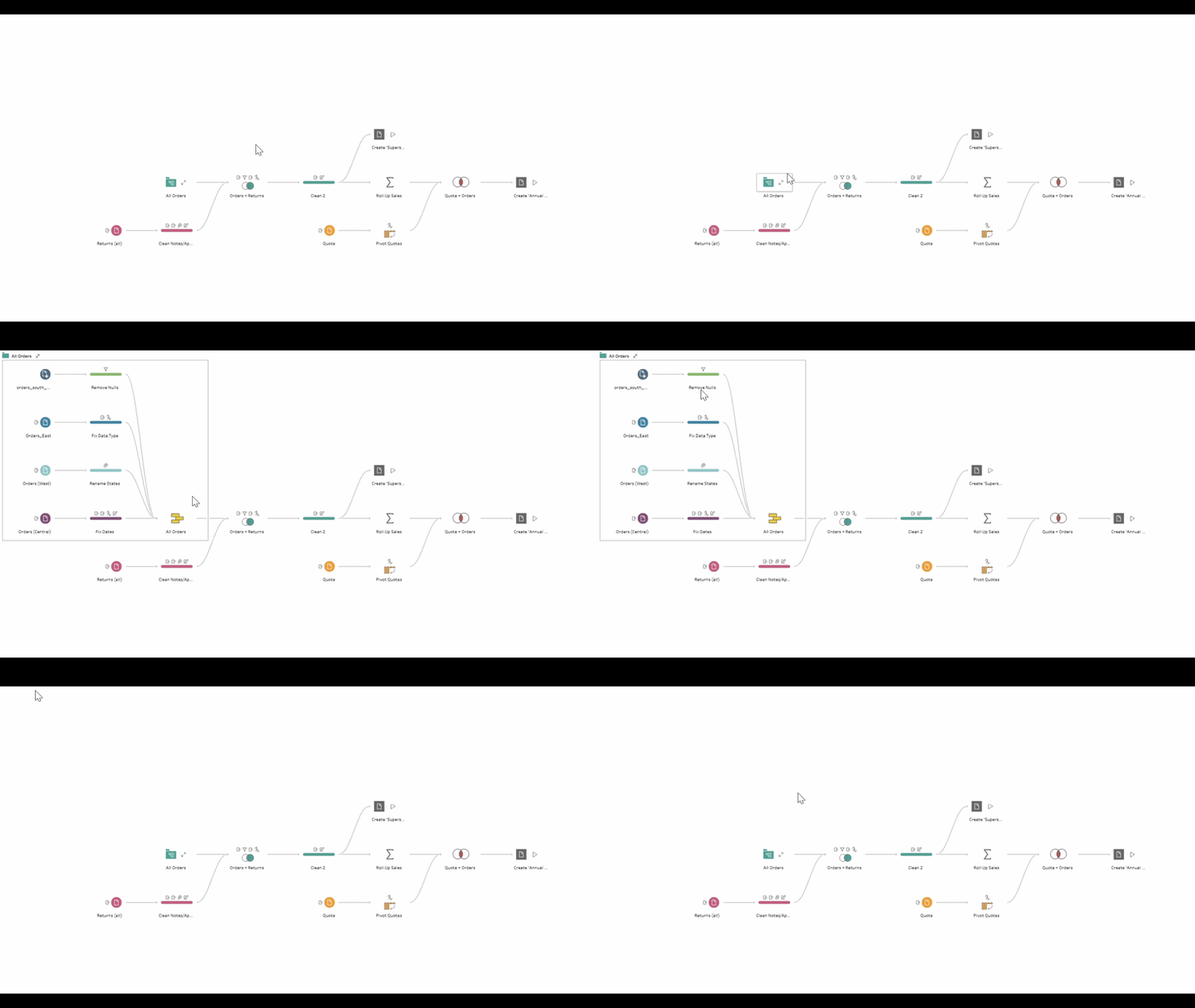
Once you are done editing the steps inside, remember to condense the group by clicking on the arrows next to the folder icon.
UNGROUPING STEPS
If you change your mind, right click the folder icon and select the “Ungroup” menu option. This will change the steps back to the original state.
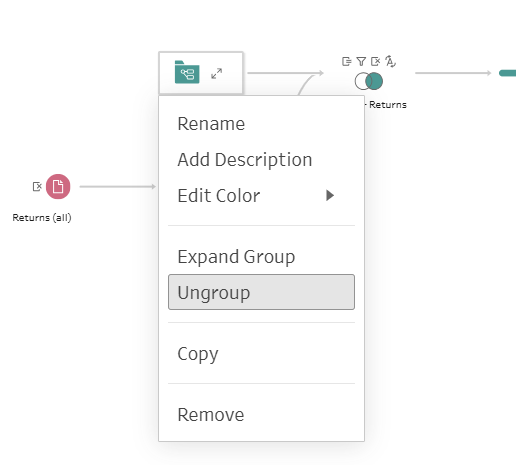
This option will only appear if the folder is condensed, so make sure to close the folder first.