


Regular expressions, or Regex, allow you to search for patterns within text rather than looking only for one exact value.
In Alteryx, the RegEx tool has four output methods:
- Match
- Parse
- Replace
- Tokenize
They all use a Regex pattern, but they produce different outputs. This guide focuses on how to configure and use those four methods. For help building the pattern itself, see my longer Regex Reference Guide.
Configuring the RegEx Tool
- Begin by adding the RegEx tool from the Parse tool palette.
- At the top of its configuration, select the Column to Parse. This is the text field that Alteryx will examine.
- Next, enter your pattern in the Regular Expression box.
- The Case Insensitive option is selected by default. When enabled, uppercase and lowercase letters are treated as equivalent. For example,
catcould matchcat,CatorCAT. - Finally, select one of the four output methods.
Match: Check Whether a Value Matches a Pattern
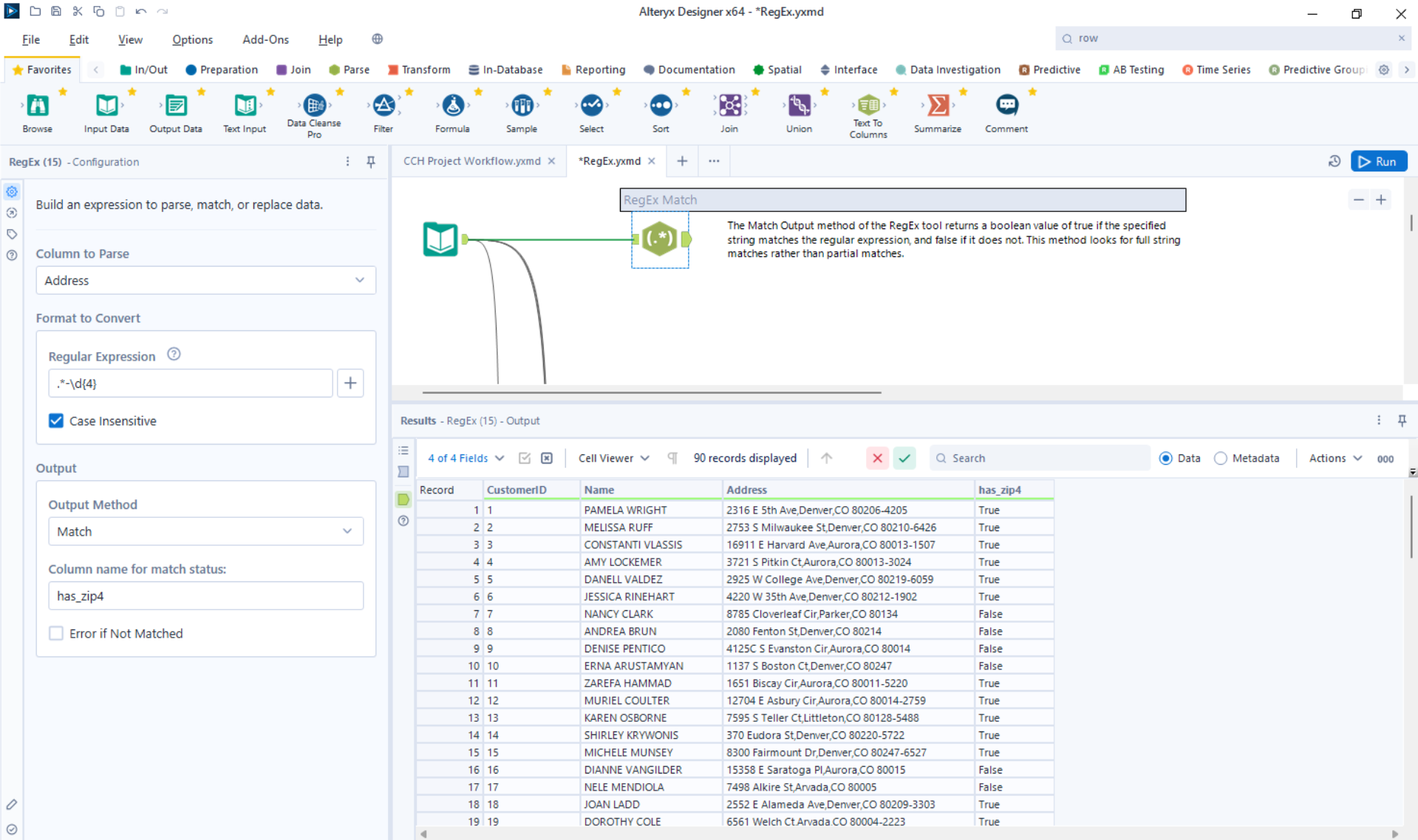
Use Match when you want to check whether each value matches your Regex pattern.
For example, suppose product references should contain three capital letters, a hyphen and four digits:
[A-Z]{3}-\d{4}
This would match values such as:
FUR-1048
TEC-2371
When configuring Match, select:
- The field you want to examine
- The Regex pattern
- Whether matching should be case-insensitive
- A name for the new output field
- Whether Alteryx should return an error when a value does not match
The RegEx tool adds a new numeric field containing:
TRUEwhen the value matchesFALSEwhen it does not
The original field stays unchanged. This makes Match useful for:
- Data-quality checks
- Validation flags
- Filtering valid and invalid records
- Identifying values that require further cleaning
Unlike the REGEX_Match() function used in the Formula tool, the RegEx tool’s Match mode does not require you to build the Formula function’s whole-field behaviour into your expression - if any part of the field matches the pattern, it will be marked as a match.
Parse: Extract Parts of a Field into New Columns
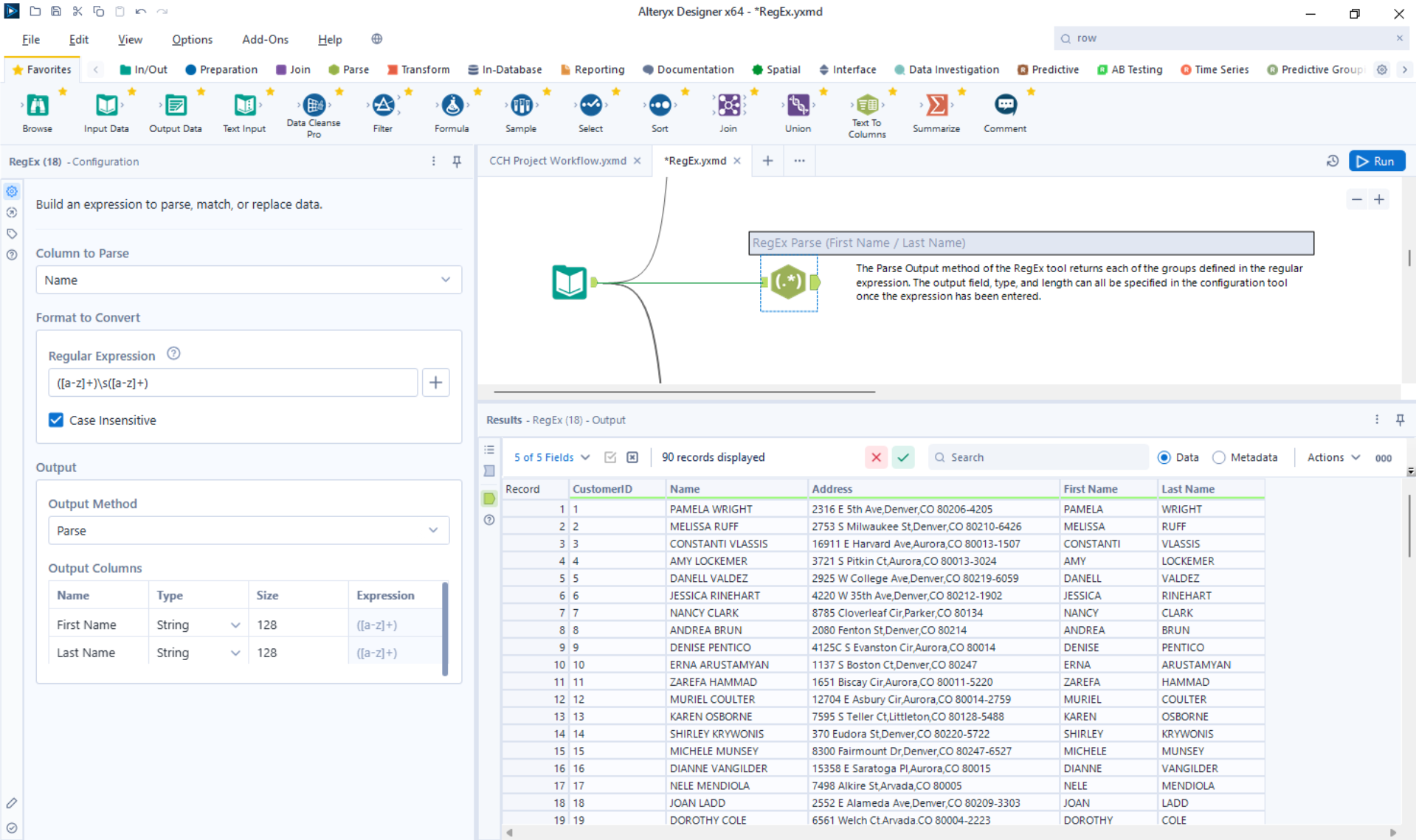
Use Parse when a field has a broadly consistent structure and you want to extract particular parts into separate columns. The example above uses the Parse mode to split the first and last names of customers into separate fields. The following example shows a use case with more than 2 capturing groups.
Imagine a product reference contains a category, year and item number:
FUR-2026-1048
You could use this expression:
([A-Z]{3})-(\d{4})-(\d{4})
The parentheses mark the parts you want to capture:
| Capturing group | Returned value |
|---|---|
([A-Z]{3})
|
FUR |
(\d{4})
|
2026 |
(\d{4})
|
1048 |
When Parse is selected, Alteryx creates one new field for each capturing group.
For every new field, you can specify its:
- Name
- Data type
- Size
For example, you could name the three fields:
- Category
- Year
- Item ID
The original field remains in the dataset, and the parsed values are added as new columns.
Parentheses are therefore essential when using Parse: they tell Alteryx exactly which parts of the complete pattern should be returned.
Use Parse when:
- Each record has a known structure
- You expect a fixed number of results
- Each extracted part should become its own column
Replace: Find and Change Text
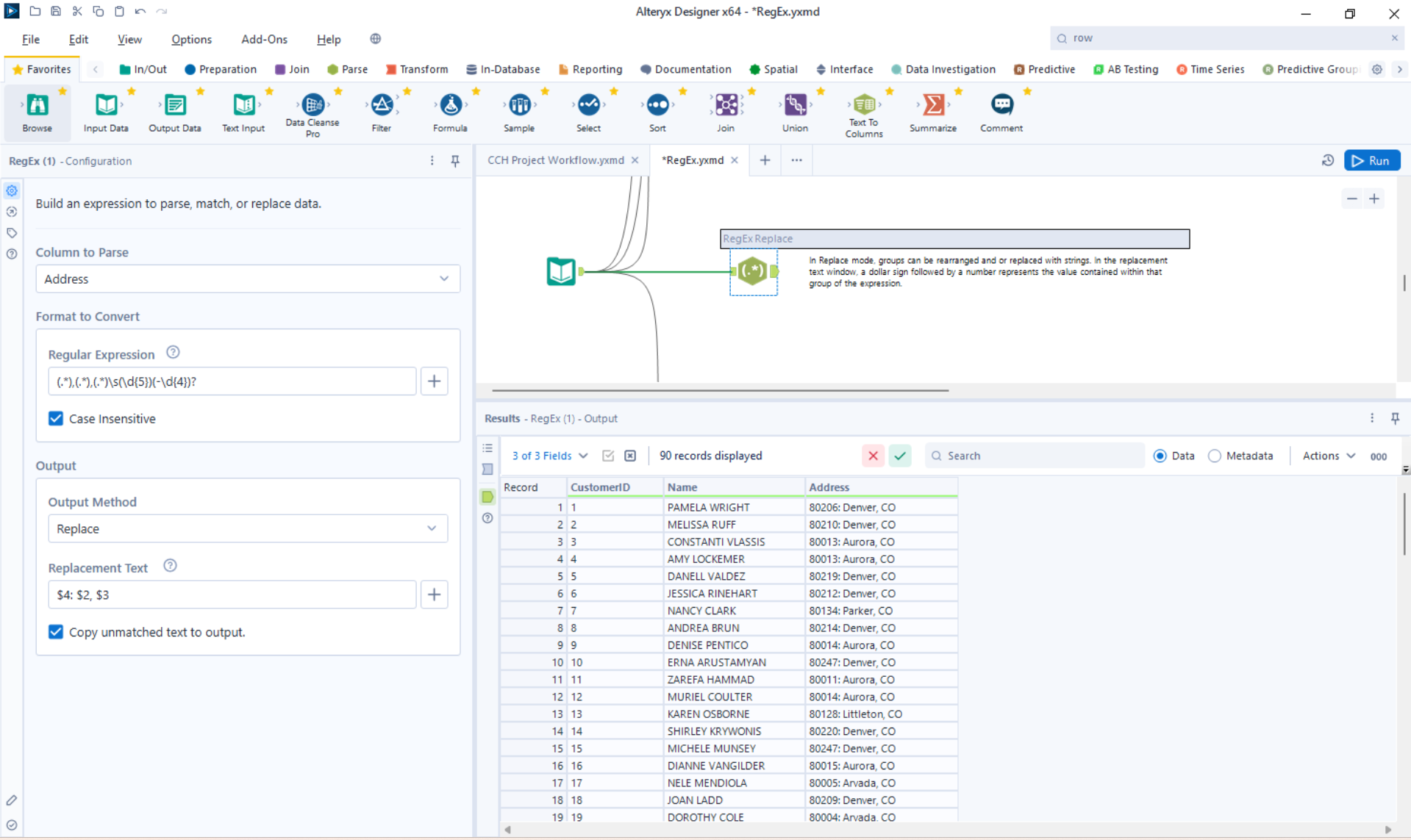
Use Replace when you want to find text matching a pattern and replace it with something else.
For example, the following pattern finds any character that is not a digit:
\D
020 7946-0123
Replacing it with nothing would turn it into:
02079460123
In Replace mode, configure:
- The field to parse
- The Regex pattern identifying what to find
- The replacement text
- Whether to copy unmatched text to the output
The replacement can be:
- Fixed text
- An empty string
- A reference to a captured group
Reusing Captured Text
Suppose names are stored surname first:
Smith, Harry
The following pattern captures the two parts:
([^,]+),\s*(.+)
Here:
$1refers toSmith$2refers toHarry
Using this replacement:
$2 $1
would return:
Harry Smith
Copy Unmatched Text to Output
Selecting Copy Unmatched Text to Output preserves the parts of the original value that do not match the pattern.
This is useful when you want to replace only one section of a longer string.
Tokenize: Return Every Occurrence of a Pattern
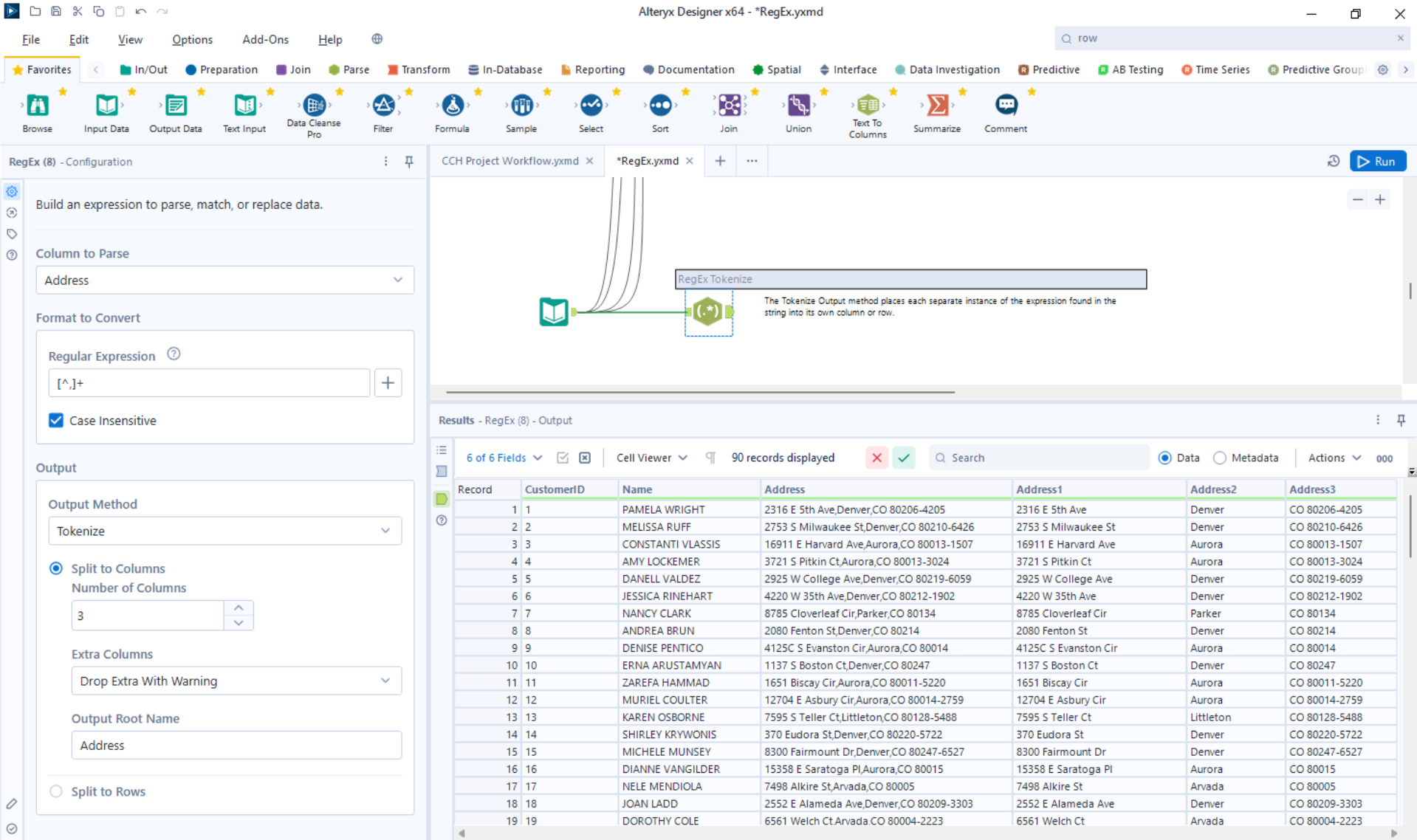
Use Tokenize when a field may contain a pattern more than once and you want to return every occurrence.
Tokenize works somewhat like the Text to Columns tool. However, rather than matching the separators you want to remove, you write a pattern matching the text you want to keep.
Suppose a field contains several five-digit case numbers:
Cases 12345, 82736 and 49102
You could match each case number using:
\d{5}
Tokenize can return the results in two ways.
Split to Columns
This places each match in a separate field:
| Token1 | Token2 | Token3 |
|---|---|---|
| 12345 | 82736 | 49102 |
When splitting to columns, configure:
- The number of columns to create
- The root name for the new fields
- What should happen if more matches are found than there are available columns
Extra results can be:
- Dropped with a warning
- Dropped without a warning
- Treated as an error
This option works best when you know approximately how many matches each record may contain.
Split to Rows
This creates a new row for every match:
| Original record | Token |
|---|---|
| Cases 12345, 82736 and 49102 | 12345 |
| Cases 12345, 82736 and 49102 | 82736 |
| Cases 12345, 82736 and 49102 | 49102 |
Before splitting to rows, make sure the dataset contains a record ID or another identifying field. That value will be repeated on each new row, allowing you to connect every result to its original record.
Split to Rows is generally more flexible when the number of matches varies significantly between records.
Using a Capturing Group with Tokenize
Normally, Tokenize returns the complete text matched by the pattern.
However, if the pattern contains a marked capturing group, it returns only the captured part.
For example:
Reference: (\d{5})
matches:
Reference: 12345
but returns only:
12345
The RegEx tool permits only one marked expression in Tokenize mode, so use non-capturing groups for any additional grouping needed by the pattern.
Tokenize is useful for:
- Extracting multiple IDs from a description
- Separating tags or keywords
- Turning lists stored in one cell into separate records
Parse or Tokenize?
Parse and Tokenize can both extract text, but they are suited to different structures.
Use Parse when:
- The record follows a known format
- You want a fixed number of outputs
- Different parts should become differently named columns
Use Tokenize when:
- The same pattern can appear several times
- The number of results may vary
- Each match should become another column or row
A useful way to remember the difference is that Parse extracts the parts of one known structure. Tokenize finds every occurrence of a repeating pattern.
Summary
| Method | Use it to… | Output |
|---|---|---|
| Match | Check whether text matches a pattern |
A
True
or
False
field
|
| Parse | Extract known parts of a structured value | One column per capturing group |
| Replace | Change or remove matching text | A modified text field |
| Tokenize | Return each occurrence of a repeating pattern | Multiple columns or rows |
The best method depends less on the Regex itself and more on what you want Alteryx to do with the matches it finds.