


Type conversion functions are how you force Tableau to treat a field as the right type. You are basically converting it from one data type to another, which Tableau calls casting.
Example: if a date is stored as a string, Tableau will not see it as a real date. So, any calculations using date will not work properly until you cast it to a Date.
Most of the time you can just change the data type by clicking the little icon next to the field. But sometimes you only want the change inside one calculation, or Tableau is not reading the format correctly (a classic one is it not recognising your date format). That is when you use a type conversion function.
So, what data type conversions can we perform?
String (STR)
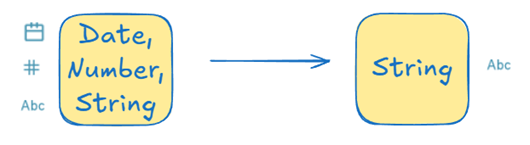
STR() is the function you use when you want to force something to be treated as text.
Syntax: STR(expression)
Output: String
Example: STR([Postal Code]).
You use this a lot for IDs and codes that look like numbers but should stay as text and be treated as categorical rather than numeric, like postal codes, account IDs, or anything where leading zeros matter.
Numeric (INT)
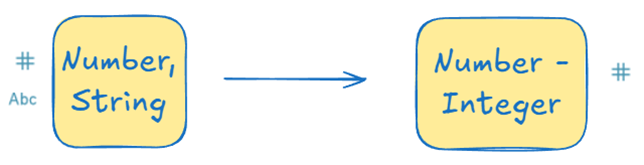
INT() is the function you use when you want to force something to be treated as a whole number.
Syntax: INT(expression)
Output: Integer
Example:
INT(8/3) returns 2
INT(“-9.7”) will return -9
It casts a value to an integer by truncating toward zero (2.60 becomes 2 instead of 3 as it truncates, not rounds). When the input is a string it converts to decimal first before truncating to INT.
Numeric (FLOAT)
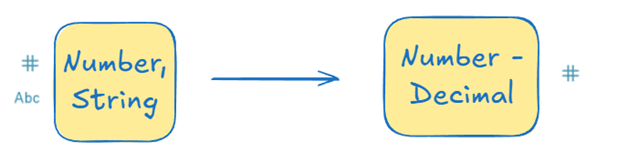
FLOAT() is the function you use when you want to force something to be treated as a decimal number.
Syntax: FLOAT(expression)
Output: Number
Example:
FLOAT(10) returns 10.0
FLOAT(“10”) will also return 10.0
FLOAT(“10.5”) will return 10.5
Use it when integer division is causing problems and you need Tableau to keep the decimals.
Date (DATE)
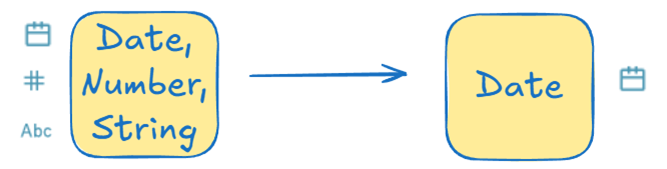
Returns date given a number, string, or date expression.
Syntax: DATE(expression)
Example:
DATE([Order Date])
DATE(“31 October, 1985)
DATE(“1985/07/31”)
Tableau recognises a lot of date formats but if it doesn’t recognise the date format, use DATEPARSE to create date. You can tell if it is returning null values.
Date (DATETIME)
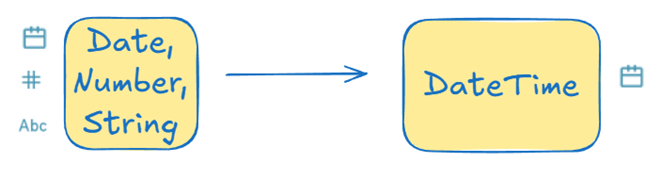
Similar but gives a time with the date, automatically set to midnight.
Syntax: DATETIME(expression)
Example:
DATETIME(‘1985-10-31’) will return 31/10/1985 00:00:00
DATETIME(‘1985-10-31 11:29:20’) will return 31/10/1985 11:29:20
Date (MAKEDATE)
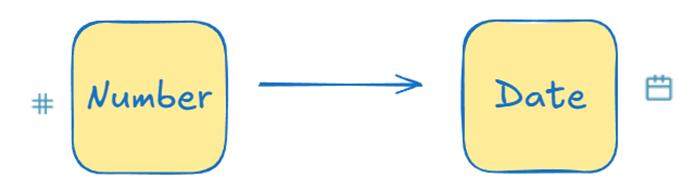
Builds a date from parts. Can only be used with numeric values.
Syntax: MAKEDATE(year, month, day)
Example:
MAKEDATE(1985,10,31) will return date 31/10/1985
MAKEDATE([Year], [Month], 1)