


If you're deep down the toggle rabbit hole like me, one of the things you may have been asking is how to set your toggle to a default option. This is so that when you change an unassociated parameter, your toggle resets itself essentially. In my example, I have been working on a Formula 1 visualisation and using a toggle to go between views of the podium for sprint and grand prix races in certain rounds. If you're interested in learning how to create the initial toggle, I've rather handily written a blog on it. So, now I've created my toggle, I have the issue that in the majority of rounds there are no sprint races. What happens when I've been looking at the sprint podium and I switch to a round where there isn't a sprint race then? Well the chart goes blank. That's not very ideal for a dashboard because when the user isn't me (who knows why the chart has gone blank), the user might think they've broken the dashboard. That can cascade into a multitude of issues and let's just say, it's easier to find a fix for that and that's what we're going to be doing today.
Step 1: Create a sheet for your parameter which you want to use to reset the toggle. For me, this meant creating a round selector sheet as I wanted the toggle to reset when the round changed. I've coincidentally written a similar blog on how to get this working if you're not sure of how to get started on that. I promise I'm not just plugging my own blogs here but they'll help you if you want to do exactly what I've done.
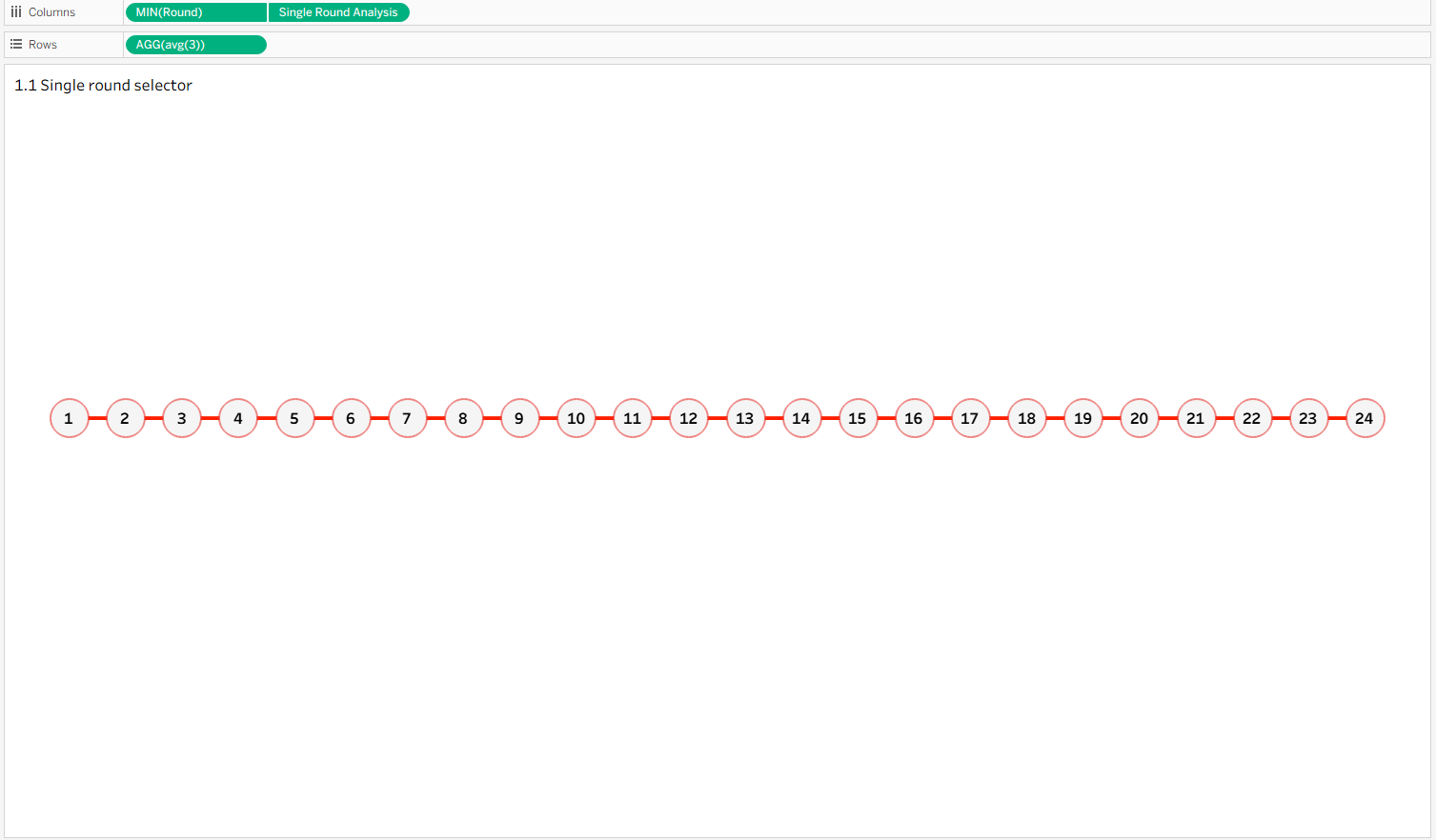
By the end of this step, you should be set up with your parameter selector in your dashboard. When you select a round (or category, whatever you're using within your parameter), it should change your associated sheet. For me, that means my podium changes according to the round selected.
Step 2: Create a new calculated field associated with your original parameter (that you will have created by going through my other toggle blog post). My original parameter was quite simply named 'Toggle for Grand Prix' and allows the user to switch between the grand prix and the sprint.
Your new 'Reset to Default' calculated field should just contain the word 'true'. If you didn't use a boolean parameter to switch your toggle, then insert whatever string value you want to default to which matches what you put in your original toggle switch parameter.
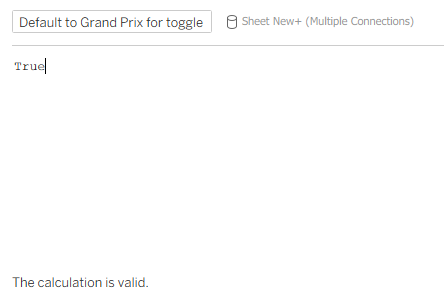
Step 3: Set up your dashboard action. Set up your change parameter action as below.
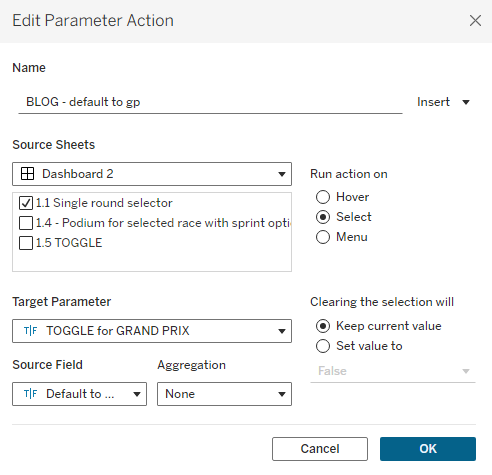
You should ensure that the action is working on your parameter selector sheet. For me, that's my single round selector. Your target parameter is your toggle switcher and your source field is your newly created reset to default calculated field.
Now test it out! It should be working so that every time you switch round (or category, or whatever you have in your parameter selector sheet), your toggle resets to the default. If it's switching to the wrong default, for example it might be switching to the sprint rather than the grand prix, that means your boolean calculation has ended up back to front. To fix this, you can change your 'reset to default' calculation to false and that should clear that issue up.
So, your toggle is resetting to a default which eliminates the issue of switching from a round with a sprint onto a round without one and ending up with a blank chart, but the user could still use the toggle on a round without a sprint and think they've broken the dashboard. To eliminate this, we need to eliminate the chance for them to use the toggle in one of these rounds. How do we do this? With dynamic zone visibility.
Step 4: Create another boolean parameter. Explanation to come.
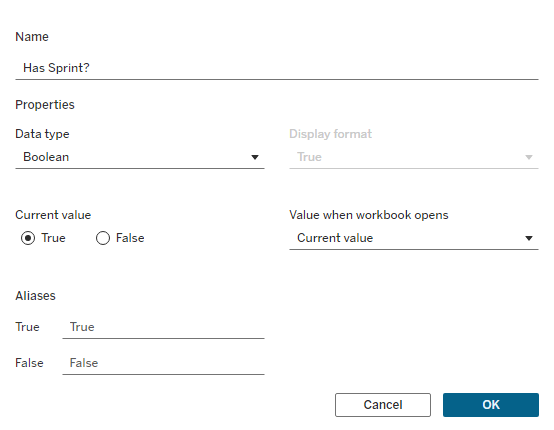
Step 5: Create a related calculated field. Depending on your data source, you'll need to insert your related measures into the example below. In place of round, you should put your parameter selector measure. In place of race type, you should put whatever category you're toggling between.
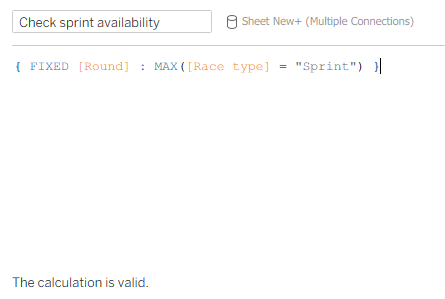
To explain what's actually going on here, you are using a level of detail calculation to fix your findings at the round level. Then at this round level, you're asking if race type is ever equal to sprint. In computer logic, true is assigned the value 1 and false is 0.
As such:
Using max, you're essentially asking 'Is there any row in my dataset, at the round level, where race type equals sprint?' This is because you're looking for any event where this is true, and as 1 > 0 meaning you need the max.
Using min, you're essentially asking 'Is every row in my dataset, at the round level, equal to sprint for race type?' This is because you're looking for every event for this to be true, otherwise it will take the 0 value with the min and output a false outcome.
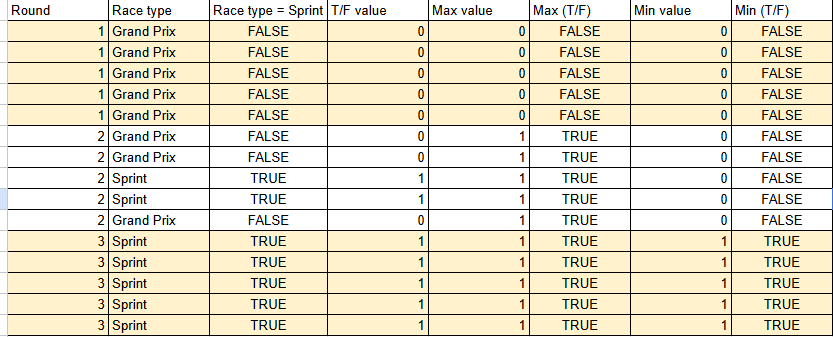
In the example above, using the max function (Race type = "Sprint") will output false for round 1 and true for round 2/3. Despite having more false values in round 2, the maximum value is 1, therefore it outputs 1 as its overall max value at the round level and this is equal to true.
Meanwhile, using the min function (Race type = "Sprint") will output false for round 1/2 as the minimum value at the round level is 0, therefore it outputs 0 as its overall min value and this is equal to false. As for round 3 all values are equal to 1, the minimum value is also 1 and therefore equal to true.
Step 6: Set up your dashboard action. You first need to add your new calculated field to your parameter selector sheet. For me, that means I need to add my 'check sprint availability' calculated field to my round selector on detail on the marks card. This will mean that when I come to change my parameter action, it will be available to use as a source field. Now, set up your parameter action as below.
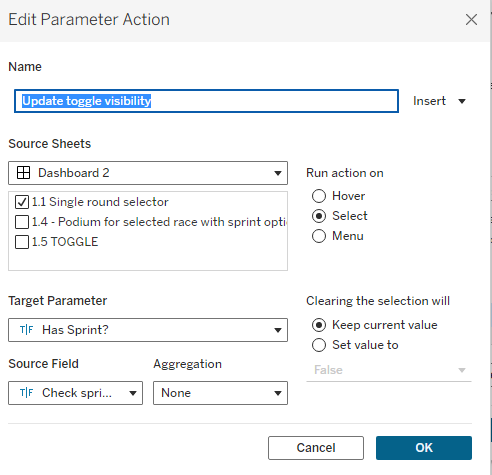
The parameter action should be working on your parameter selector sheet with your target parameter being your newly created boolean parameter. Your source field is also your newly created calculated field. Thus, your 'Has Sprint?' parameter is using your check sprint availability output to determine whether the parameter should be true or false.
Step 7: Control the visibility of the toggle. Add your newly created parameter to your toggle visibility condition as below. This will mean that when your 'Has Sprint?' parameter is true, then your toggle is visible.
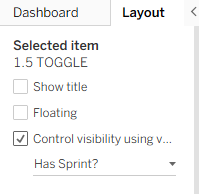
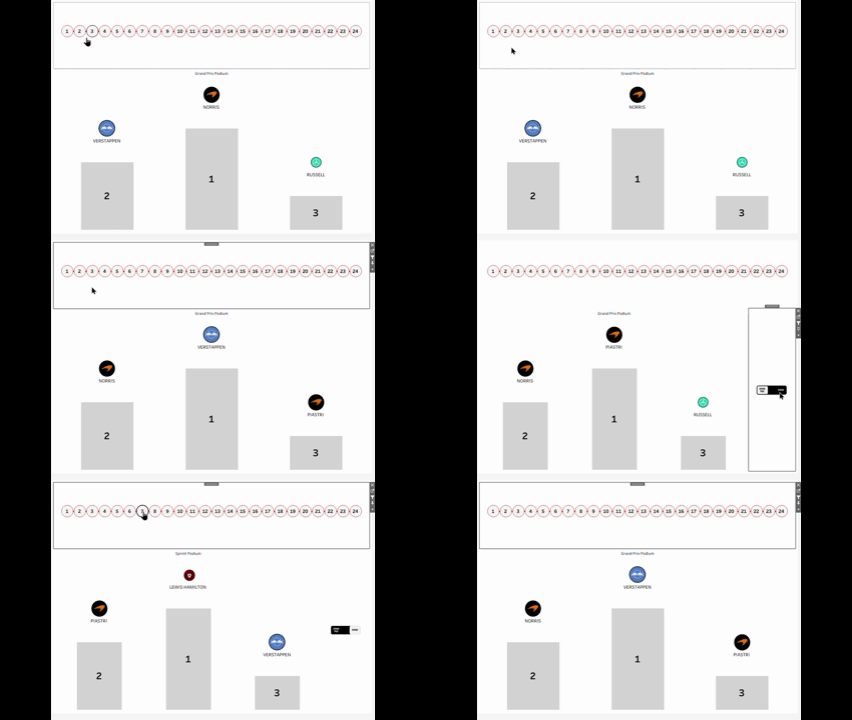
And there you have it, your toggle with a reset to default function inbuilt and dynamic zone visibility to futureproof for your user. Until next time, happy toggling!