


When I design a dashboard, I often get stuck between two choices: color every category, or color just one. Color everything and the dashboard is at risk of appearing too loud and hard to read. Color only one and I potentially lose the ability to easily compare categories, or to shift focus to a new one mid-presentation. A highlight action lets the viewer choose where the focus goes, adding interactivity while keeping the dashboard clean.
What a highlight action does
When a viewer hovers over or clicks a category, a highlight action spotlights the matching marks and fades the rest. It can apply across multiple sheets, so one interaction updates the whole dashboard.
How to set one up
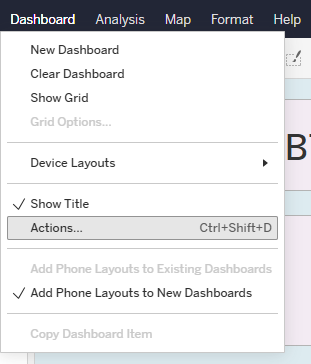
1. Open your dashboard and select Dashboard > Actions…
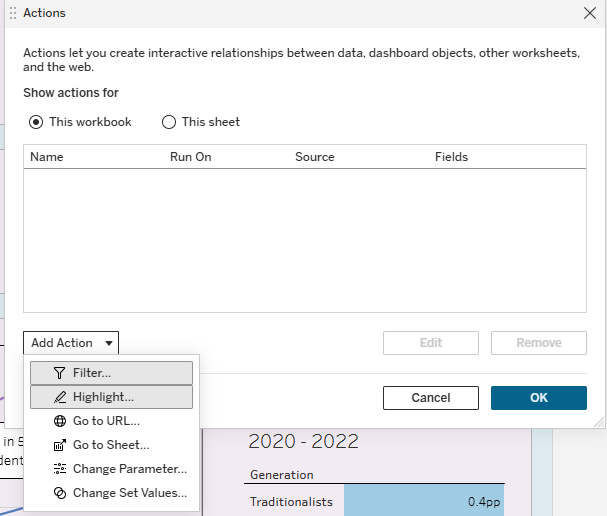
2. In the Actions window, click Add Action > Highlight…
3. This opens the Edit Highlight Action window. Label your action something descriptive, so you can easily keep track of multiple actions.
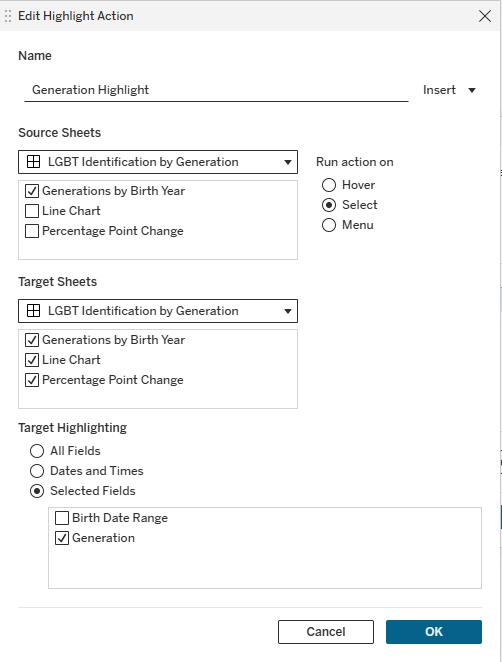
4. Under Source Sheets, select your dashboard from the drop-down, then check the sheets below that should trigger the action (and uncheck any sheets you do not want to trigger the highlight action).
5. Under Run action on, choose Hover, Select, or Menu. Hover will trigger with merely a mouse drift, Select requires a full click, and Menu requires clicking on the category and then clicking on a subsequent button within the pop-up menu. All three have their uses, but Select tends to be the most balanced option.
6. Under Target Sheets, select your dashboard again, then check the sheets below that should be highlighted (and uncheck any sheets you do not want to be affected by the highlight action) .
7. Under Target Highlighting, choose All Fields, Dates and Times, or Selected Fields. Choose Selected Fields if you want to control exactly which field drives the highlight.
8. Click OK. This will return you to your dashboard.
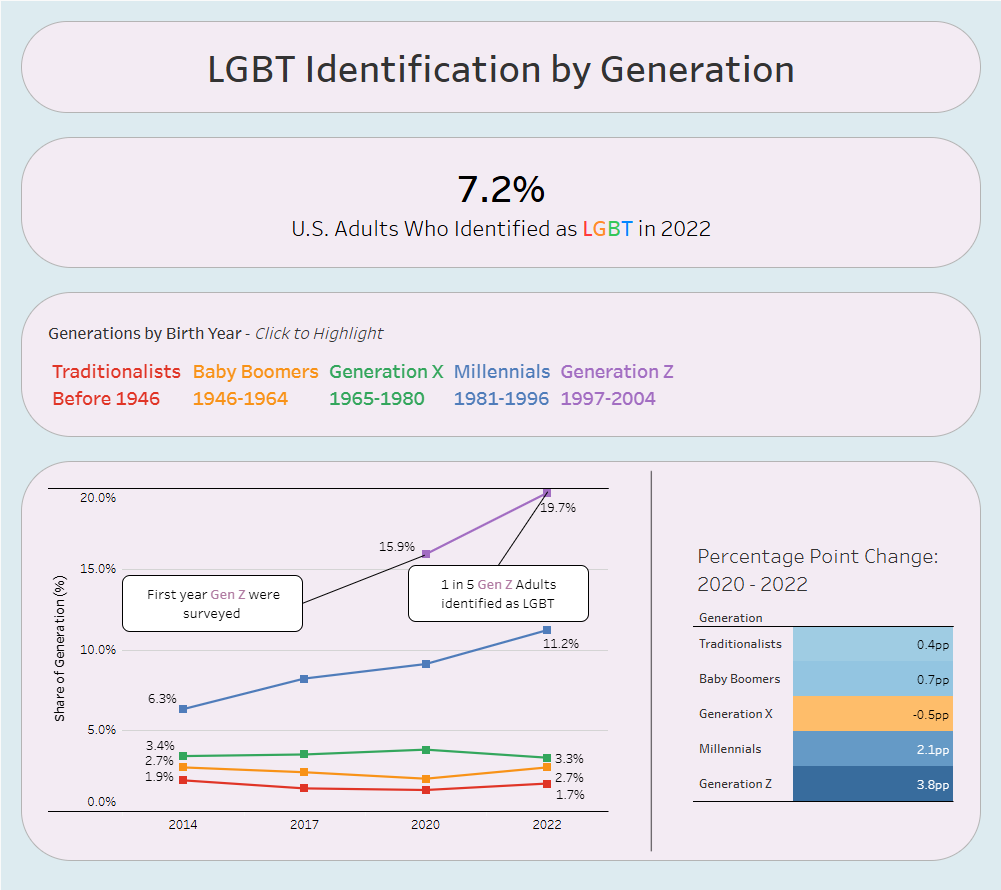
Test it out by hovering over or clicking a category. Each target sheet should fade save for the selected marks.
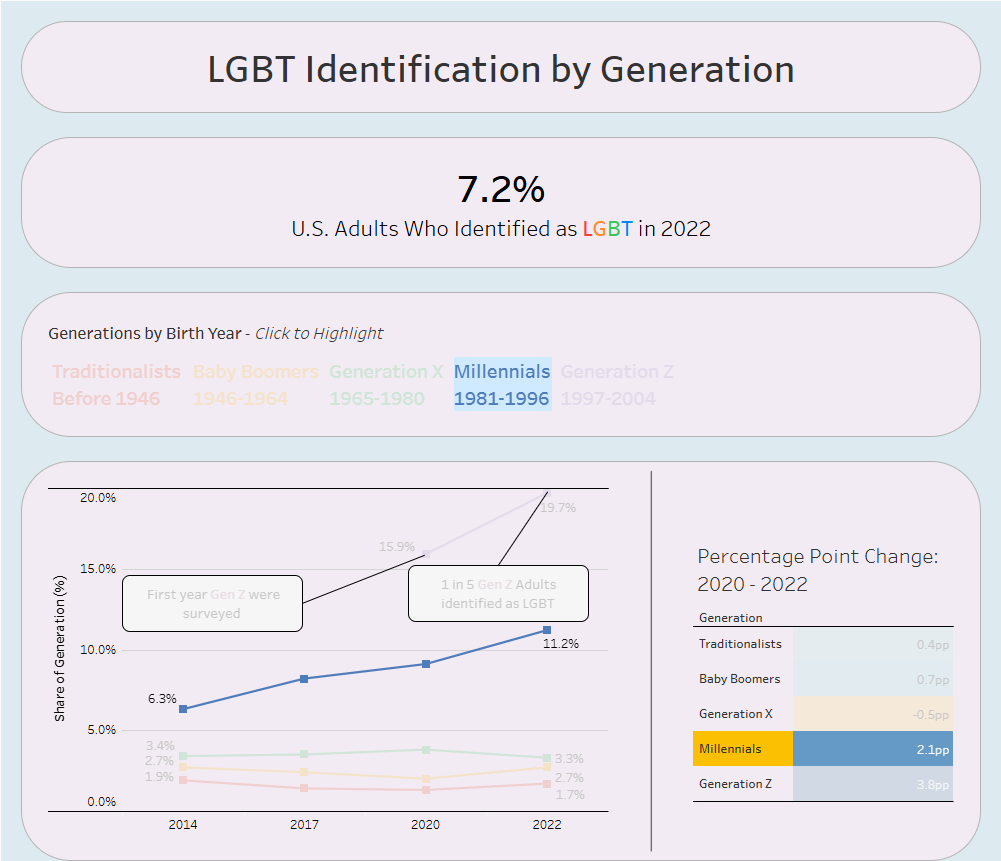
If nothing highlights: double check that the drop down menus in the Actions Window show your dashboard and not your individual sheet. A mistake I’ve made before!
And that’s it! I hope you can apply this easy function to punch up your dashboards and find that balance between breadth and focus.