


Let’s say you have partial data, or none at all, and want to start building data cleaning workflows or visualizations now instead of waiting for data delivery. Or you want to show your company the value of a metric they aren’t currently measuring. Or you want to practice working with data but don’t have any readily available. Mock data solves all three problems.
Mock data is randomly generated placeholder data that resembles real-life datasets, which you can start working with right away instead of losing time. In this post, I’ll walk you through generating it with mockaroo.com. While many default to using AI chatbots for generating mock data, Mockaroo gives you greater control and lets you design your mock data around your specific needs.
First, navigate to mockaroo.com. Before diving in, set up a free account so you don’t lose your work. Click on SIGN IN, and follow the prompts to sign up.
After logging in or signing up, navigate to the SCHEMAS tab.
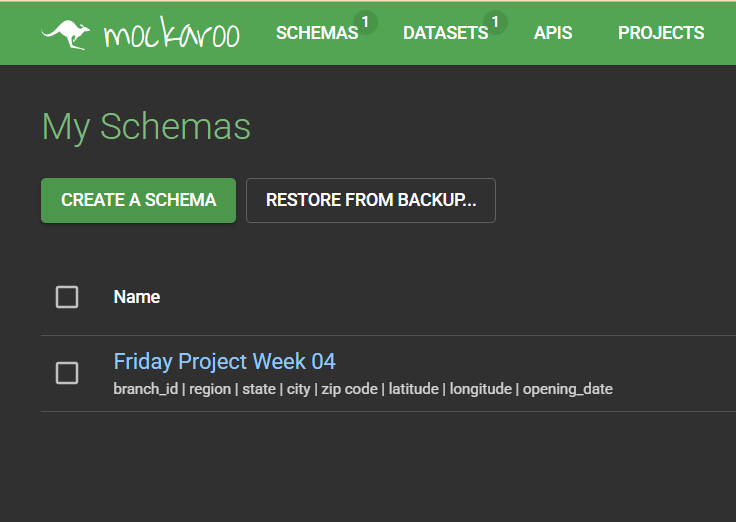
From here you can access your previously created schemas or click CREATE A SCHEMA to start a new one from scratch. Either option will bring you to the My Schema page.
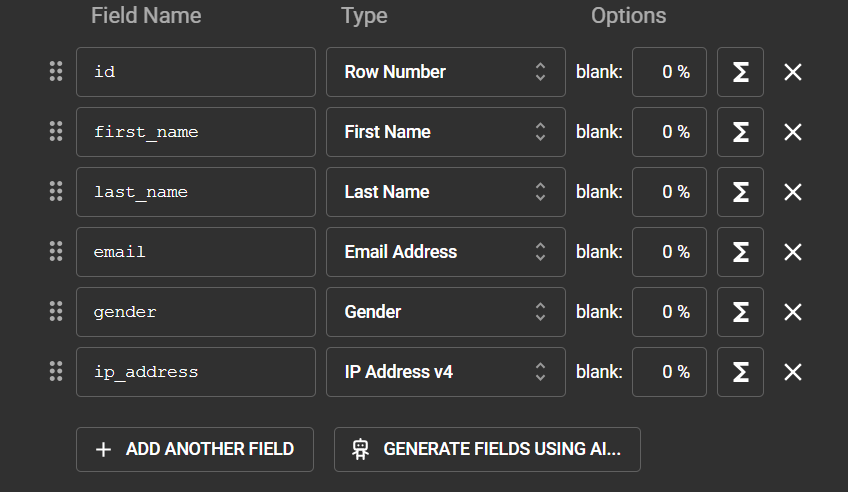
Here you can specify field names, data types, the percentage of null values, and even custom created formulas. Click on the Type dropdown to open the Choose a Type window.
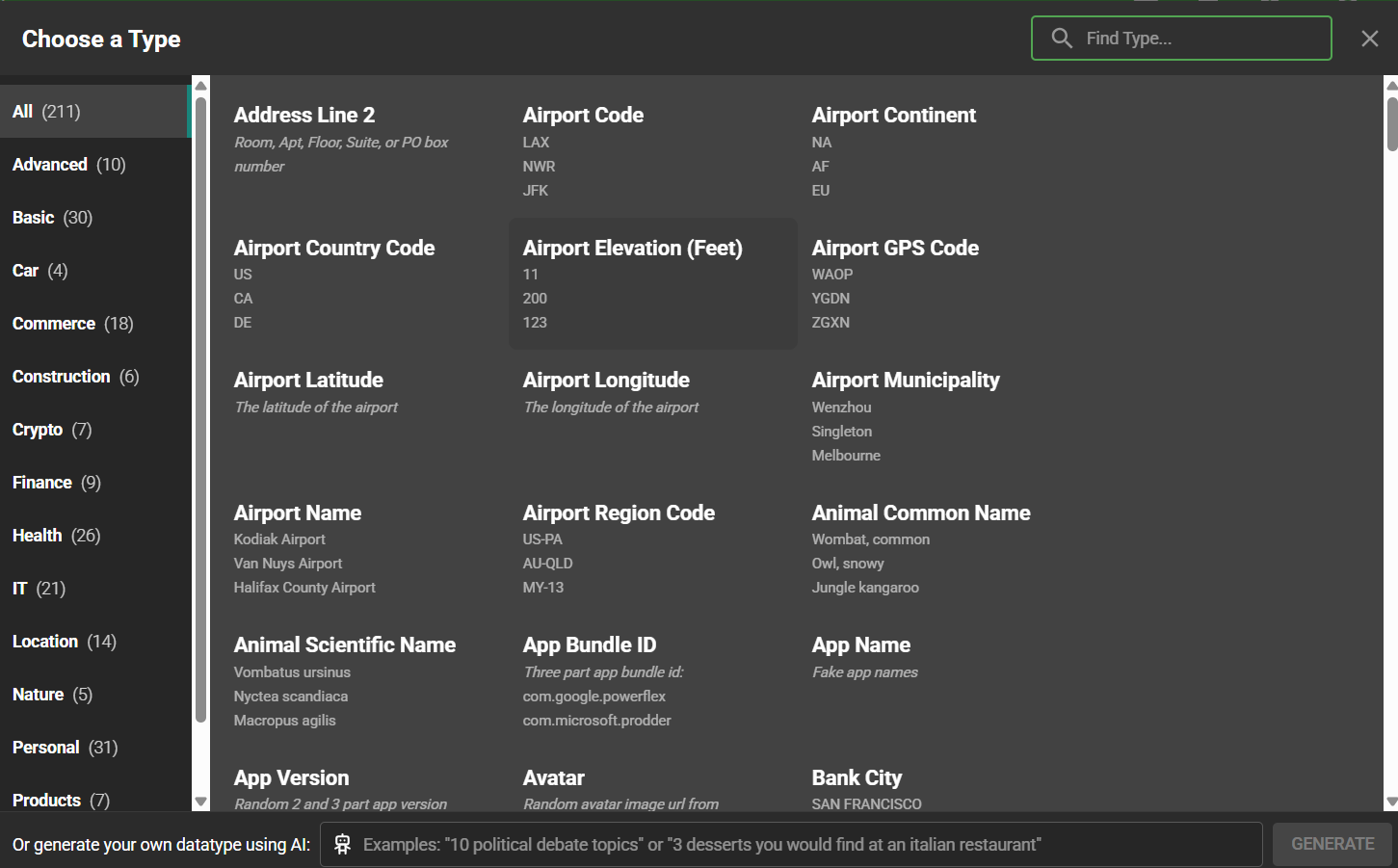
You can choose from 211 data types for each column, ranging from straightforward options like Zip Codes, Colors, and Latitudes/Longitudes to more specific ones like Movie Titles, Airport Region Codes, and Domain Names. You can even supply a custom list of values or generate an array of objects in JSON format. Take some time to explore, as there are a lot of options. The more specific the types, the more realistic your dataset will be, which keeps early chart builds from becoming distracting when values are nonsensical.
After naming your fields and selecting their data types, specify how many rows you want and which file format to export as.
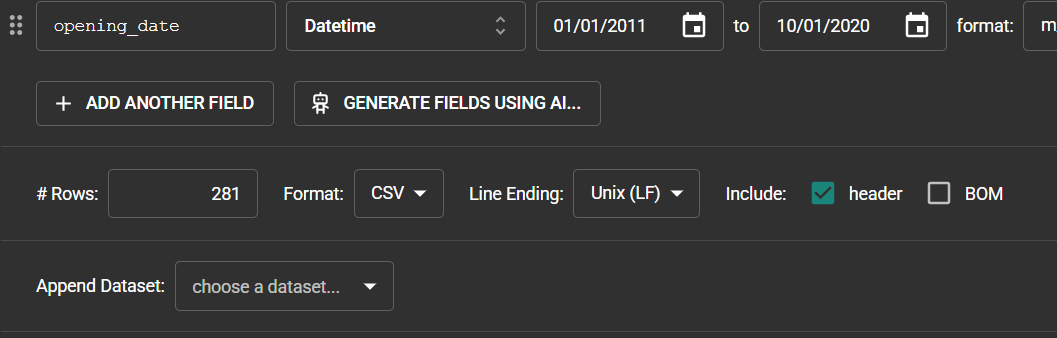
When you’re ready, navigate to the green ribbon at the bottom of the screen and click SAVE AS… to save your schema so you can return and make changes later. Then click PREVIEW to double-check the output, and GENERATE DATA to download your file.

There’s one more consideration: joining your mock data to existing data. Randomly generated IDs won’t match your existing ones, and joining on a field like city or region could leave you with many null values unless the two datasets line up perfectly. The solution is to import your existing ID values (or whatever your dataset’s unique key values are) and have Mockaroo use them in a field instead of generating its own.
First, make sure your schema is saved, then navigate to the DATASETS tab.
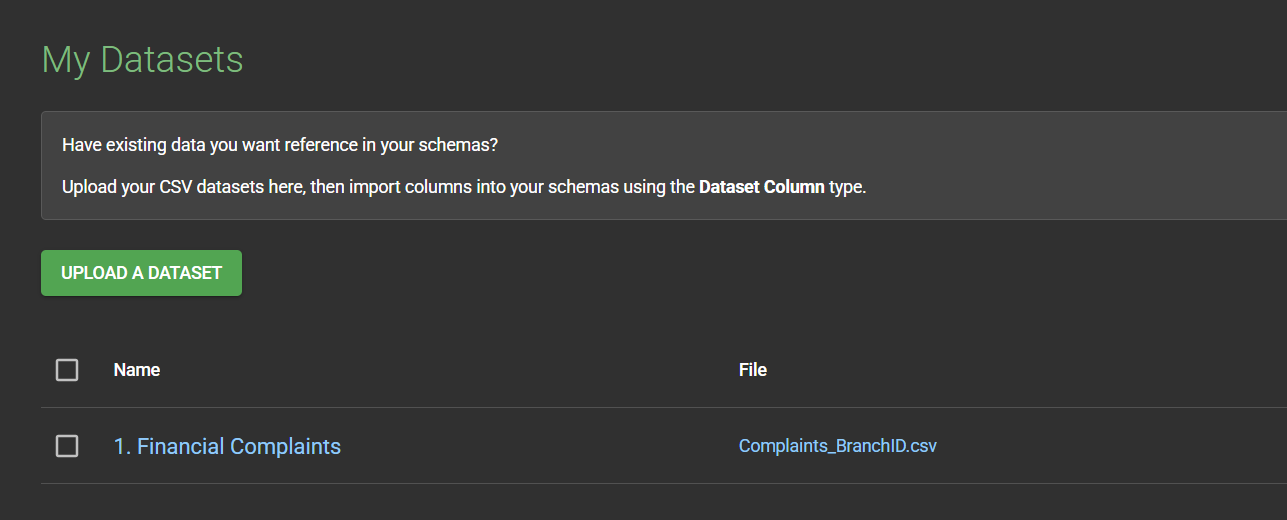
Click UPLOAD A DATASET, name your uploaded file, and select your local file containing the ID values you want to eventually join your mock data on. Make sure it is in .csv format and contains no sensitive information. Also note the distinct count of ID values, since you’ll need it shortly.
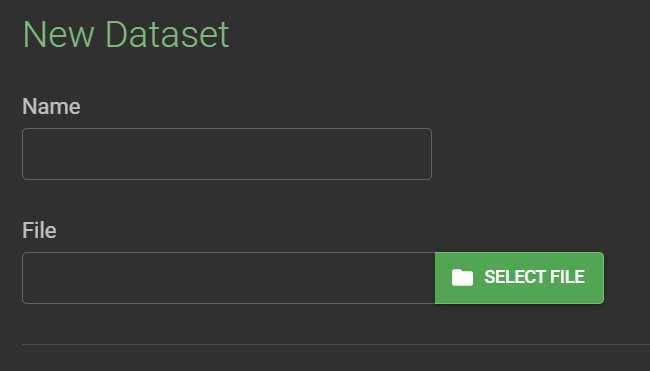
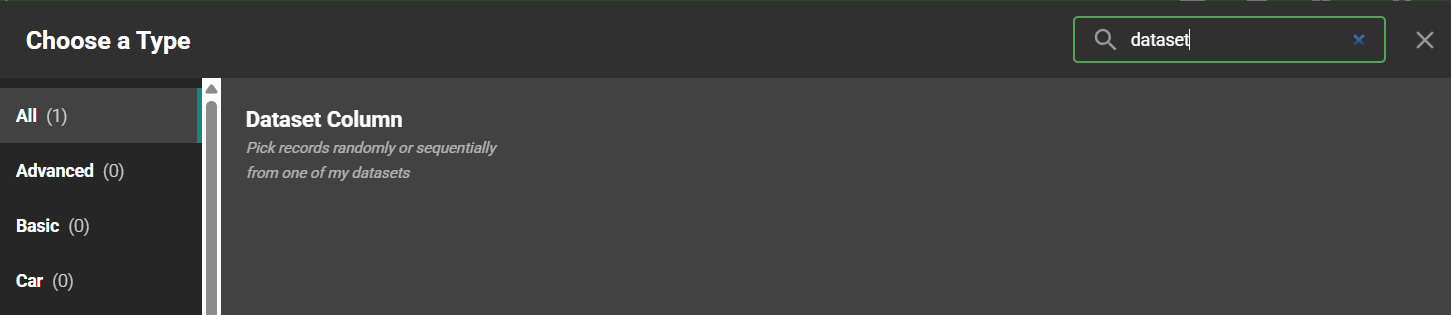
Next, return to the SCHEMAS tab and open your saved schema. Select the field you want to populate with your ID values and set its Data Type to Dataset Column.
This will return you to your schema, and in the new dropdown option boxes on your ID field, select your uploaded file, the original column name containing the ID values, and the order in which to use them (choose Sequential if you want to ensure every ID is included).

Before generating, make sure to set your number of rows properly. If you want each ID to appear once (with ordering set to Sequential), use the exact number of your distinct ID count, as a higher count will repeat values and a lower count will leave some IDs out. Once that’s set, save your schema and click GENERATE DATA.
That covers the basics of what Mockaroo can do, but there is plenty more to explore, from building your own mock API to creating mock relational databases to defining your own functions. Mock data lets you start your project sooner or practice freely with any kind of data, so don’t wait for the real thing to get started.